 User Guide
Hotspot Radius Manager — install & user guide
Hotspot Radius Manager is the RADIUS server and admin portal behind your Wi-Fi. This guide takes you from a bare Ubuntu or Debian server to students logging in through your own router, then through everything your team will do day to day — users, speed plans, vouchers, the login page, sessions, logs and reports.
What it is
One server that decides who gets on the Wi-Fi, how fast, for how long — and remembers it.
Your routers and access points do not know your users. When someone connects, they ask a RADIUS server whether that person may log in. Hotspot Radius Manager is that server, together with a web portal where your team creates the accounts, sets the limits and sees what is happening.
Each user gets their own speed, device and data limit, instead of a share of one connection. Every login attempt and every session is stored with the user, IP address, MAC address and access point, so “who had this IP at 3pm on Tuesday?” has an answer. It runs on your own server — no cloud, nothing to install on the devices.
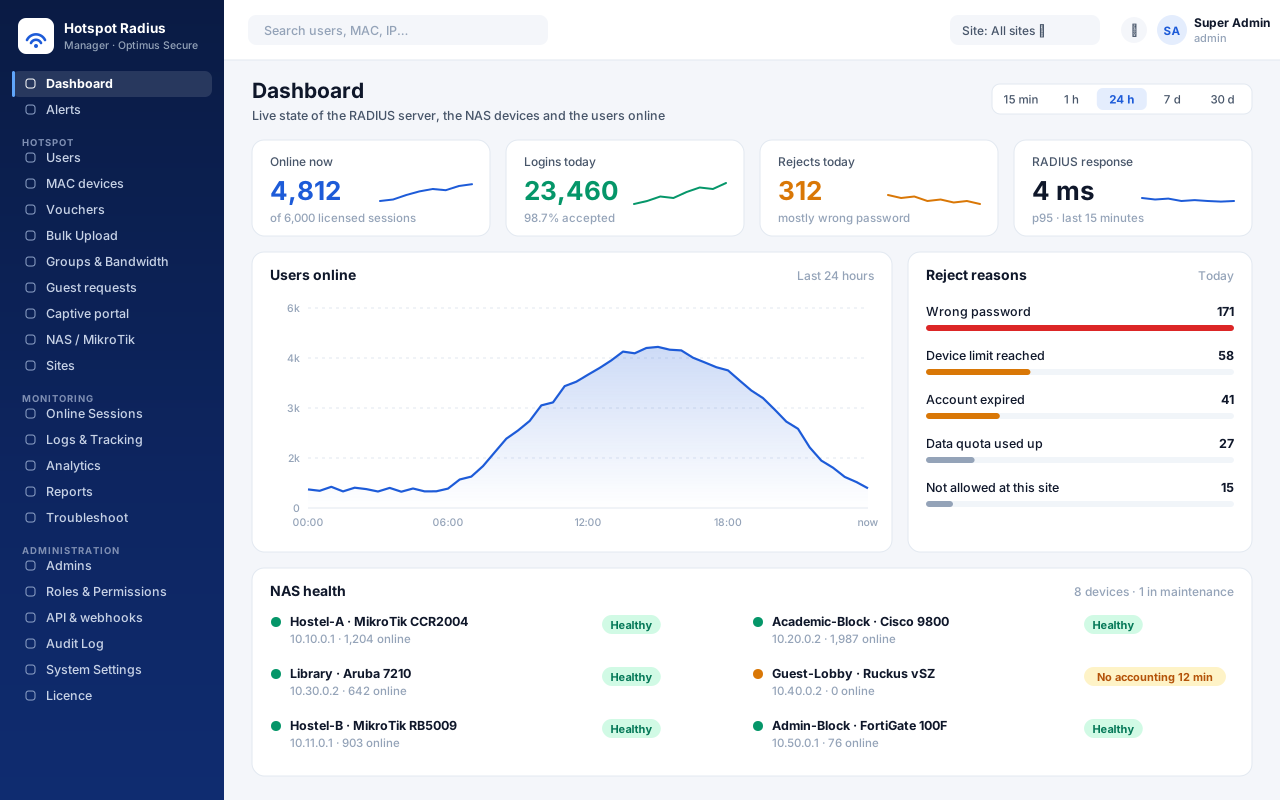
The dashboard — users online, logins and rejects today, RADIUS response time and router health. The data shown is an example, not a live network.
How it fits together
Three parts on one server. You only ever deal with the third.
Your router
MikroTik, Cisco, Aruba, Ruckus, Fortinet, Cambium or UniFi shows the login page and asks the server about each user over RADIUS (UDP 1812 / 1813).
The RADIUS server
FreeRADIUS checks the account and every limit, answers with the user's speed, and records the session. It can also tell the router to disconnect a user or change their speed.
The portal
The HTTPS web portal for your admins, and My Wi-Fi Account for users. Everything in this guide is done here.
Changes take effect straight away. Disable a user who is online and they are disconnected; raise a group's speed and everyone in it who is online gets the new speed without logging in again.
Before you start
One server, a few minutes, and the routers able to reach it.
| Operating system | Ubuntu 22.04 / 24.04 / 26.04 LTS or Debian 12, 64-bit, preferably a fresh install |
| CPU and memory | 2 GB RAM is enough for a small site. For tens of thousands of users, give it 4 cores and 8 GB or more |
| Disk | 5 GB to start. Logs grow with the number of users and how long you keep them |
| Network | A fixed IP address that every router can reach |
| Internet | Needed during installation and for the licence. Servers without internet can be licensed offline — see Your Licence |
| Root access | The installer needs sudo |
Ports
| Port | Direction | Used for |
|---|---|---|
| UDP 1812, 1813 | router → server | RADIUS login and accounting |
| UDP 3799 | server → router | Disconnect and speed change (CoA); the port differs by vendor |
| TCP 443 | browsers → server | Admin portal, My Wi-Fi Account, API |
| TCP 80 | Wi-Fi clients → server | Change password, free Wi-Fi and terms acceptance from the login page |
| UDP 123 | router → server | Time sync (optional) |
--no-firewall and set the rules yourself.Install in one command
Copy this into the server's terminal. It installs everything and starts the services.
Confirm the summary
The installer shows the server address it detected for the routers, and what it will do to the firewall, and asks you to confirm.
Let it set everything up
MariaDB, FreeRADIUS, nginx with HTTPS, time sync, the portal and a 15-day trial licence. A few minutes on a fresh server, most of it downloading packages.
Note the admin login it prints
At the end you see the portal address — https://your-server-ip — and a temporary admin password. It is shown only once.
Options go after bash -s --:
--server-ip IP | The address the routers use to reach this server, if the detected one is wrong |
--admin-user NAME | Name of the first admin (default admin) |
--no-firewall | Leave the firewall alone |
--keep-ports "3000" | Other TCP ports on this server that must stay open |
--yes | Do not ask for confirmation |
No internet on the server? Ask us for the bundle, copy it over, then run tar xzf hotspot-radius-manager-<version>.tar.gz, change into the folder and run sudo ./install.sh.
What gets installed, and where
Program and data are kept apart, so an upgrade can be rolled back cleanly.
| Portal address | https://your-server-ip |
| Program files | /opt/optimus/hotspot-radius-manager/current |
| Settings | /etc/radius-manager/app.env |
| Secrets | /etc/radius-manager/secrets.env |
| HTTPS certificate | /etc/radius-manager/ssl/ |
| Data and backups | /var/lib/hotspot-radius-manager/ |
| Services | freeradius, mariadb, radius-manager-api, nginx, chrony |
| Install log | /var/log/hotspot-radius-manager-install.log |
| Server tools | sudo hotspot-radius-manager status | rollback | open-portal |
First login
Change the temporary password, then set up how your admins sign in.
Open the portal
Browse to https://your-server-ip. The server starts with its own certificate, so the browser warns once — choose Advanced → Proceed. You can install your own certificate later under Security.
Sign in and set a new password
Use the admin name and temporary password the installer printed. You are asked for a new password straight away: at least 8 characters with a capital, a small letter, a number and a symbol.
Turn on two-step login
Your name (top right) → Login security → two-step login, and scan the code with an authenticator app. Save the recovery codes it gives you.
sudo hotspot-radius-manager emergency-admin on the server for a 24-hour emergency account.Your licence
What this installation is allowed, and how to extend it.
A new installation gets a 15-day trial with every feature, the first time it reaches the licence server. The banner at the top of the portal counts the days down. The Licence page shows the plan, the expiry date, the limits — user accounts, routers (NAS), admins and users online at once — and the server's Machine ID.
| Buy or extend | Contact Optimus Secure. An extension is picked up automatically within six hours, or at once with Check now |
| Licence key | Licence → Activate a licence key and paste the key you received |
| No internet | Send us the Machine ID. Import the signed licence file we return under Offline activation |
| Archived users | Do not count towards the user limit — archive last year's batch instead of deleting it |
Add your router
Every router or controller that sends logins is a NAS. The server answers only the ones you add.
NAS / MikroTik → Add device
Give it a name you will recognise (Hostel-A), choose the Device type — MikroTik, Cisco, Aruba, Ruckus, Fortinet, Cambium, UniFi or generic RADIUS — and enter the IP address the router sends RADIUS from. A strong shared secret is generated for you.
Copy the configuration
When you save, the portal shows the commands or settings for that vendor. For MikroTik it is a script: open Winbox → New Terminal and paste it. It adds the RADIUS server, turns on disconnect / speed change (CoA), RADIUS login and accounting in the hotspot profile, and time sync from this server.
Watch the onboarding check
The NAS page tests the router live: can the server reach it, is it blocked by the firewall, does the secret match, has the first login and the first accounting record arrived. Each failed check tells you what to fix.
src-address on its /radius entry to the address you entered here. Otherwise requests arrive from a different address and are refused as an unknown client.Give each NAS a site, building and floor so reports and alerts say where. Use Maintenance before planned work so a router going quiet raises no alarm. Secrets can be rotated in two steps without dropping a login.
The login page
Design the page users see on the Wi-Fi here, then put it on the router.
Open Captive portal. You can keep several portals — one for students, one for guests — and the one marked Default is offered on the NAS page.
| Design | Logo, colours, background, title and footer, with a live preview on a phone and a laptop |
| Texts & languages | English, हिन्दी and বাংলা. The phone's language is chosen automatically and the visitor can switch |
| Login methods | Any combination of account, voucher, mobile OTP, guest registration and free Wi-Fi |
| Terms & privacy | Terms of use, optionally to be accepted before every login. Each change makes a new version, and you can see who accepted which version, when, from which device |
| Router setup | Download the page as a zip with the commands to install it, and add sites that must open before login, such as the college website |
Download the package
Router setup → Download, then extract the zip on your computer.
Copy the folder to the router
In Winbox open Files and drag the folder in (inside flash/ on routers that have it).
Paste the commands
Copy commands and paste them in the router's terminal. They point the hotspot at the new page and add the walled-garden entries the page needs.
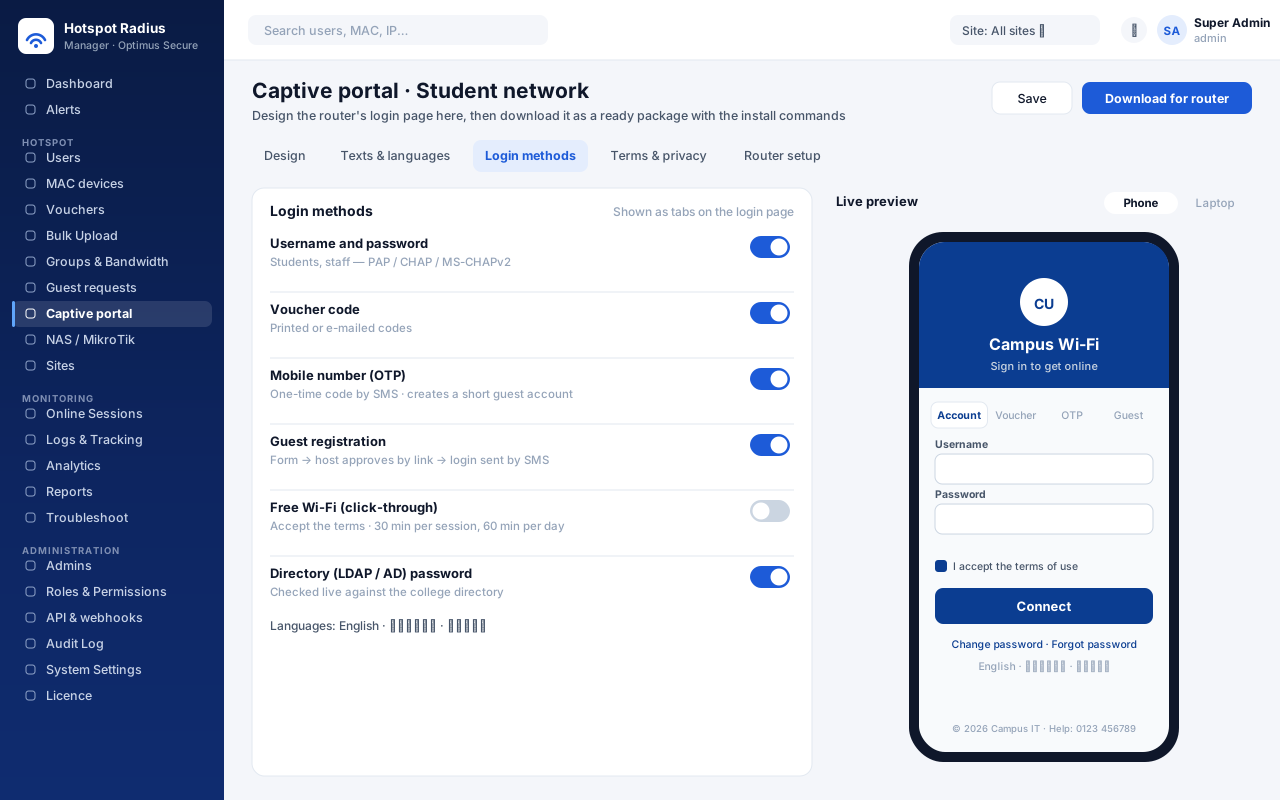
The captive portal designer with a live phone preview. The data shown is an example.
hotspot folder; pointing back to it undoes the change.Groups and speed
A group is a plan. Put users in it and they get its speed and limits.
Open Groups & Bandwidth → New group. Start from a template — Students, Staff, Guests, VIP, Night boost — or from scratch.
| Speed per user | Download and upload, with burst. Write 512k, 15M or 1G. Every member gets this speed for themselves, not shared |
| Devices | How many devices one user may have online at once |
| Time | Session and idle timeout, online time per day and per month |
| Data | Monthly data quota |
| Fair usage | After X GB a day or a month the speed drops to a lower one, even in a running session |
| Allowed hours | Days and hours when the group may log in, and a different speed at night |
| Network | VLAN, MikroTik address list and IP pool for the group's users |
Change a group and everyone in it who is online gets the new speed at once. One user needs something different? Open the user → Edit → Set this user's own speed & limits. Every change to a group is versioned with who, when and a note, and can be restored.
Users
One account per person, with a group, a validity and their devices.
| Add one | Users → Add user. Leave the password empty and one is generated |
| Numbered accounts | The username generator creates accounts from a prefix and a number, with printable login cards |
| Validity | A start and an expiry date per user. Expired accounts are refused with a clear message |
| Devices | Limit devices per user, or allow only devices registered by MAC |
| Own fields | Roll number, hostel, room — text, number, date or list fields you add, usable in search, filters, import and export |
| Find someone | Search by name, username, mobile, email or MAC. Save a filter as a view and share it with other admins |
| Bulk actions | Select users — or Select all matching — then enable, disable, change group or speed, set or extend expiry, reset passwords with printable cards |
| Archive | Hide last year's batch without deleting it. Archived users do not count towards the licence and can be restored |
Opening a user shows everything on one page: status, devices, data used this month and in total, sessions, login history and every change made to the account. Disabling a user who is online disconnects them.
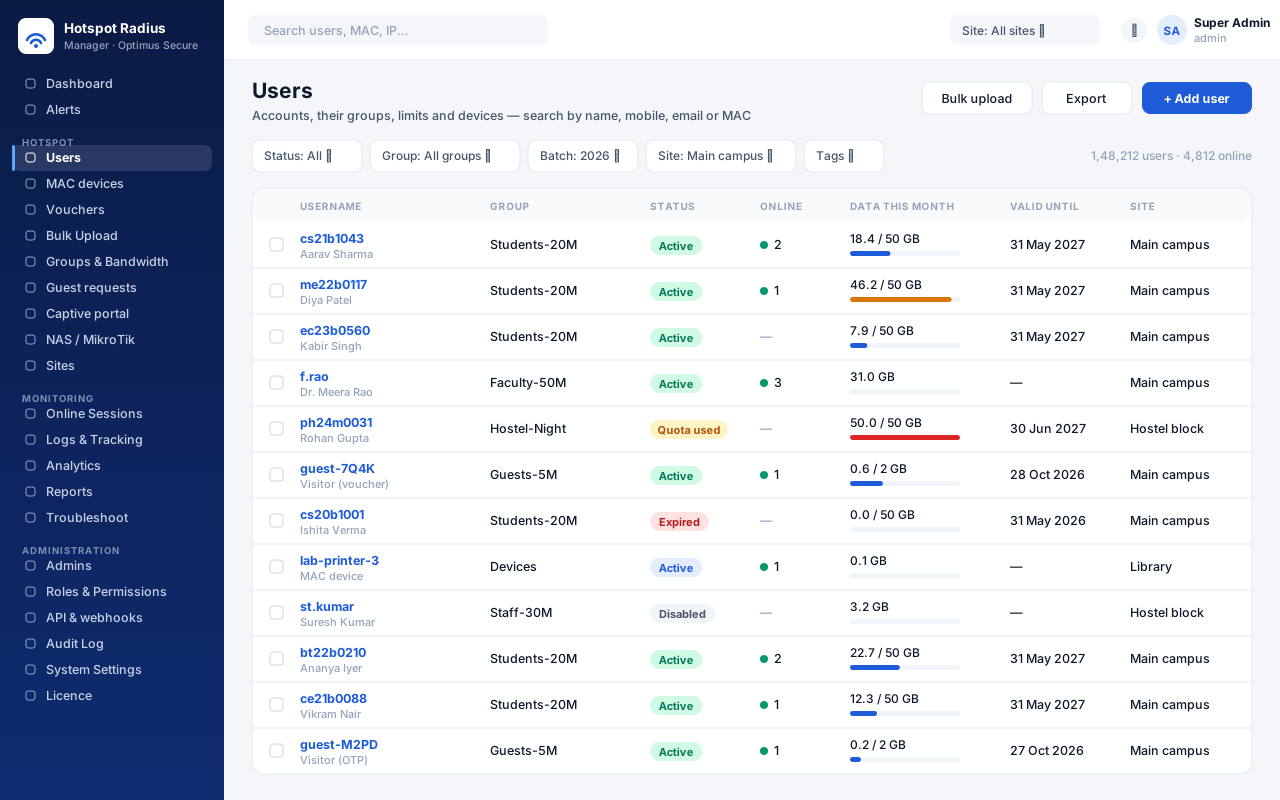
The Users page. The data shown is an example, not a live network.
Bulk upload
A whole year's admissions from one spreadsheet.
Download the template
Bulk Upload → Excel template or CSV template, and fill in one row per user. The batch defaults to the current year.
Check the file
Check file shows what will be created and lists every row with a problem, before anything is written.
Start the import and keep the result
Start import. The result file contains the generated passwords — hand it over or print the login cards, then store it safely.
LDAP / Active Directory login
Let people log in to the Wi-Fi with the password they already have.
Open Directory (LDAP / AD) and add your Active Directory or OpenLDAP server: address (prefer ldaps://, and paste your CA certificate if it is your own), a read-only service account and the base DN. Add a second server for failover.
Use Test connection and Try a login, then map directory groups to your plans — Students to Students-20M, Faculty to Faculty-50M. Passwords are checked against the directory at every login and are never stored here. The optional Directory sync creates the accounts in advance and disables people who have left.
Vouchers
Ready-made logins for visitors: create a batch, print cards, hand them out.
Vouchers → New voucher batch. Choose how many codes (1 to 10,000), the group, and the limits: valid for a time from first login or from creation, a “use before” date, total data and time, and devices. A batch can be limited to certain sites or routers.
Download the batch as a PDF of 8 to 24 cards per page, each with a QR code that logs the visitor straight in, or export the codes. Each code shows its state — not issued, issued, in use, used, expired or revoked — with when it was redeemed, and the batch shows the value of the codes sold. Codes that should no longer work can be revoked.
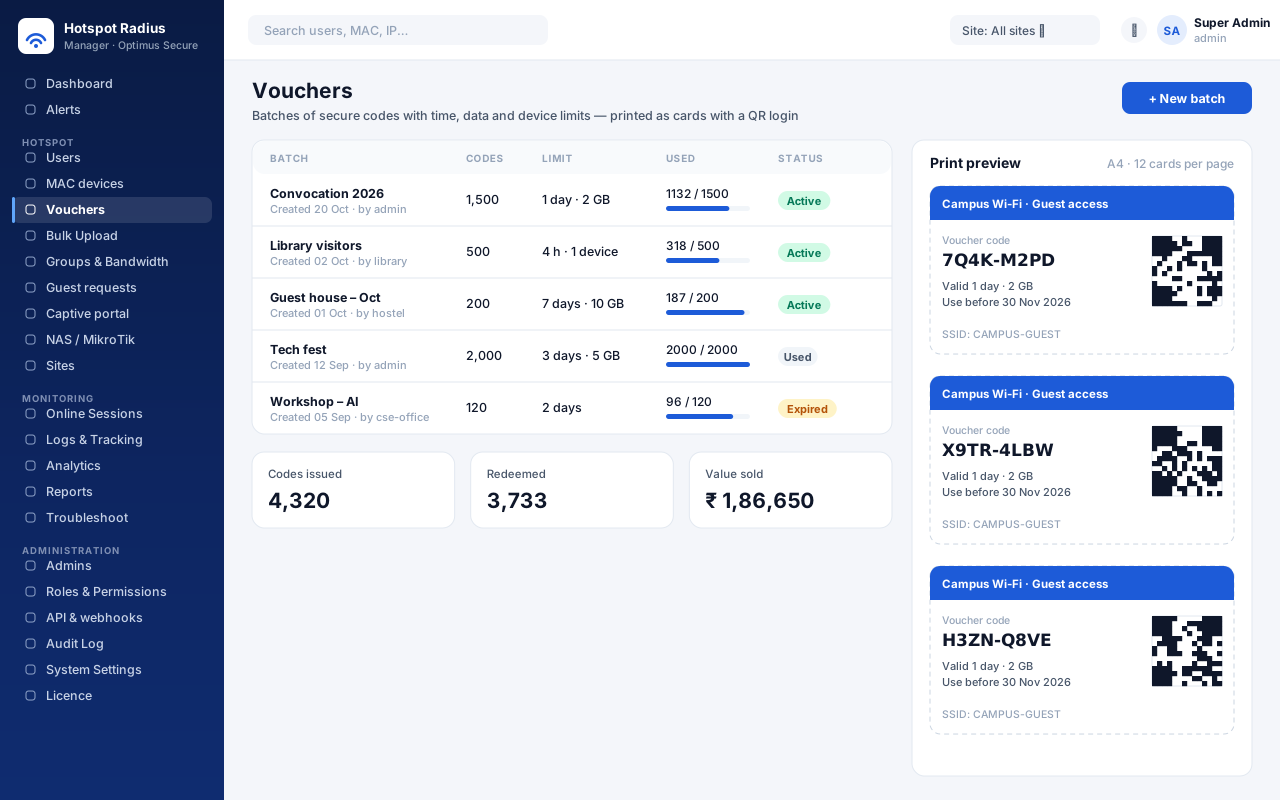
Voucher batches and the print preview. The data shown is an example.
Guests, OTP and free Wi-Fi
Visitors who get online without anyone creating an account for them.
| Mobile OTP | The visitor enters a mobile number and gets a code by SMS (or email). A short guest account is created. Needs an SMS gateway under System Settings → SMS & OTP |
| Guest registration | The visitor fills a form. An admin, or the person they are visiting, approves it by a link, and the login is sent by SMS or email. Pending ones are under Guest requests |
| Free Wi-Fi | Accept the terms and connect. A short login tied to that device, with minutes per session and per day you choose. Consent is recorded |
Turn each one on in Captive portal → Login methods. The SMS page supports a generic HTTP template, MSG91 (DLT) and 2Factor, with a fallback gateway and a log of every message and its cost.
MAC devices
Printers, smart TVs and IoT that cannot type a password.
Register the device under MAC devices with its MAC address and a group. The router logs it in by its MAC without showing a login page, and the account works only for that MAC. Devices appear in sessions, logs and reports like any other user, so you can still see what they did.
Dashboard
The first page: is everything working, and how busy is it.
Users online now, logins and rejects with their reasons, logins per second, RADIUS response time, traffic, and the server's CPU, memory and disk — for the last 15 minutes up to 30 days. Below it, every router with when it last sent a login and an accounting record. A router that has gone quiet stands out here before users start calling.
Online sessions
Who is online, where, at what speed.
Online Sessions lists every user online with IP, MAC, router, live speed, data used and how long they have been on. Select one or many and Disconnect — the router confirms it. The Issues tab finds stale sessions, users over their device limit, one MAC on many accounts and routers the server does not know.
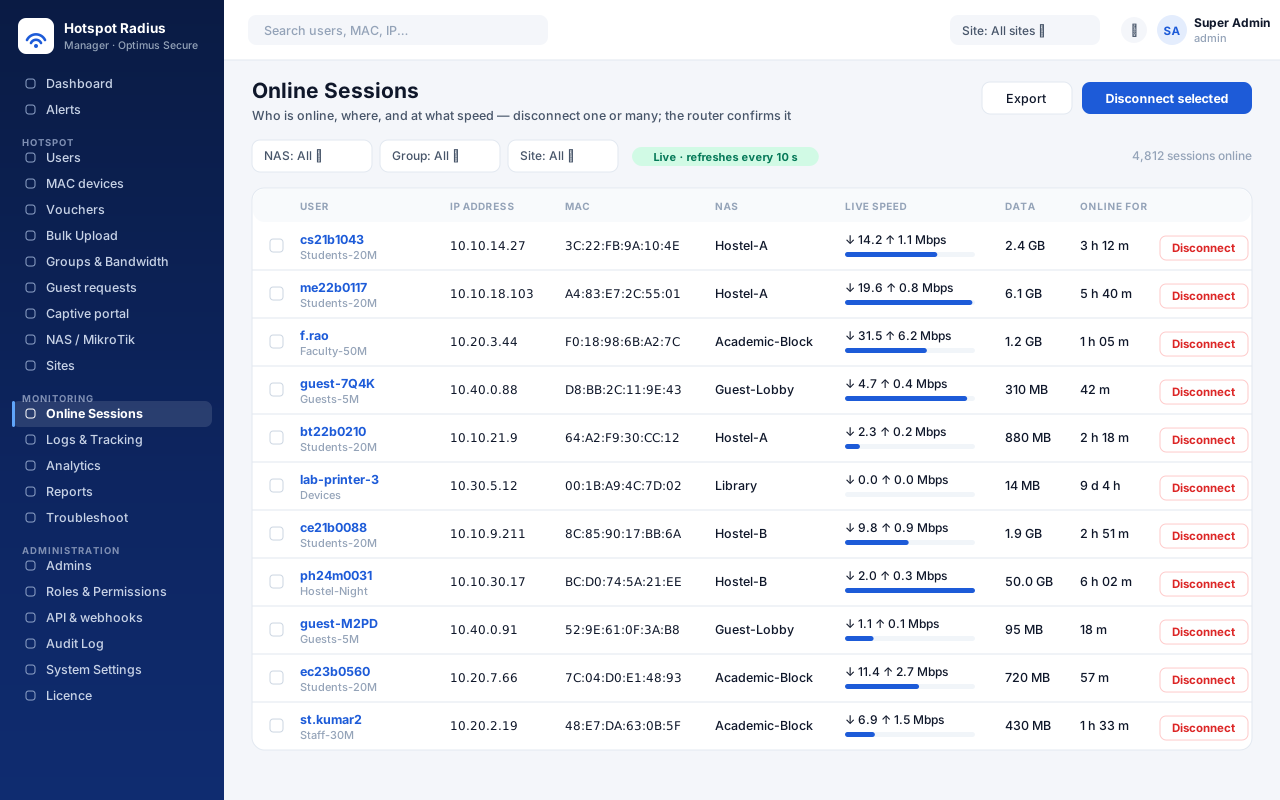
Online sessions. The data shown is an example, not a live network.
Logs and tracking
The record you need when someone asks who did what.
| Authentication log | Every login attempt: who, when, from which MAC and IP, through which router, accepted or rejected and why |
| Session history | Login and logout times, duration, upload and download per session |
| IP → user lookup | A complaint gives only an IP address and a time? Enter both and see who had that address then, with the login attempts from that IP around that time |
Filter by username, IP, MAC in any format, router and time, and Export CSV for an investigation. How long records are kept is set under System Settings → Log retention — CERT-In expects at least 180 days. Older records are archived rather than lost.
Troubleshoot
“I can't log in” — find out why in a minute.
Type a username or a MAC address. The page runs every check — account, password, expiry, devices, time and data limits, site — shows the recent attempts with the reason for each rejection, and tells you the fix. Test a login tries the password from the portal. The NAS & network tab shows routers blocked by the firewall, unknown clients and wrong secrets. The live feed shows each request as it arrives — ask the user to try now and watch.
Reports and analytics
Numbers for management, on demand or on a schedule.
Reports has 18 reports — users, usage, top users, logins per router, peak online, outages, vouchers, SMS, admin activity, sites and more — as PDF, Excel or CSV. Schedule any of them daily, weekly or monthly to a list of email addresses.
Analytics shows the trends: peak users online, active users, data and logins, a weekday-by-hour map of the busiest times, and a forecast of when you will reach the licence limit, your peak capacity or a full disk.
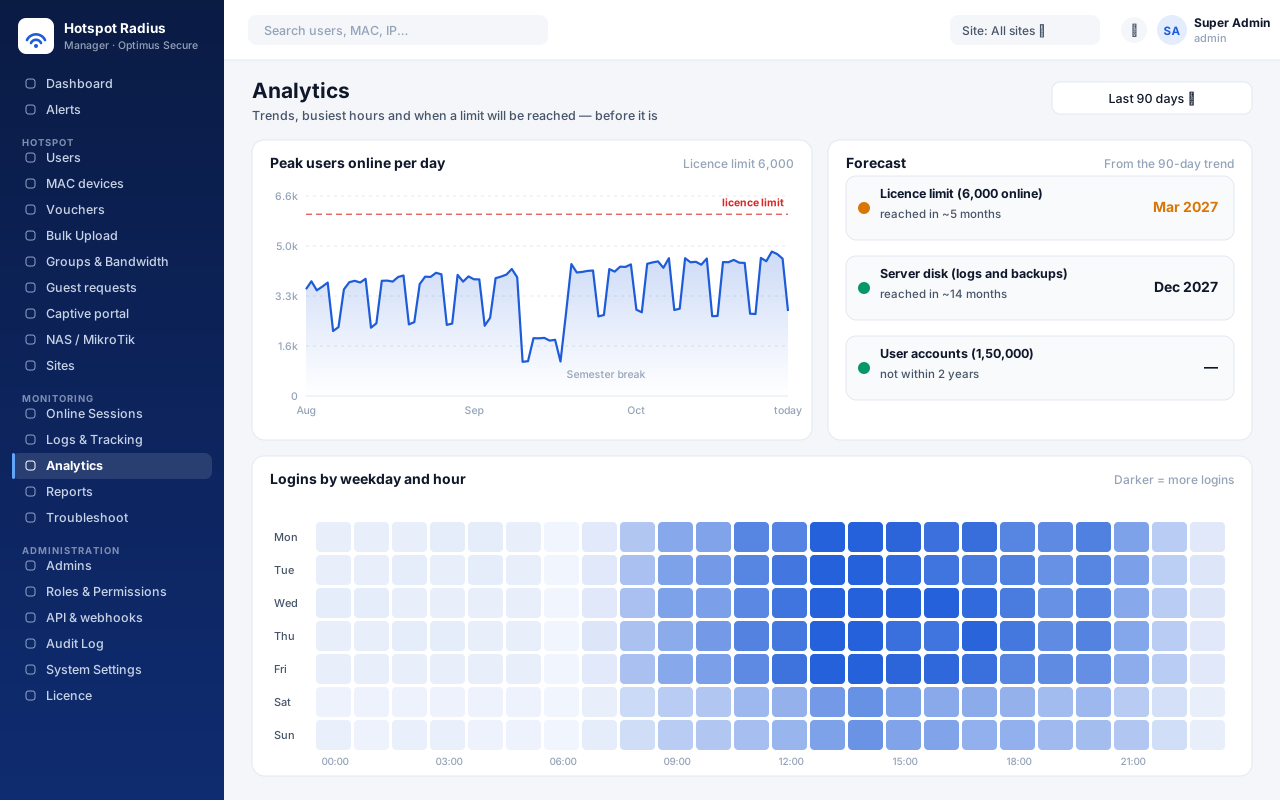
Analytics. The data shown is an example.
Alerts
Hear about a problem before the users do.
Built-in rules cover RADIUS or the database down, a router offline or no longer sending accounting, a spike in rejects, CPU, memory or disk, licence and certificate expiry, and failed backups. Alerts arrive by email, webhook (Slack, Microsoft Teams, Google Chat) and the bell in the portal.
Acknowledge an alert with a note so others know it is being handled. Unacknowledged alerts send reminders and escalate to a second list; a resolved message follows when the problem clears. Mute a rule, or put a router in maintenance, for planned work.
My Wi-Fi Account
A self-service page for your users, so fewer of them call you.
Users open https://your-server-ip/my and sign in with their Wi-Fi username and password. They see their validity, speed, limits and usage, their devices online (and can log one out), their session history, change or reset their password with a code by SMS or email, register devices and raise a request. Requests arrive under User requests. Which features users get, and a notice to show them, are set on the same page.
Admins, roles and sites
Each admin sees and changes only what they need to.
| Role | What it can do |
|---|---|
| Super Admin | Everything |
| Admin | Users, groups, routers, sessions and logs — not admins or system settings |
| Site Admin | Like Admin, but only for their own sites |
| Operator | Create and edit users, see sessions and logs |
| Viewer | Look, change nothing |
Build your own roles from 38 separate permissions under Roles & Permissions. Under Sites, split the network into campuses or buildings: users, routers, groups and voucher batches belong to a site, and an admin limited to a site sees only its users, sessions, logs, reports and dashboard. Per site you can also decide whether its users may log in everywhere or only at their own site's access points.
Every admin action is recorded in the Audit Log with who, when and from where. The log is hash-chained: Verify integrity detects any record that was changed or removed.
Security
System Settings → Security & HTTPS.
| Two-step login | Authenticator-app codes with recovery codes; can be required for every admin |
| Microsoft sign-in | Admins sign in with Microsoft Entra ID. Entra groups map to roles and sites, and password login can be limited to Super Admins |
| Portal access | Limit the admin portal to IP addresses or networks you trust. The users' pages stay reachable |
| Sessions | Lockout after failed passwords, idle timeout, session limit, account expiry for temporary staff, log out everywhere |
| Sensitive actions | Your password is asked again before passwords are shown, secrets exported, backups restored or admins changed |
| HTTPS certificate | Keep the built-in certificate authority, or install your own (PEM or PFX). You are warned before it expires |
API, webhooks and SIEM
Let other systems create users, sell vouchers and hear about events.
| REST API | /api/v1 for users, devices, groups, routers, sessions and disconnect, logs, vouchers, guests, reports and alerts. The OpenAPI description loads into Postman or Swagger |
| API keys | Created under API & webhooks, each with scopes, an IP allowlist, an expiry and a rate limit, and a log of its requests |
| Webhooks | Events for users, sessions, rejects, vouchers, guests and alerts, signed with HMAC and retried up to six times |
| SIEM | System Settings → SIEM: logins, sessions, admin activity and alerts as JSON, CEF or LEEF over syslog (UDP, TCP or TLS), or to Splunk HEC. Nothing is lost while the SIEM is down |
| Syslog | System Settings → Syslog forwarding: plain key=value logs to up to 10 servers, with Send test |
System settings
Everything about the server itself, one tab each.
| Time & NTP | Time servers and time zone, and time for your routers |
| Log retention | How long login and session records are kept |
| Services & server | Status and restart of each service; CPU, memory and disk |
| Backup & restore | See Backups |
| Disaster recovery | Off-site copies, scheduled restore tests and the standby server |
| SMS & OTP | SMS gateways and email for codes and guest logins |
| Branding | With the white-label option: your product name, logo, colour, footer and support contact across the portals, emails, PDFs and voucher cards |
Backups
A daily backup on the server, and a copy somewhere else.
The database is backed up every night and the recent ones are kept. Under System Settings → Backup & restore you can back up now, download, upload and restore — restoring asks you to type RESTORE. Backups can be encrypted with a passphrase.
Under Disaster recovery, send an encrypted copy to another server over SFTP after every backup, and have backups restored into a scratch database on a schedule, so you know they work before you need them.
Updating
Run the same command again.
The installer sees an existing installation and upgrades it in place. The database is backed up first, and your users, settings and secrets are kept. The previous version stays on disk: if anything misbehaves, sudo hotspot-radius-manager rollback puts it back.
sudo hotspot-radius-manager status | Version, services and licence at a glance |
sudo hotspot-radius-manager rollback | Go back to the previous version |
sudo hotspot-radius-manager open-portal | Clear the admin portal's IP allowlist if you locked yourself out |
sudo hotspot-radius-manager emergency-admin | A 24-hour Super Admin when nobody can log in |
sudo hotspot-radius-manager reset-mfa NAME | Turn off two-step login for an admin who lost their phone |
Troubleshooting
What the login page message means, and what usually goes wrong.
Messages on the login page
| Wrong username or password | The password is wrong, or the account does not exist |
| Your account is disabled | An admin disabled the account |
| Your account has expired | Its valid-until date has passed — extend it on the user's page |
| Bound to another device | The account is tied to a different MAC address |
| Maximum number of devices | The device limit is reached. The user can log a device out from My Wi-Fi Account |
| Internet time used up | The daily or monthly time limit is reached |
| Monthly data quota exhausted | The data quota is used up |
| The login server is not responding | The router cannot reach the server — see below |
On the network and the server
| Router says the server is not responding | Is the NAS IP in the portal the address the router really sends from? Is the secret the same on both sides? Is the router's network allowed through the firewall? The Troubleshoot → NAS & network tab shows which one it is |
| Disconnect or speed change does nothing | On MikroTik run /radius incoming set accept=yes, and check the CoA port on the NAS page matches the router |
| Directory users cannot log in | The router must send PAP — see LDAP / Active Directory |
| Everyone is rejected | Run sudo hotspot-radius-manager status. Look at /var/log/freeradius/radius.log |
| The portal does not open | systemctl status nginx radius-manager-api and journalctl -u radius-manager-api -n 50. Locked out by the IP allowlist? sudo hotspot-radius-manager open-portal |
| Times in the logs are wrong | System Settings → Time & NTP; on the server, chronyc tracking |
| Licence banner, portal read-only | The trial ended or the licence server was unreachable for 14 days. Users still log in. Open Licence → Check now, or contact us |
Getting help
Tell us what you were doing and what you saw.
The quickest things you can send us are the output of sudo hotspot-radius-manager status,
a screenshot of the Troubleshoot page for the user or router in question, and the router model and
RouterOS / firmware version.