 User Guide
Orynexa — install & user guide
Orynexa is the syslog server and security analyzer for your whole network. This guide takes you from a bare Linux server to logs arriving from your firewalls, switches and controllers, and then through everything your NOC and SOC teams will do day to day — searching, watching devices, investigating users and addresses, handling security findings, alerts and reports.
What it is
Every log from every device, in one place, turned into answers.
Every firewall, switch, access point, controller and server on your network writes a log of what it does — each in its own format. Orynexa collects all of them, recognises each device from the shape of its logs, and stores them in one record you can search in seconds, months later.
On top of that record it answers the questions a network team is asked: who was on this address, what did this user do, which device has stopped sending, who is scanning or guessing passwords — and it proves it to an auditor with scheduled reports. It runs on your own server; nothing is installed on the devices.
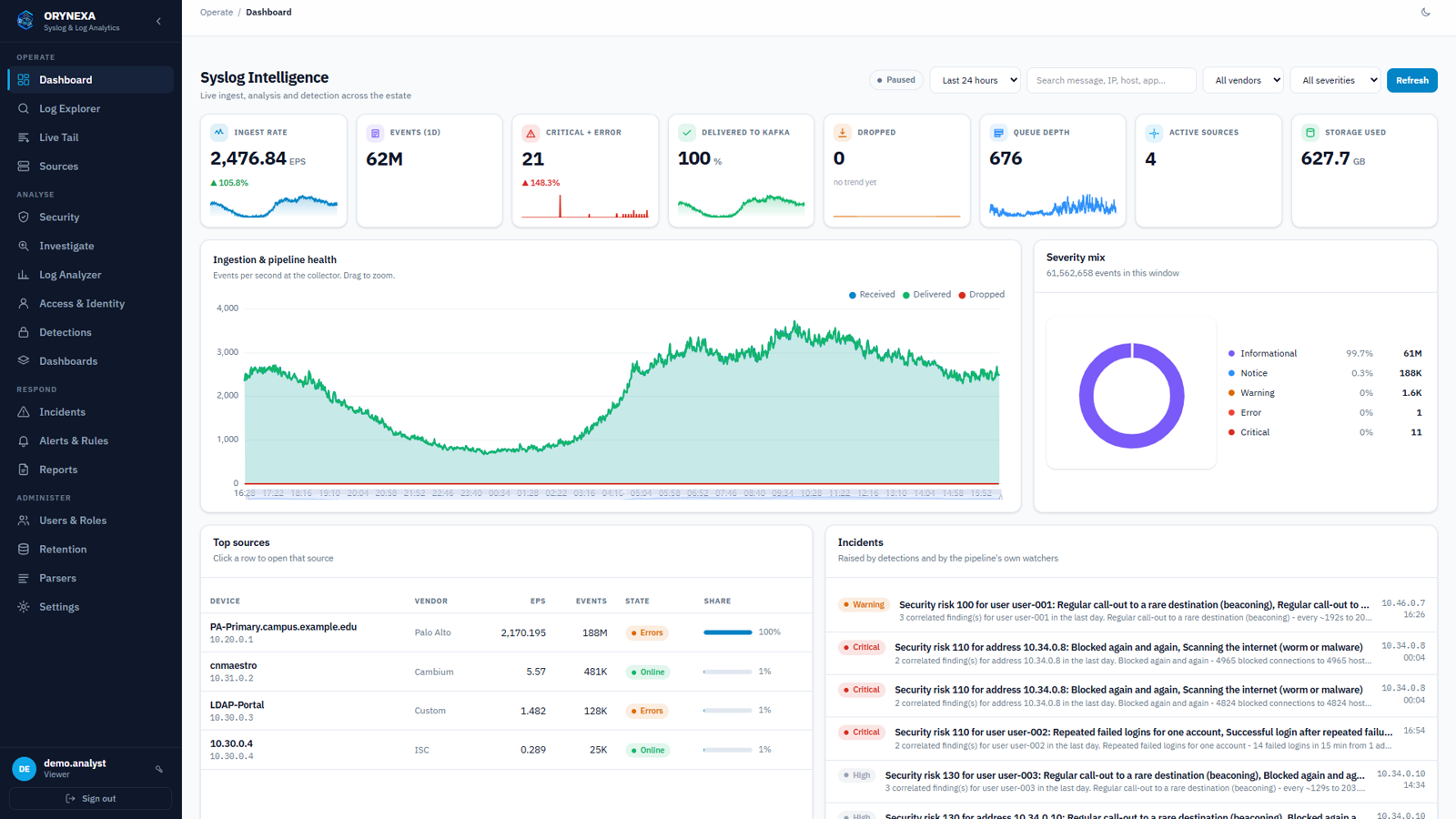
The dashboard — events per second, problems, whether every event is being stored, the busiest devices and open incidents. Addresses and names in this guide are demonstration data.
How it fits together
Your devices send; Orynexa does the rest; your team uses the web console.
Your devices
Firewalls, switches, controllers and servers send syslog to the Orynexa server on UDP or TCP 514, or TLS 6514. Nothing to install on them.
The pipeline
A collector reads each line and extracts users, addresses and actions; a disk buffer makes sure nothing is lost; a column store keeps billions of events compressed.
The console
The HTTPS web console for your team: search, device health, analyzer, security, investigation, alerts and reports. Everything in this guide is done here.
Every five minutes a security correlation runs over the logs of all devices, links what it finds to the user logged in on that address, and raises an incident when the risk is high.
Before you start
One Linux server sized for your log volume, reachable by your devices.
| Operating system | Rocky / Alma / RHEL / CentOS Stream, Fedora, Ubuntu or Debian — 64-bit, preferably a fresh install |
| Up to 5,000 events/s | 8 cores, 32 GB RAM |
| Up to 15,000 events/s | 16 cores, 64 GB RAM (20,000 events/s tested with no loss) |
| Disk | About 19 GB per day for every 1,000 events/s, plus 25%. Example: 2,500 events/s kept 180 days ≈ 10.5 TB. SSD or RAID-10 recommended |
| Network | A fixed IP address every device can reach; correct time (NTP) |
| Root access | The installer needs sudo |
Ports
| Port | Direction | Used for |
|---|---|---|
| UDP / TCP 514 | devices → server | Syslog |
| TCP 6514 | devices → server | Syslog over TLS |
| TCP 443 (80 redirects) | browsers → server | Web console |
Install
From the delivered folder, one command sets up everything.
It prepares the server
Installs the container runtime, opens the firewall for 80, 443, 514 and 6514, and applies kernel settings for high syslog rates.
It generates every secret
Database passwords, signing keys and a TLS certificate are created for this server and stored readable by root only. Nothing ships with a default password.
It starts and supervises the services
Every service runs under systemd and comes back after a crash or a reboot. A watchdog, the nightly backup and the self-checks are installed too.
It prints the address and admin password
Write the password down. Options: medium or large profile, --admin-password, --yes (no questions).
The first hour
Seven steps to a working, secured installation.
- Open
https://your-serverand sign in as admin. - Users & Roles — a named account per person: viewer, engineer or admin.
- Alerts & Rules → Email & system alerts — your SMTP server, then send a test.
- Alerts & Rules — switch on the ready rules you want and choose who receives them.
- Point your devices at the server (next section) and watch them appear in Sources.
- Settings → Time — your NTP servers, then Apply to system.
- Reports — schedule the weekly analyzer report and the monthly compliance report.
Send logs to Orynexa
Point each device's syslog at the server. Prefer TCP or TLS where the device supports it.
Palo Alto Networks (PAN-OS)
- Device → Server Profiles → Syslog: the Orynexa address, port 514, UDP or TCP, format BSD.
- Objects → Log Forwarding: match lists for traffic, threat and url to that profile.
- On each security rule: Log Forwarding = that profile, log at session end; URL categories you want reported set to alert.
- Device → Log Settings: System, Configuration, User-ID and GlobalProtect to the same profile. Commit.
Fortinet FortiGate
set status enable
set server "orynexa-address"
set port 514
end
Cisco switches and routers
logging trap informational
Linux servers (rsyslog)
*.* @@orynexa-address:514
Register and check
New senders wait for you with a sample line and a guess of what they are.
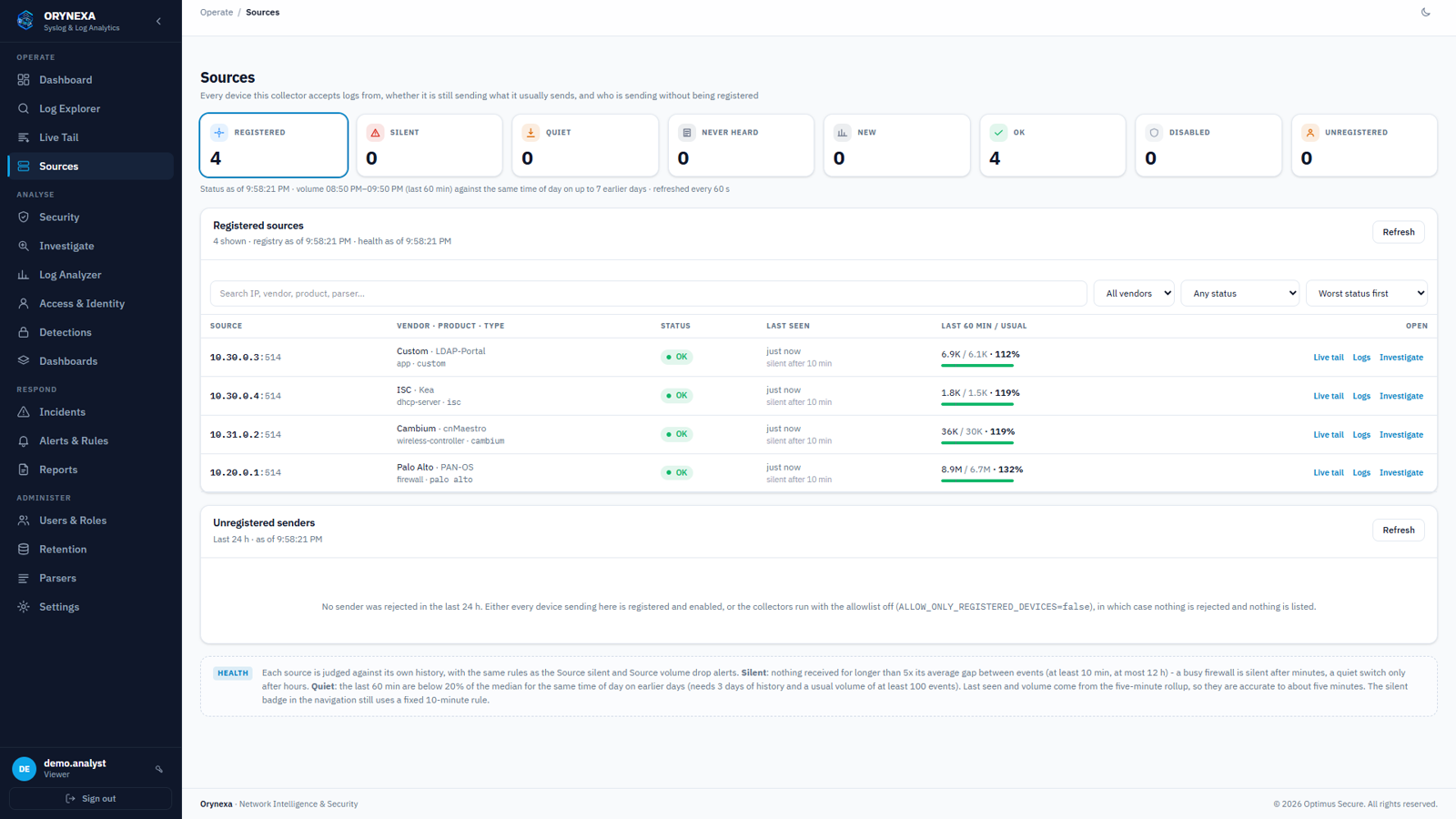
Sources → Unregistered senders: register one, several or all; vendor and type are filled in from the logs. A CSV of devices can also be uploaded.
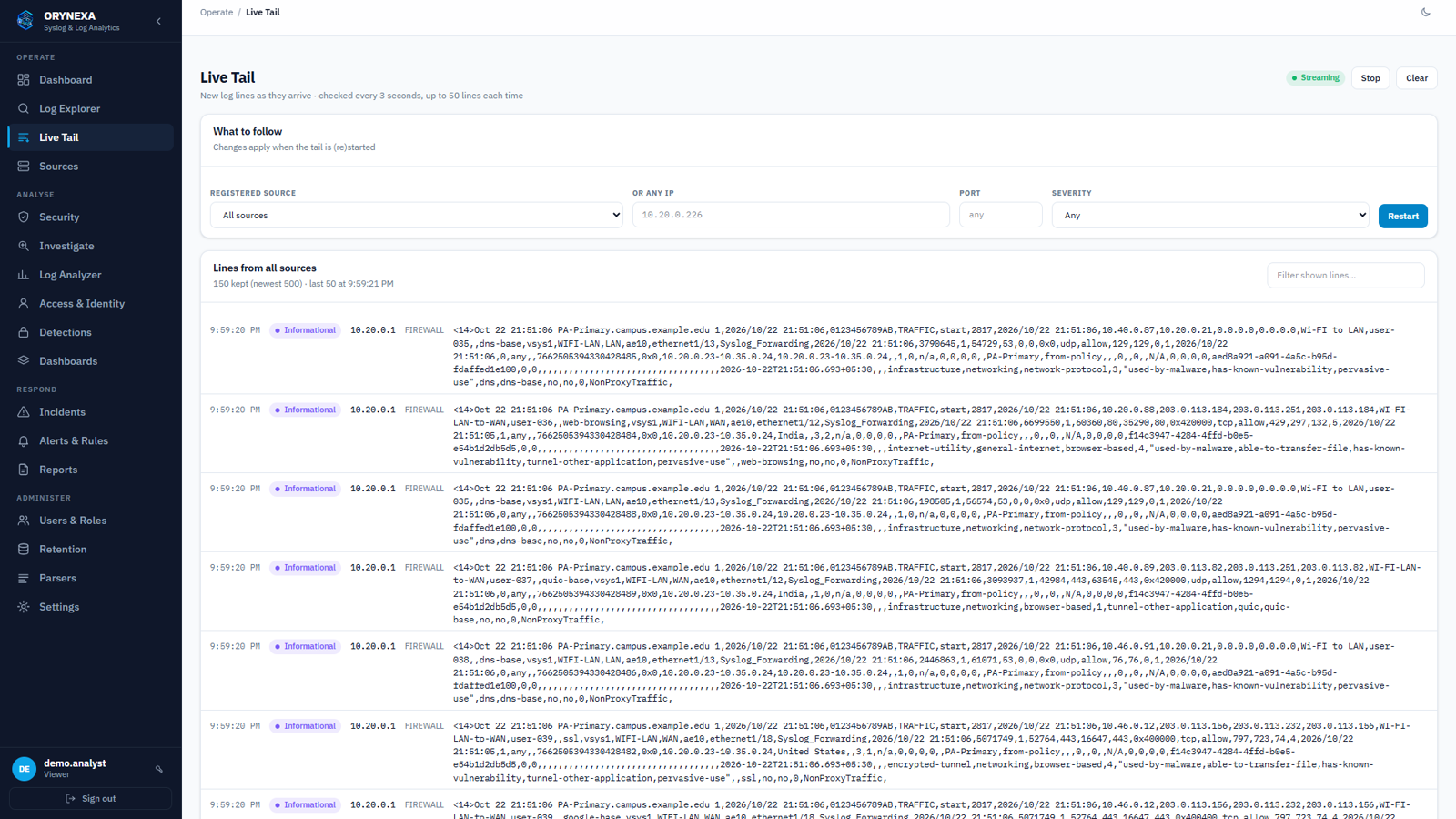
To check a device, open Live Tail, choose it, and press Start: its lines appear within seconds.
Teach a new device
Rule packs, not code — a new rule goes live in 30 seconds.
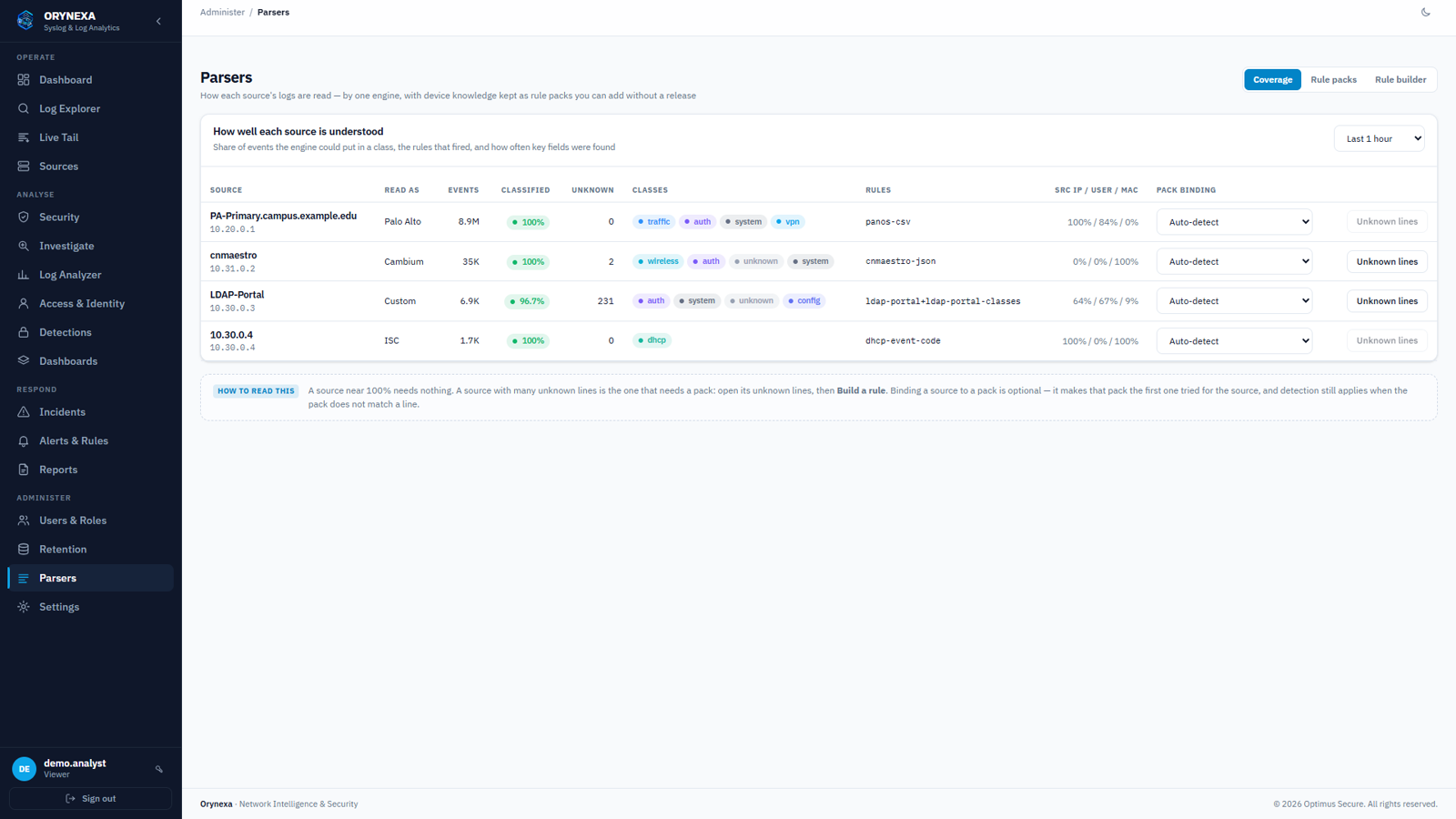
Parsers → Coverage shows how well each source is understood. A source with many unknown lines needs a rule.
Open its unknown lines
Click Unknown lines on the source.
Build the rule
In Rule builder, paste a few samples and mark which part is the user, the addresses, the action and the event class.
Test and save
It is tested against the real engine and loaded by the collector within 30 seconds — nothing restarts.
Dashboard
Is everything all right right now?
| Ingest rate | Events per second arriving now, with the trend |
| Critical + Error | Events at Error severity or worse in the window |
| Delivered / Dropped / Queue | Whether every received event is being stored — Dropped should be 0 |
| Pipeline health | Events per second over time; drag across the chart to zoom |
| Top sources & Incidents | The busiest devices, and the latest open incidents |
Sources and device health
Each device judged against its own normal.
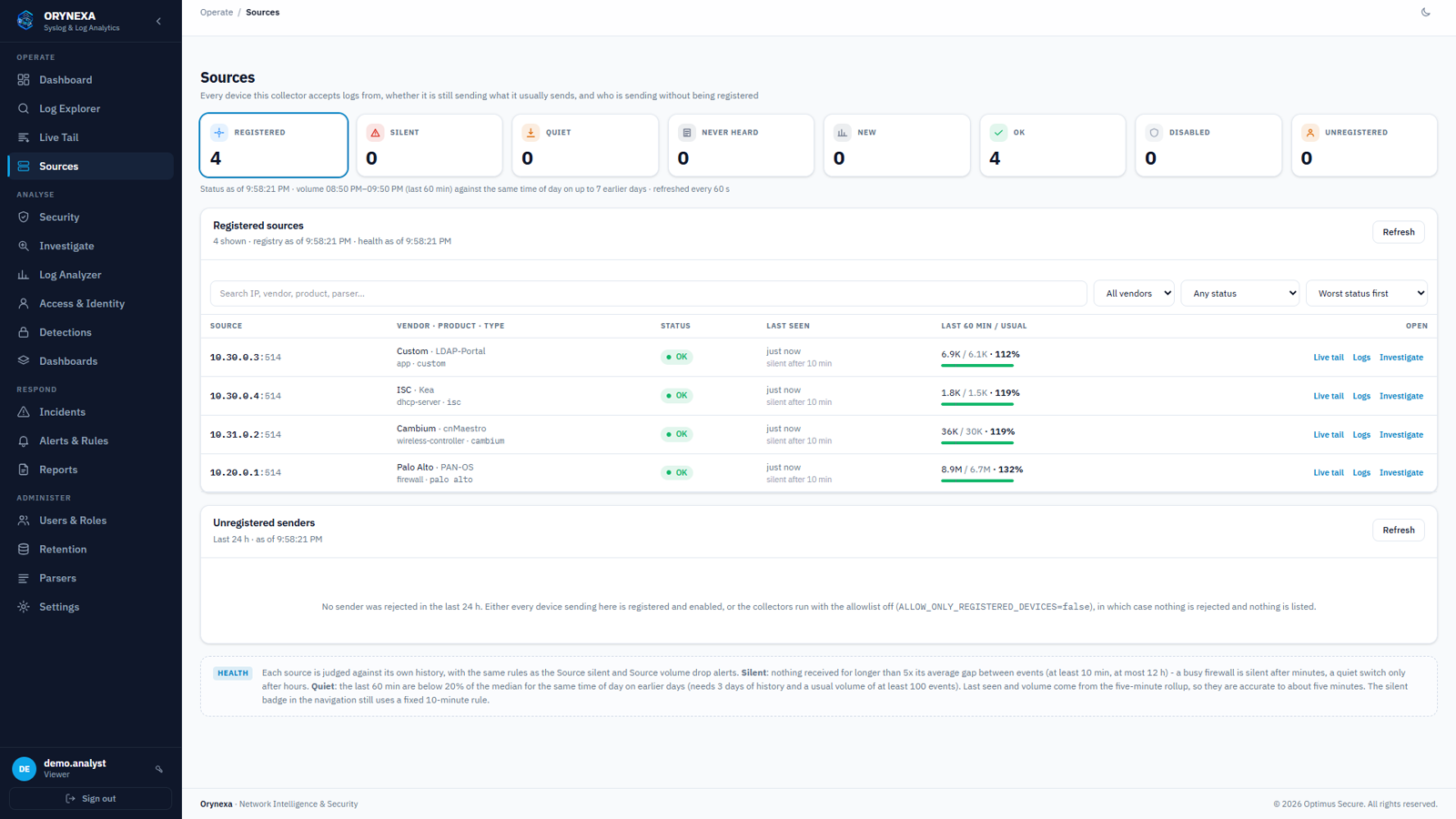
| Status | Meaning |
|---|---|
| OK | Sending as usual for this time of day |
| Silent | Nothing for much longer than its usual gap (at least 10 minutes) |
| Quiet | Still sending, but under 20% of its usual volume for this hour |
| New / Never heard | Registered recently, or nothing received yet |
Search and Live Tail
Any event in seconds; new events as they arrive.
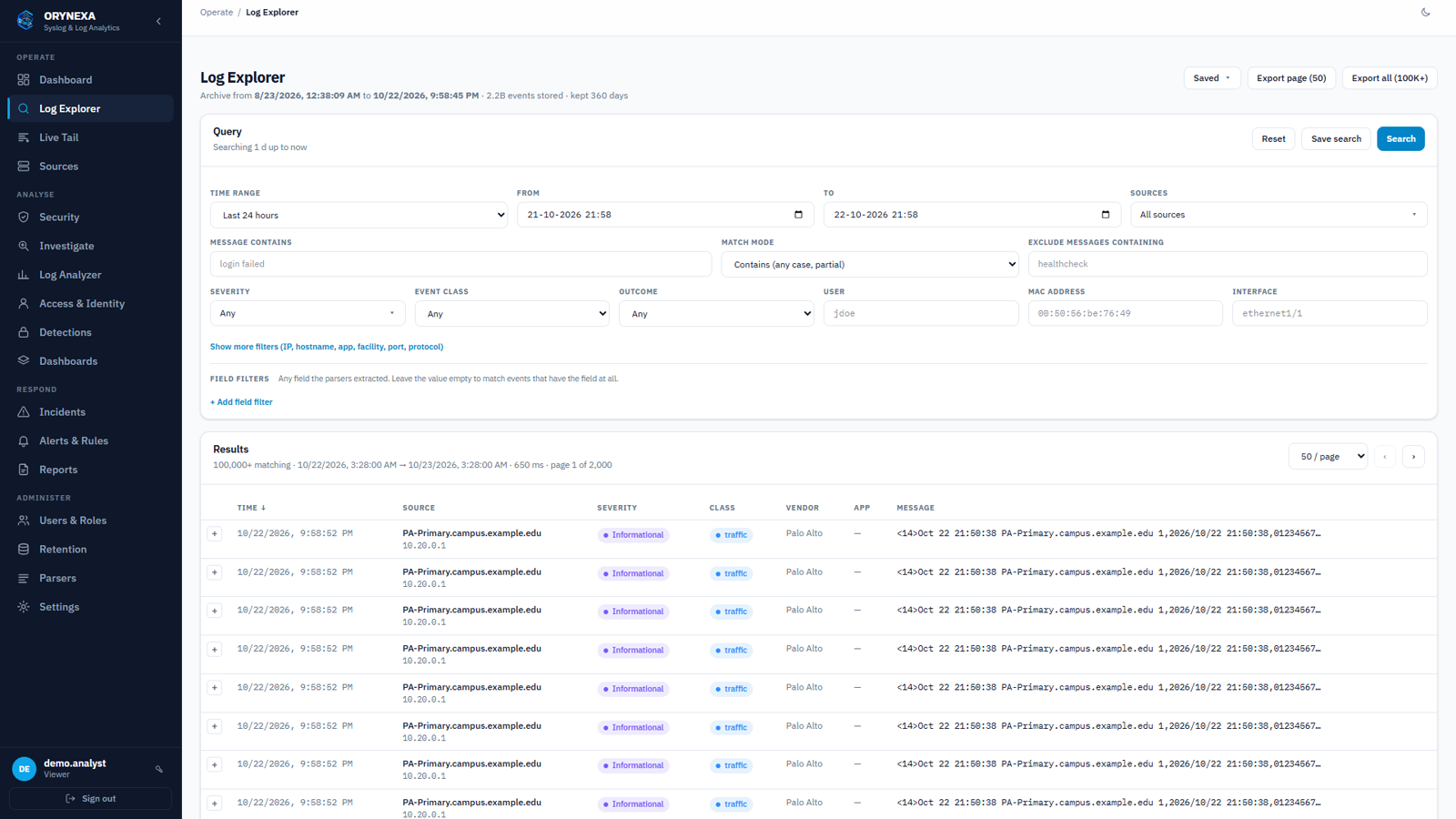
Log Explorer: time range, sources, message text, severity, event class, outcome, user, MAC, interface — and Add field filter for any field a device sends.
- Narrow time ranges come back fastest; field filters are faster than message text over long ranges.
- Save search keeps it for you or your team; Export writes CSV.
- Live Tail follows all sources, one device or any IP — the quickest way to check a device.
Log Analyzer
Views by what the logs are about, whichever vendor sent them.
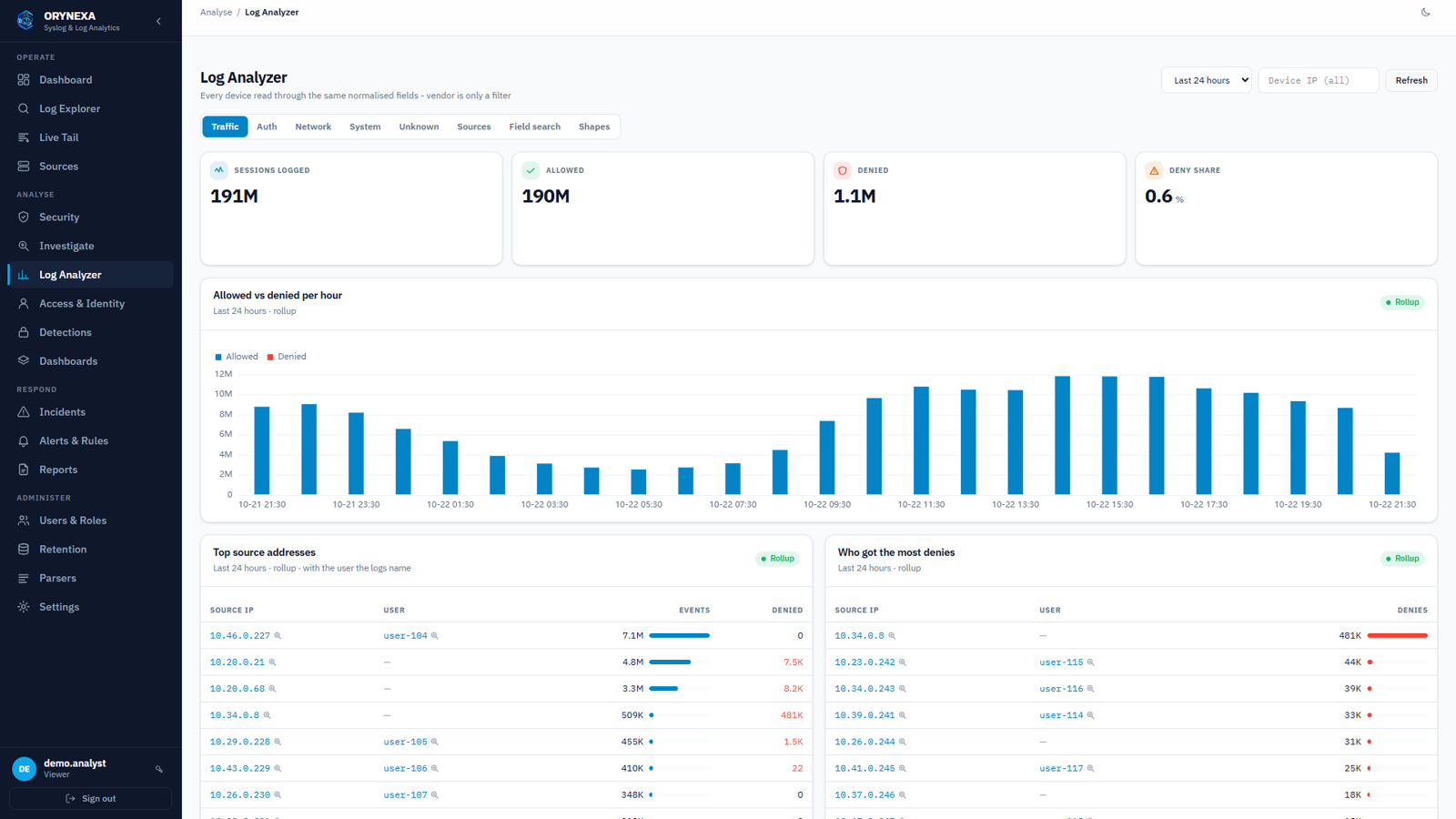
| Traffic | Sessions, allowed vs denied per hour, top talkers with the user behind them, who was denied most |
| Auth | Logins and failures across devices, directory and VPN; possible brute force |
| Network | Link up/down, spanning tree, MAC moves and DHCP from any switch or router |
| System / Unknown | Device system messages, and the kinds of message nothing has classified yet |
Security and findings
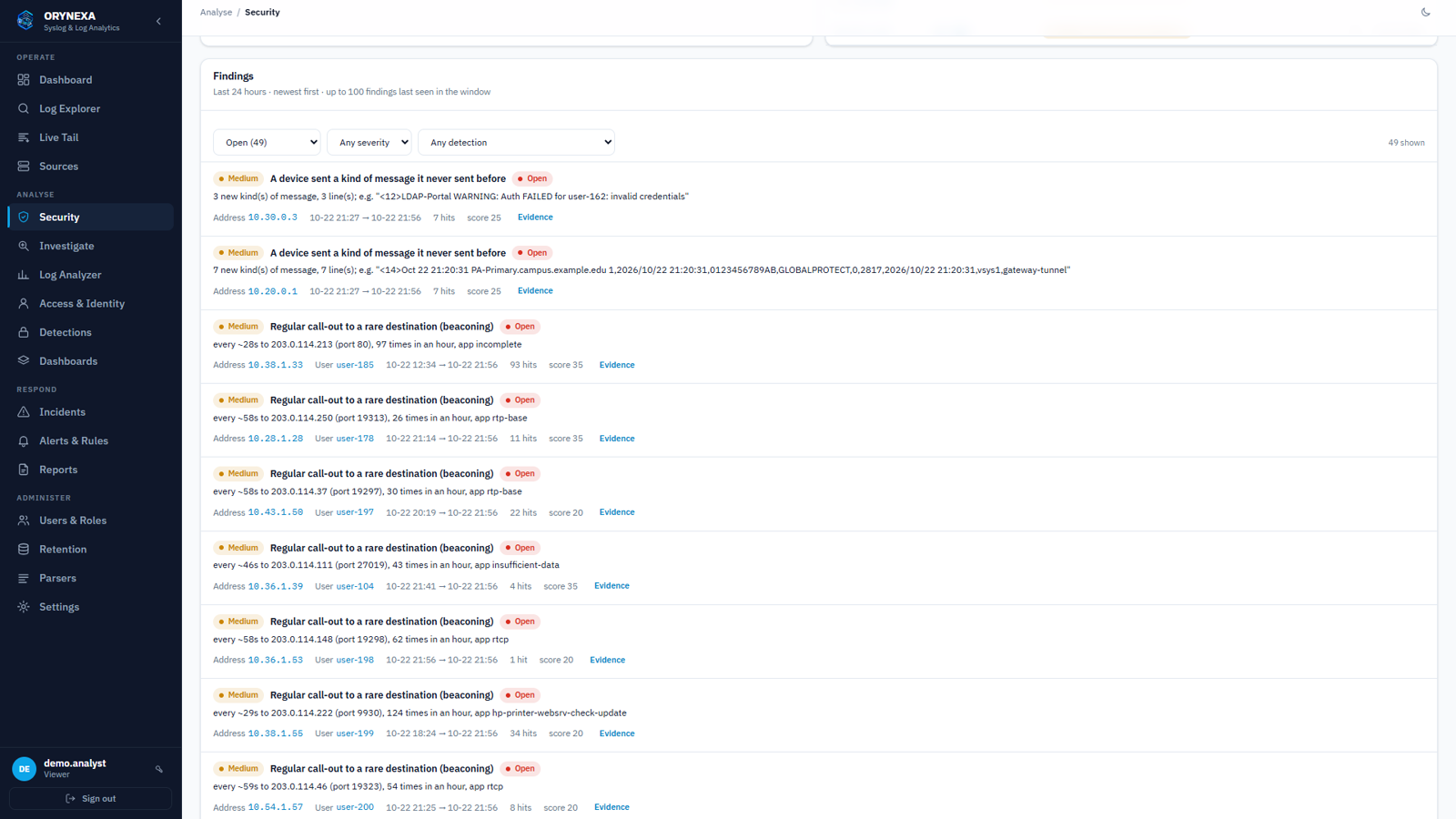
Seventeen detections every five minutes, tied to the user behind each address.
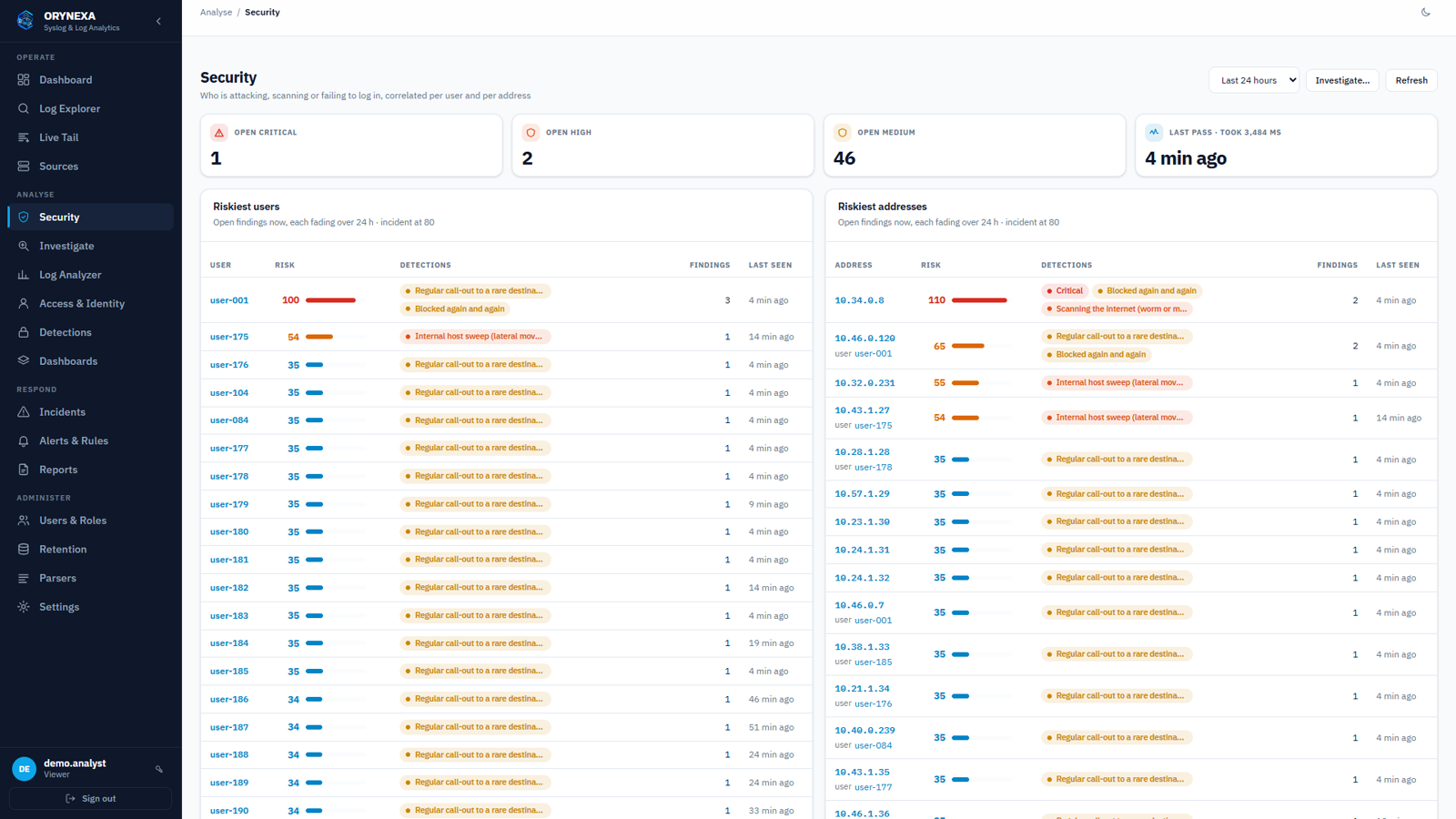
- Logins: brute force, password spraying, success after failures, a privileged account from a new address.
- Network: port scans, internal sweeps, worms scanning the internet, deny storms, floods, beaconing.
- Firewall threat and URL logs: attacks reported, bad website categories.
- Devices: a message type never seen before, sudden spikes in a message, errors or volume.
Each user and address has a risk score that fades over 24 hours. At 80, or on any critical finding, an incident opens and the right people are notified. Close or dismiss findings when handled; suppress known scanners so they never raise findings again.
Investigate a user or an address
The whole story of one user or one IP, hour by hour.
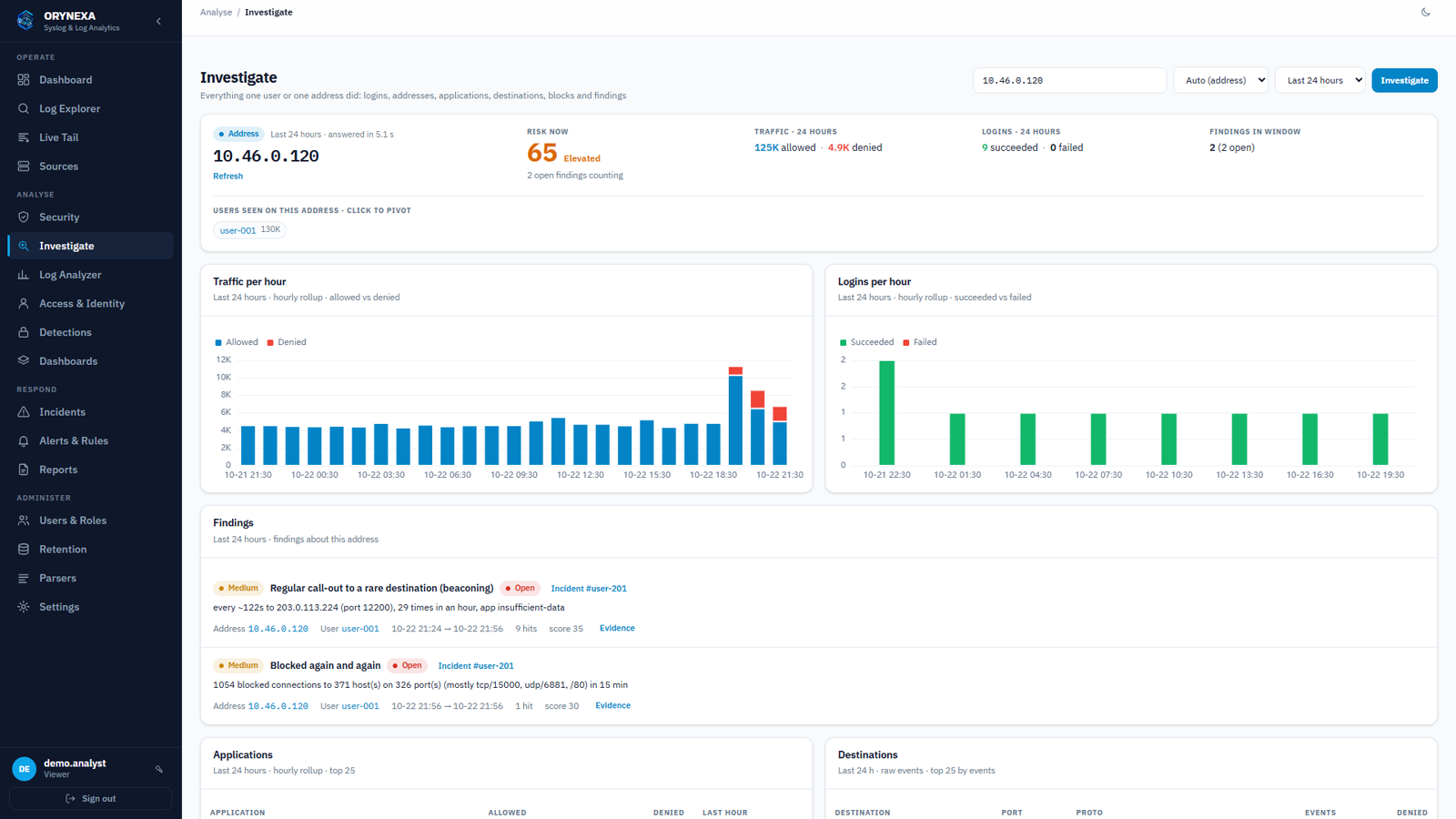
Type a name or an address, or click one anywhere in Orynexa: risk and why, addresses or users seen together, logins and VPN, applications and websites, destinations, what was blocked, threats and findings.
Incidents and alerts
One problem, one alert — closed by itself when the problem stops.
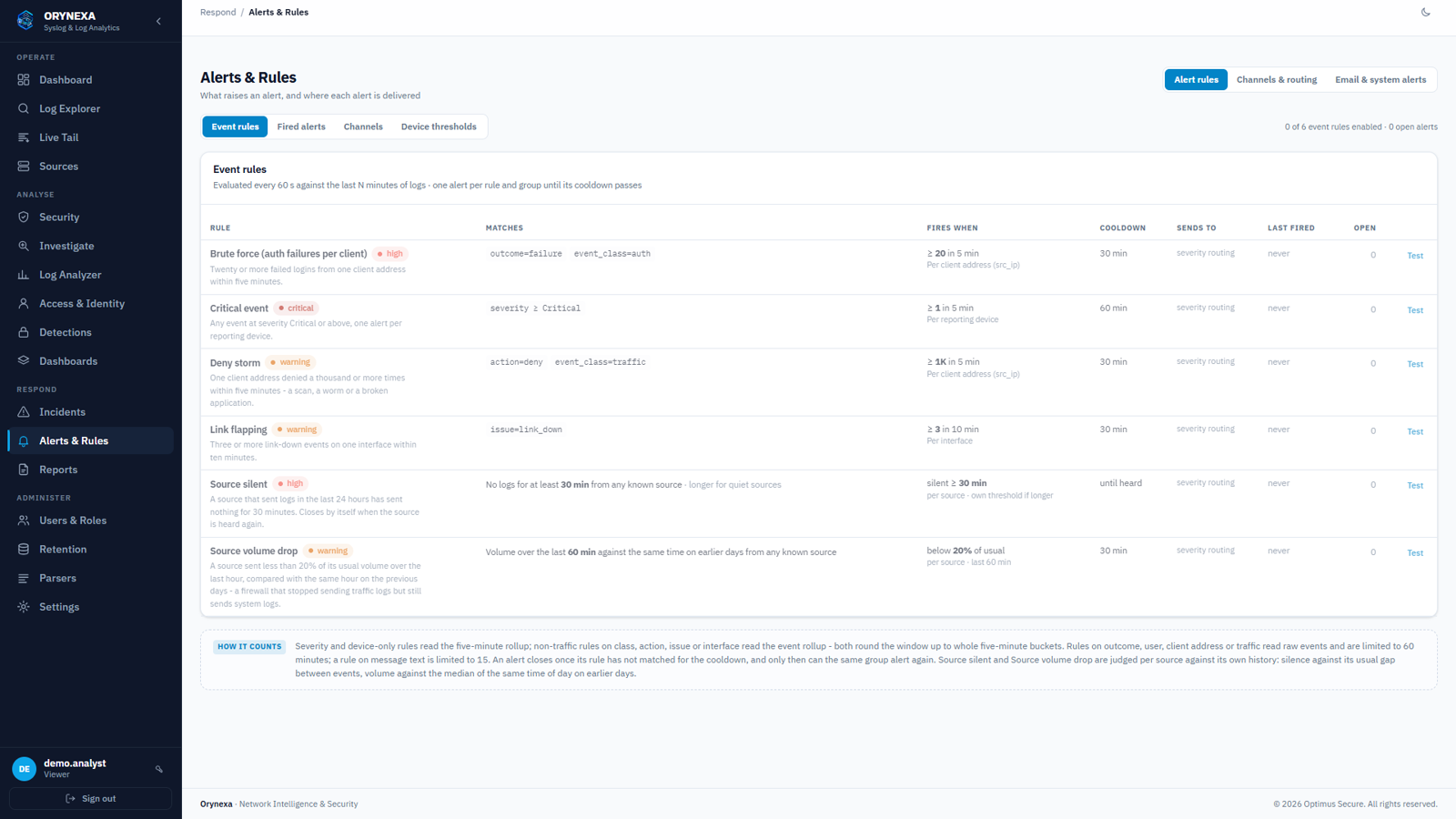
Ready rules for brute force, critical events, deny storms, link flapping, silent sources and volume drops; build your own from any filter, group, window and threshold. Test shows what a rule would fire on your traffic before you switch it on. Alerts go by email, Telegram or webhook.
Reports and compliance
PDFs on demand or emailed on schedule.
| Analyzer report | Daily or weekly: top sources, events by class and severity, denied clients, authentication failures, interface issues, alerts |
| Compliance report | Daily, weekly or monthly: privileged account activity, every configuration change with who and from where, failed logins, VPN users, console activity, security findings |
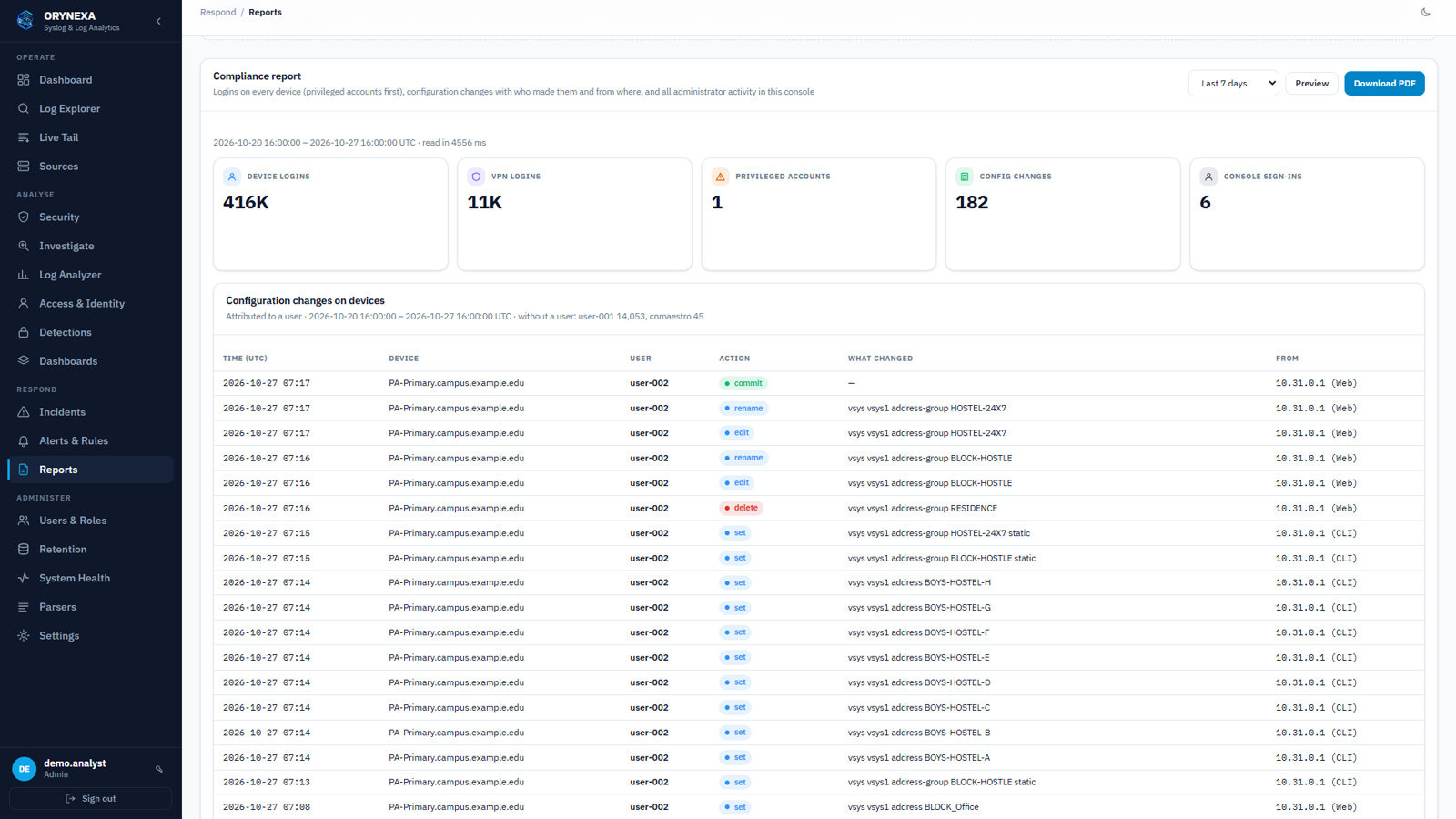
Configuration changes on devices: time, device, user, action, what changed and the administrator's machine.
Users and the audit log
Named accounts, three roles, and a record of everything done.
| Viewer | Sees every screen, searches, investigates, previews reports |
| Engineer | Also edits sources, alert rules and suppressions, downloads reports |
| Admin | Also users, retention, schedules, cluster and the audit log |
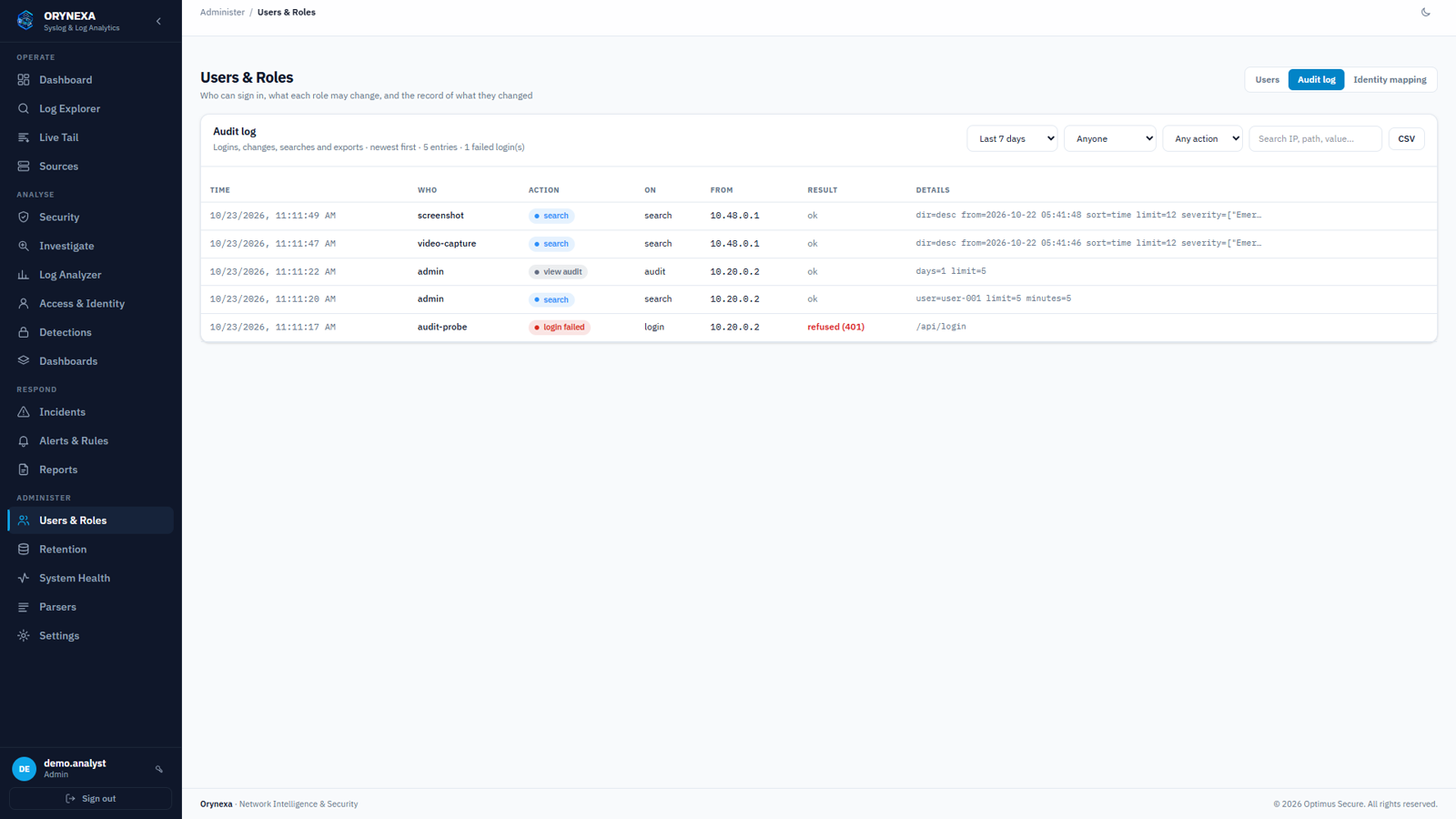
Users & Roles → Audit log: every sign-in (failed ones too), change, search, export and investigation, with the client address. Passwords are never recorded. Download as CSV.
Retention and sizing
Keep what matters for as long as your policy says.
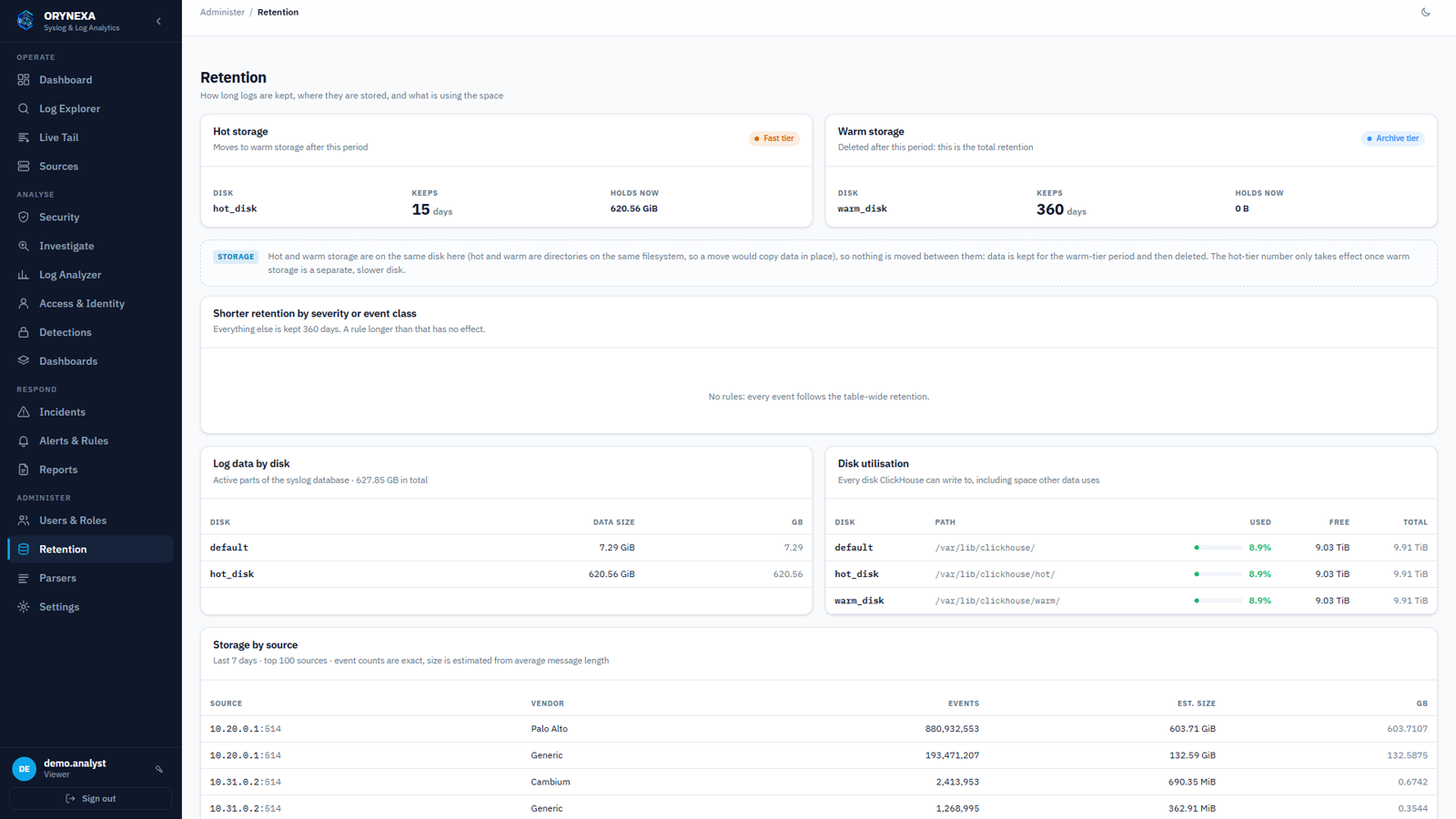
Set the total time logs are kept, and shorter periods for noisy events — for example traffic logs 30 days and everything else a year, which often halves the disk. Storage by source shows which devices use the space. Keep 20% of the disk free.
System Health
The platform watching itself, every 30 seconds.
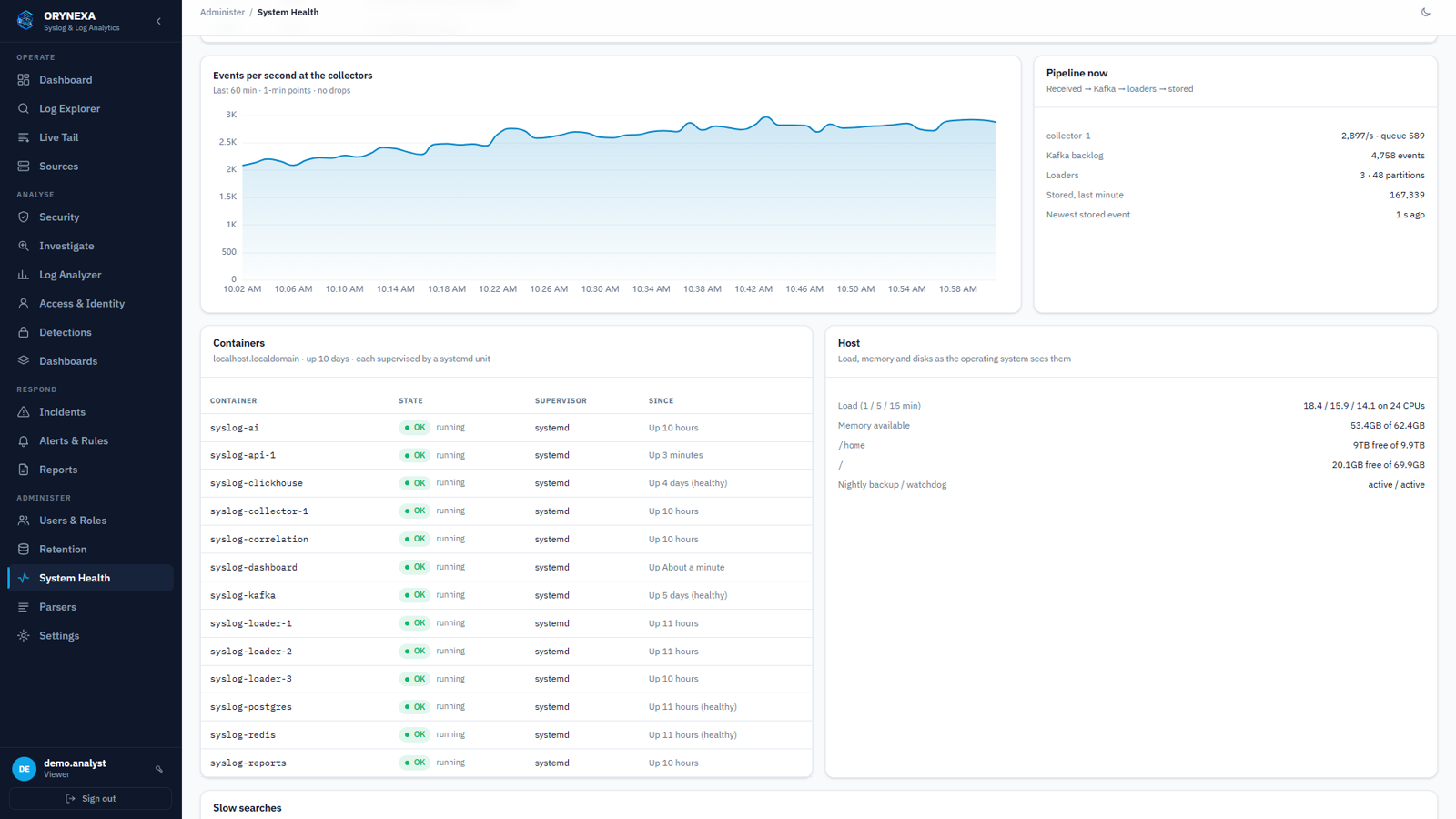
Collectors, buffer backlog, storage, database, disks, slow searches and every service with its supervisor — each check says what to do when it is not OK.
Certificate and time
Your organisation's certificate, and the right clock.
The script checks that the key matches and the certificate is valid, installs it for the console and syslog over TLS, and keeps the previous files. In Settings → Time, add your NTP servers and press Apply to system; the page shows the source and offset.
Backup and restore
Every night, checked by restoring it.
At 02:30 the configuration, users, rules, incidents, reports and rollups are backed up, restored into a scratch copy and compared row by row. Set BACKUP_COPY_TO to keep a copy on a NAS or another server.
$ sudo ops/restore-config.sh /path/to/backup --yes
Updating
An upgrade that checks itself and can be undone.
$ sudo ops/upgrade.sh --rollback
It backs up, applies the new version, restarts only what changed and checks that logs are still being stored — rolling back by itself if not.
Cluster and high availability
Grow from one server when you need to.
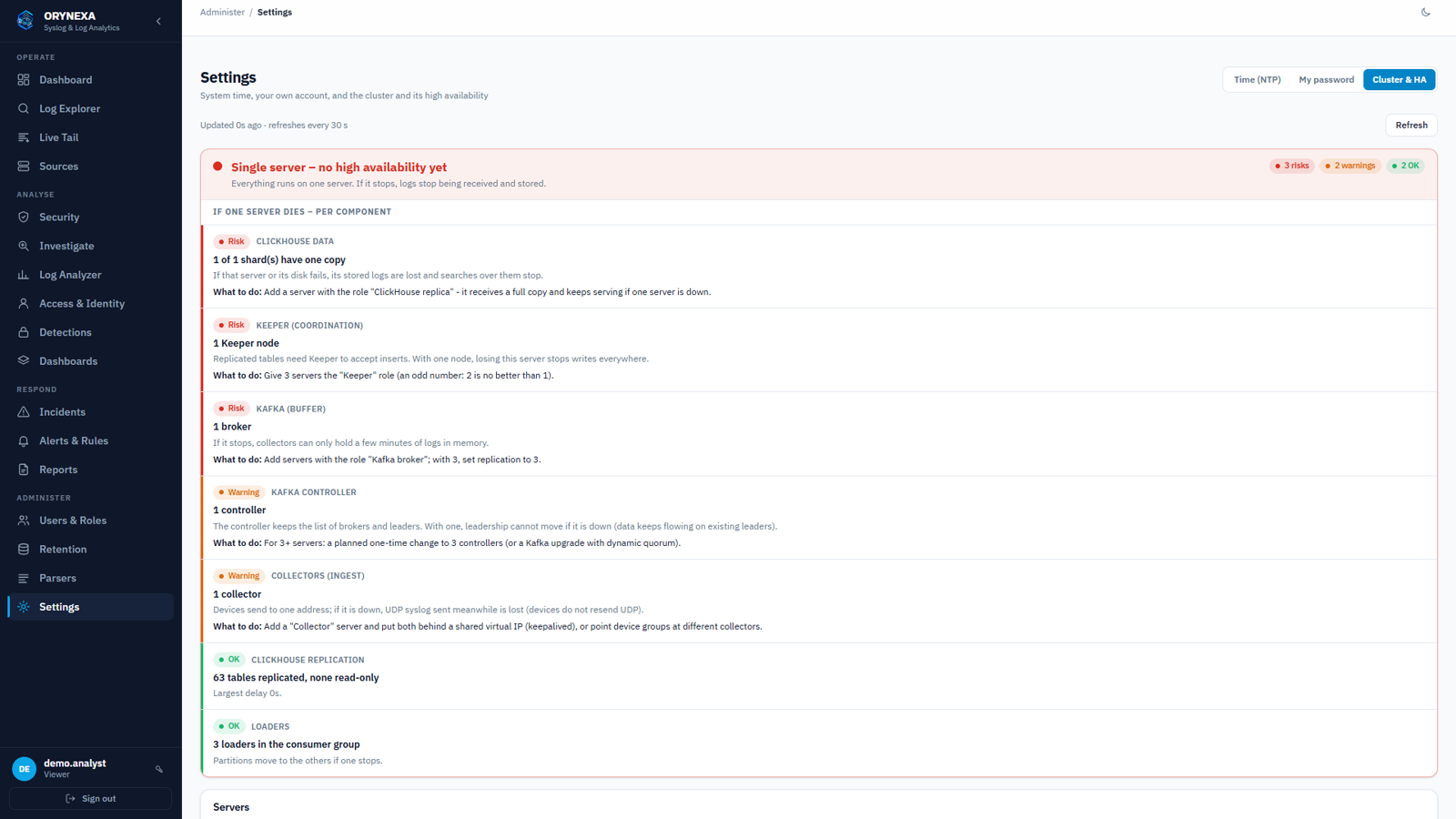
Settings → Cluster & HA shows what would stop or be lost if one server failed, and the fix. Add a server as a replica for high availability or a shard for capacity; it is checked over SSH before it joins.
Troubleshooting
The usual suspects, in order.
| Symptom | Check |
|---|---|
| A device's logs do not appear | Sources → Unregistered senders; Live Tail with its IP; firewalls between the device and the server |
| Many unknown lines | Parsers → Coverage → Unknown lines → Rule builder |
| Wrong or late times | The device's clock and NTP; Settings → Time on the server |
| Dropped events | System Health: buffer backlog, loaders, disk space |
| Searches are slow | Narrow the range; filter on fields, not message text; System Health → Slow searches |
| No emails | Alerts & Rules → Email & system alerts → Test |
Getting help
We are a phone call away.
Email info@opsec.co.in or call +91 95901 37009. Tell us the server's address, what you were doing, and a screenshot of System Health if something is red.