 User Guide
Cloud Drive — user & administrator guide
Cloud Drive is your company's private drive for storing, sharing and editing files. This guide takes you from your first sign-in through everything you will do day to day — uploading, organising, editing Word, Excel and PowerPoint files together, and sharing safely — and then shows company administrators how to manage users, storage and policies.
What it is
One place for the company's files, with Office built in.
Every person gets My Drive, their own space. Teams get shared drives that belong to the company. Files can be shared with a colleague, a group or everyone, and Word, Excel and PowerPoint files open in an editor right in the browser, where several people can work on them at the same time.
Everything runs in a web browser — Chrome, Edge, Firefox or Safari. There is nothing to install.
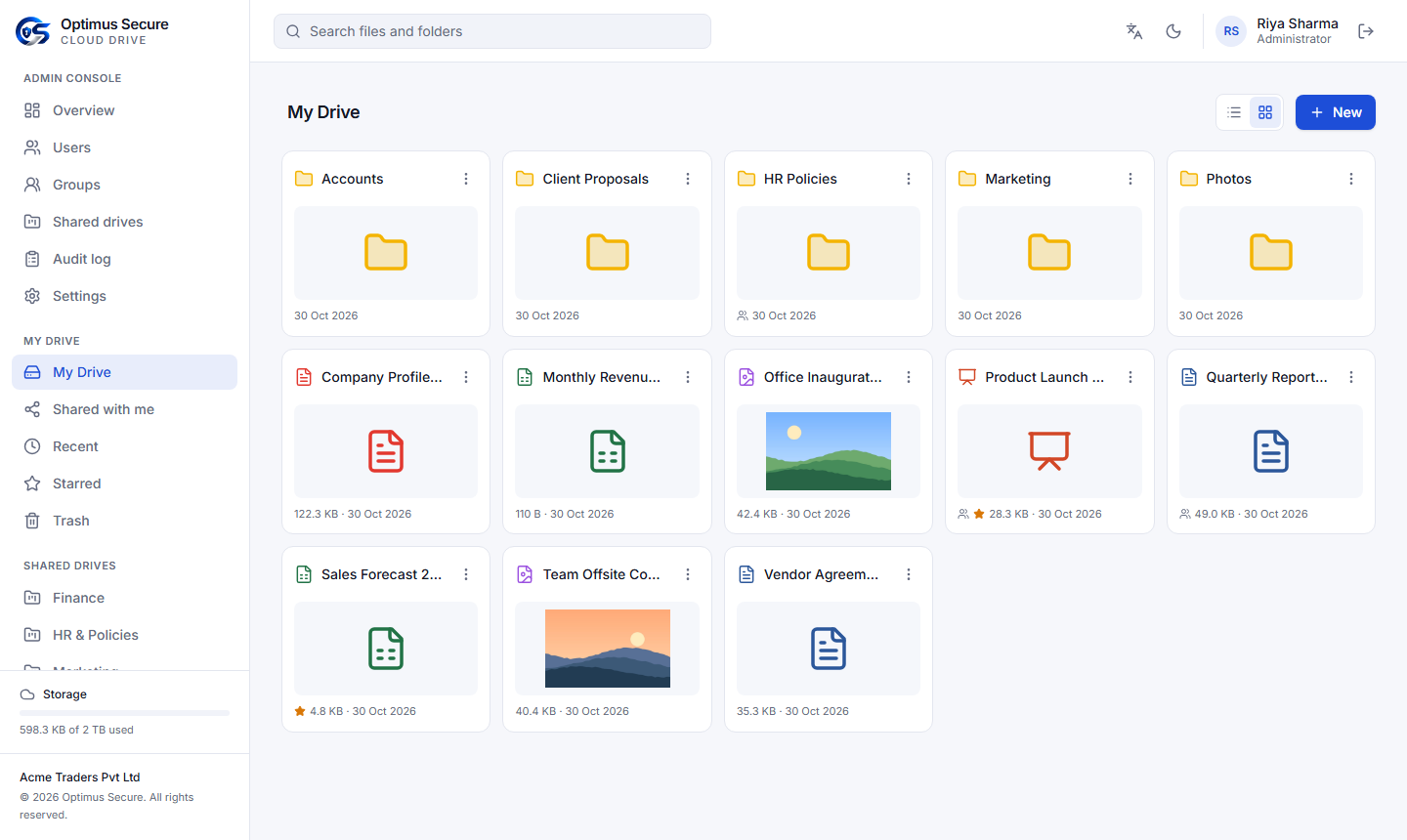
My Drive in grid view. Company and people names in this guide are demonstration data.
Who does what
Three levels, each with its own console.
Service provider
Optimus Secure (or your reseller) creates your company account, sets its storage, number of users and subscription dates. The provider cannot open your files.
Company administrator
Invites users, sets their storage, makes groups and shared drives, and decides how files may be shared. Uses the Admin console.
User
Stores, shares and edits files in My Drive and in the shared drives they belong to.
First sign-in
Your account starts with an invitation.
Open the invite link
Your administrator sends you an invite link by email (or hands it to you). It opens Set up your account. Links are personal — do not forward them.
Choose your password
Enter your name and a password of at least 10 characters with letters and numbers, then Create account.
Turn on two-step verification
Administrators are asked to do this straight away; for everyone else it is strongly recommended. See the next section.
Sign in next time
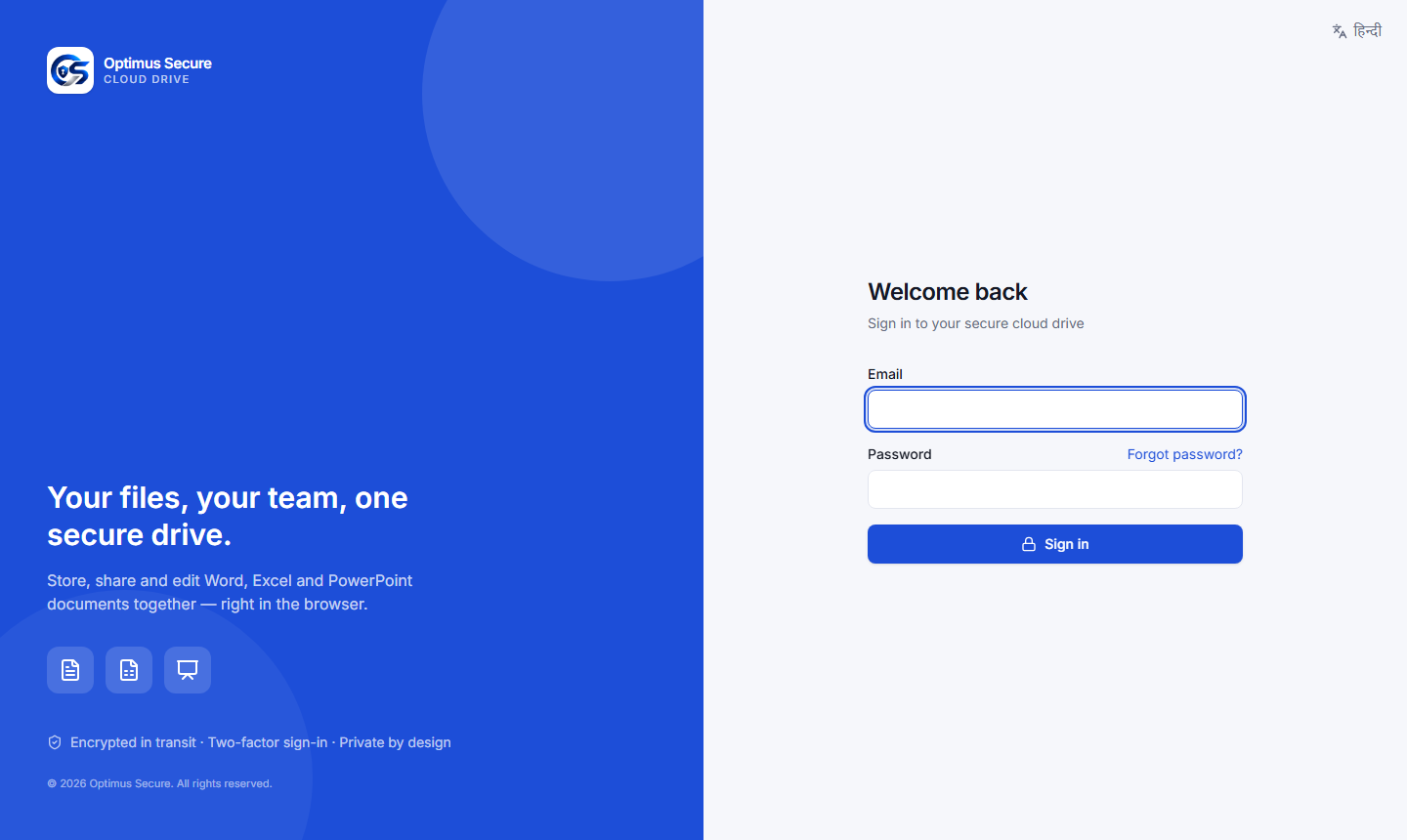
Go to your Cloud Drive address (for example https://cloud.opsec.co.in), enter email and password, then the 6-digit code from your phone. Forgot the password? Use Forgot password? on the sign-in page.
Two-step verification
A code from your phone, so a stolen password alone is not enough.
- Install Google Authenticator (or Microsoft Authenticator / Authy) on your phone.
- In Cloud Drive open Account & security → Turn on 2FA. In the app tap + → Scan a QR code and scan the code on screen.
- Type the 6-digit code shown in the app and confirm.
- Save the recovery codes somewhere safe (download them or write them down). Each one lets you sign in once if you lose your phone. They are shown only once.
Finding your way
Everything is in the left sidebar.
| My Drive | Your own files and folders |
| Shared with me | Files and folders colleagues have shared with you |
| Recent | What you opened or changed lately |
| Starred | Items you marked with a star |
| Trash | Deleted items, kept for 30 days |
| Shared drives | Team drives you are a member of |
| Storage | How much of your storage is used (bottom of the sidebar) |
At the top: the search box, the language switch (English / हिन्दी), light or dark theme, and your name with Sign out. Administrators also see Admin console in the sidebar.
Upload files & folders
Drag and drop, or use the New button.
- Open the folder you want to upload into.
- Drag files or whole folders from your computer onto the page — or click New → Upload files / Upload folder.
- A progress panel shows each file. Large files are sent in parts; if the network drops, the upload carries on from where it stopped.
Organise
Folders, the three-dot menu and right-click.
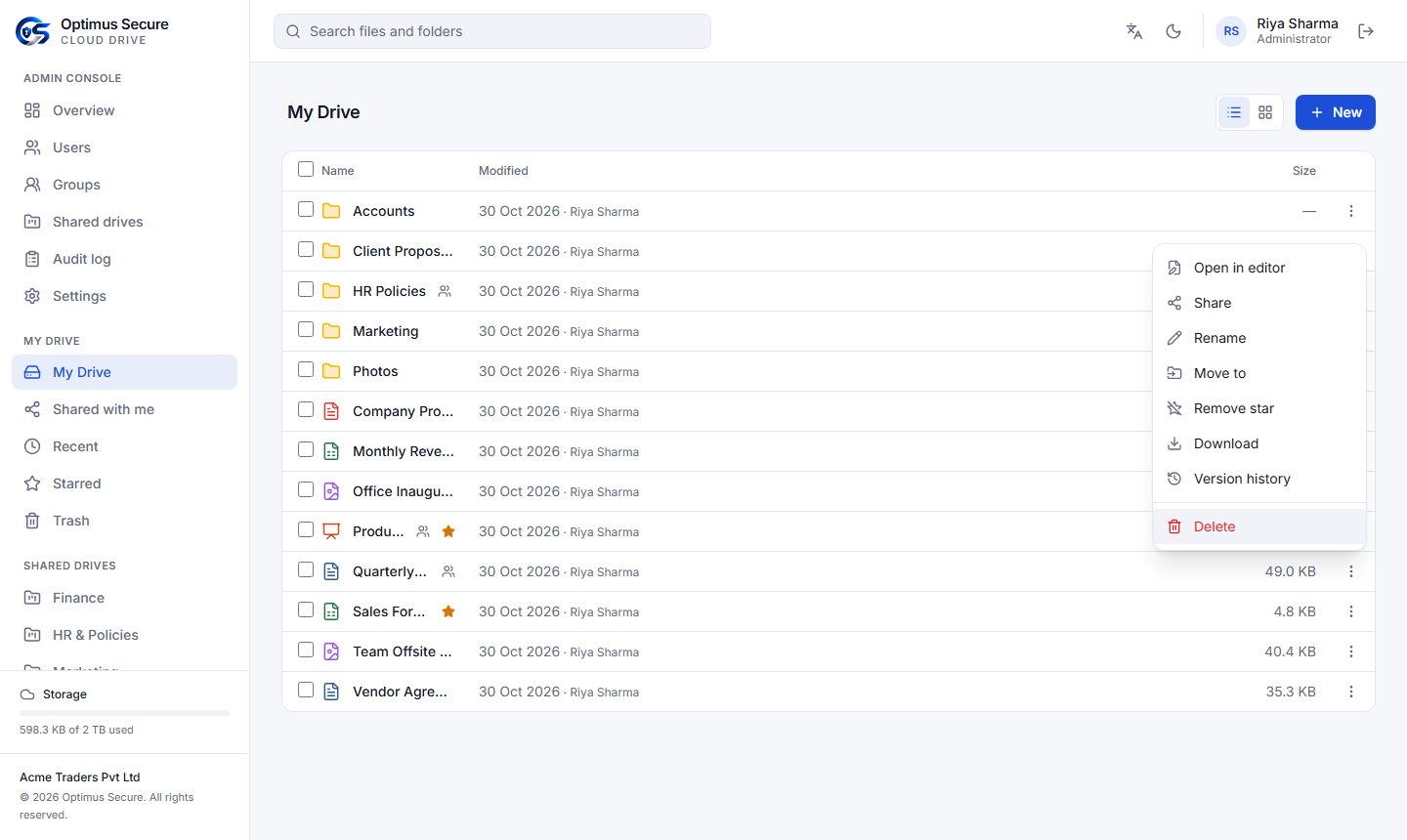
New → New folder creates a folder. Switch between list and grid view with the buttons next to New. Every file and folder has a three-dot menu (⋮) — or right-click it — with:
| Open / Open in editor | Opens folders, previews files, opens Office files in the editor |
| Share | Give colleagues access (see Share) |
| Rename | Change the name; the extension is kept |
| Move to | Pick another folder in the same drive |
| Star / Remove star | Adds it to Starred |
| Download | Downloads a file, or a folder as ZIP |
| Version history | Earlier versions of a file |
| Delete | Moves it to Trash |
Select several items with the check boxes (or Ctrl/Shift-click) to download, move or delete them together.
Preview & download
Look without downloading.
Double-click a file (or click its name) to open it. Images, PDF, video, audio and text files show in a preview window; use the arrows to move to the next file. Download saves a copy to your computer; a folder or a multiple selection downloads as one ZIP file.
Word, Excel & PowerPoint
Edit together, right in the browser.
Open or create
Click a DOCX, XLSX or PPTX file (or ODT, ODS, ODP, CSV, TXT) and it opens in the editor in a new tab. To start fresh: New → Word document, Excel workbook or PowerPoint presentation.
Work together
When colleagues with edit access open the same file, you see each other's cursors and changes as you type. Changes are saved automatically.
Close the tab when done
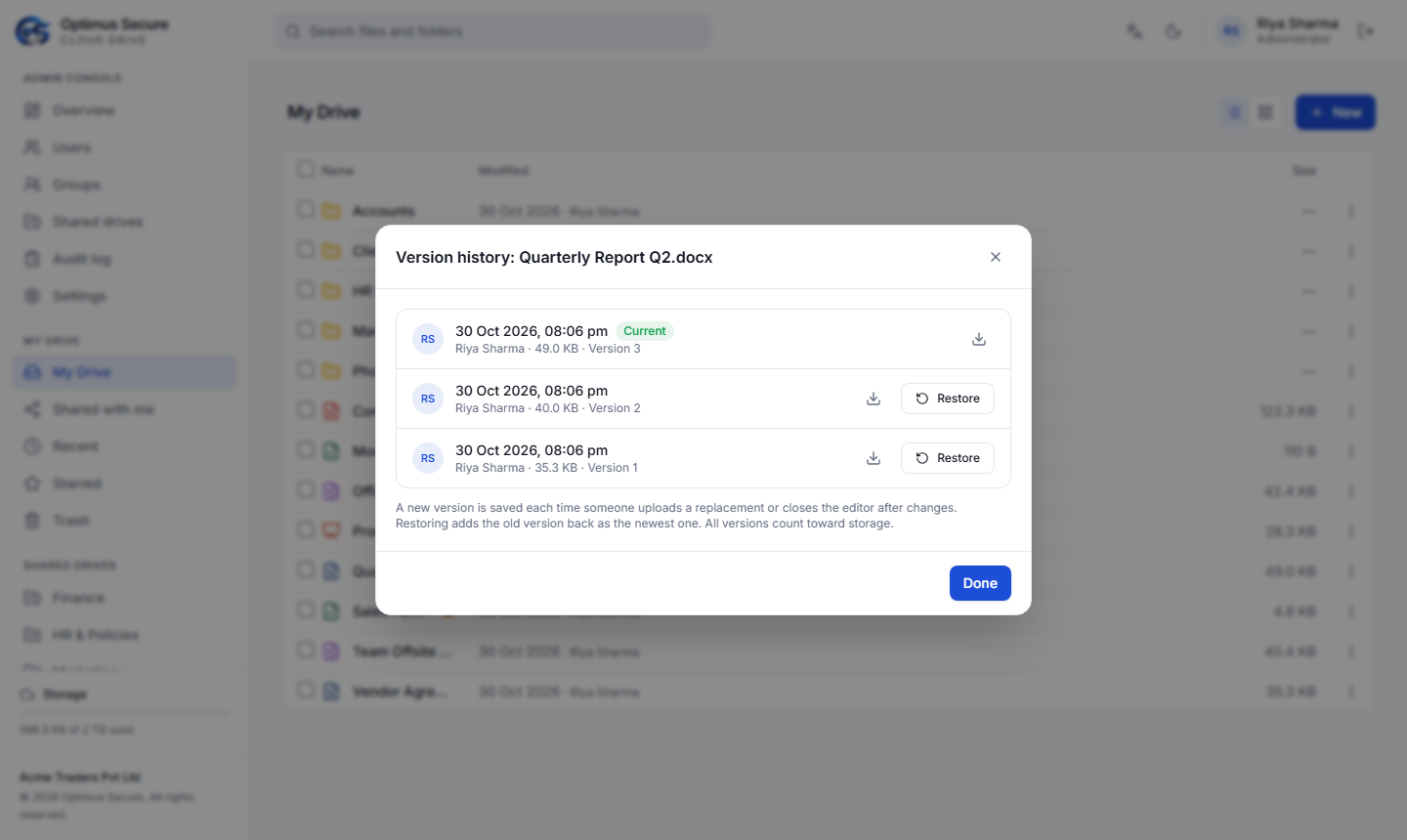
When the last person closes the file, a new version is stored in Version history.
Version history
Go back to any earlier copy.
Three-dot menu → Version history lists every version with who saved it and when. Download gets that copy; Restore makes it current again (it is added as the newest version, so nothing is lost). Older versions count toward your storage.
Trash
Deleted is not gone — for 30 days.
Deleted items go to Trash. From there, Restore puts an item back where it was, Delete forever removes it now, and Empty trash clears everything. Items are removed automatically after 30 days. Items in Trash still count toward your storage until they are removed.
Search, Starred & Recent
Three quick ways back to a file.
Type in Search files and folders at the top to search your drive, your shared drives and everything shared with you. Star the files you use often to find them under Starred; Recent lists what changed lately.
Share with colleagues
People, groups or the whole company — view or edit.
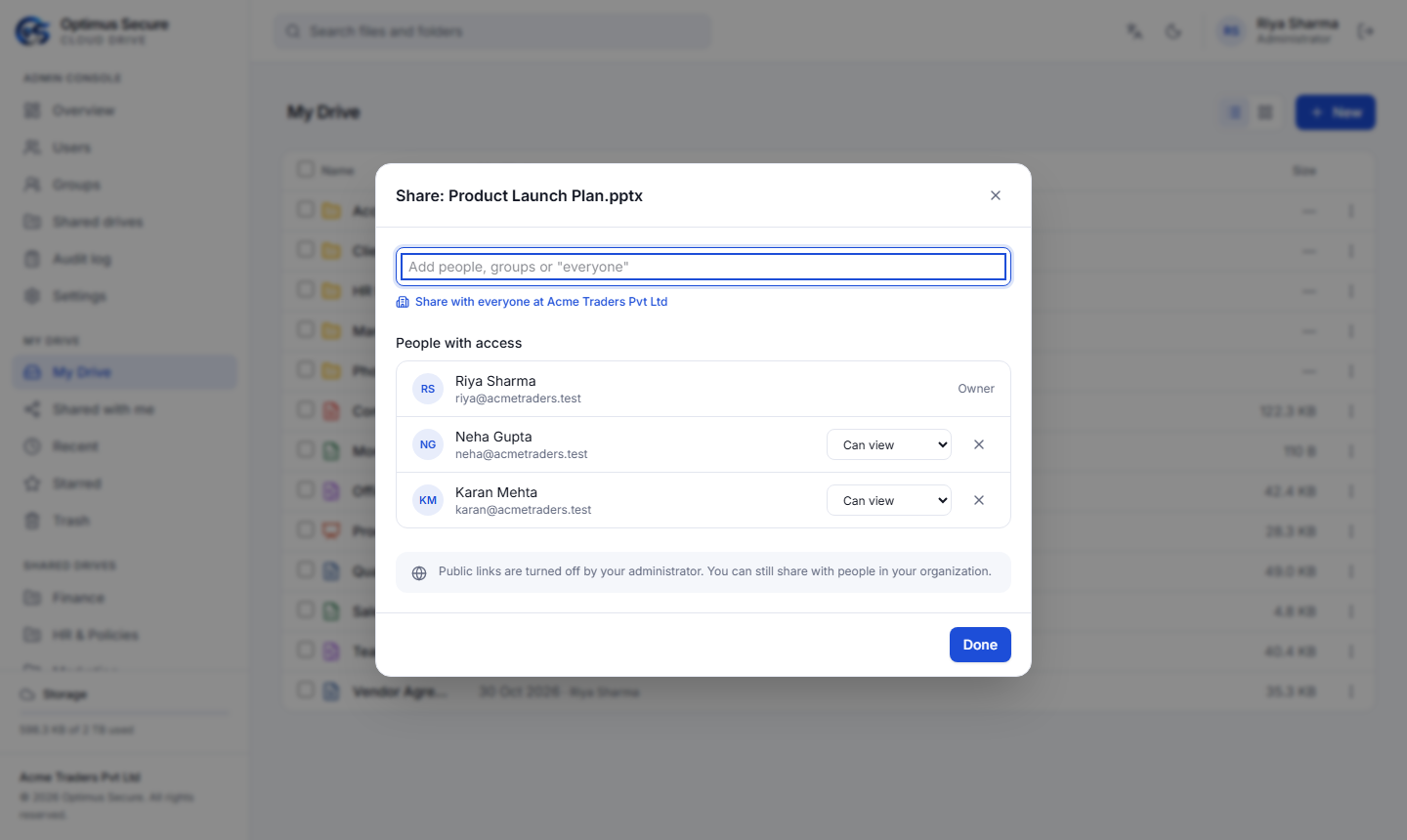
- Three-dot menu → Share.
- Type a name, a group, or choose Share with everyone at your company.
- Pick Can view (open and download) or Can edit (also change, upload and rename inside a shared folder). Optionally set an expiry date.
- Change or remove anyone's access later from the same window.
Shared with me
Everything colleagues have given you.
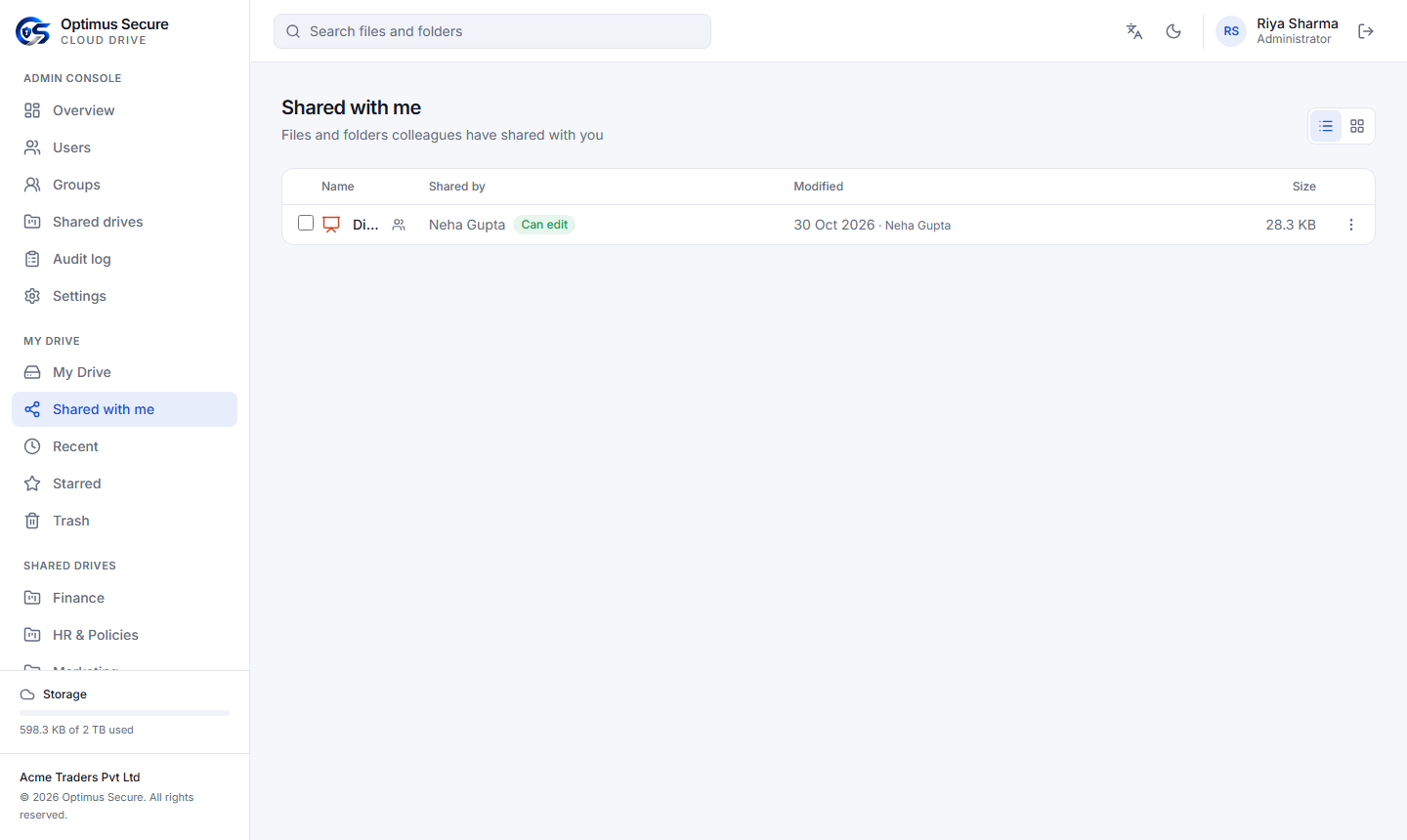
Shared with me lists files and folders shared with you, who shared them and your permission. Shared items also carry a small people icon wherever they appear.
Shared drives
Team folders that belong to the company.
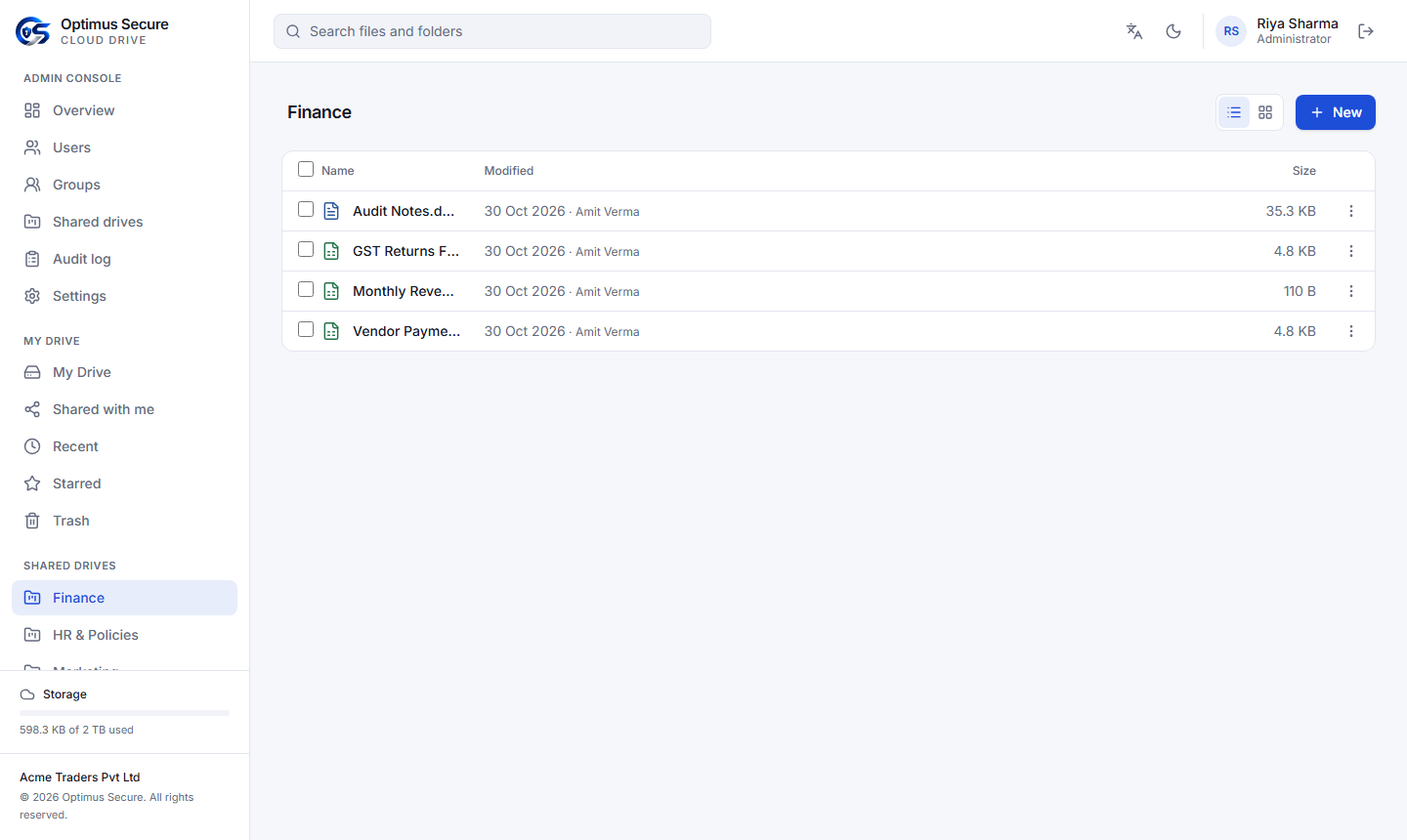
Shared drives (for example Finance or HR & Policies) appear under Shared drives in the sidebar. Files there use the company's storage and stay when a member leaves. Your role decides what you can do:
| Manager | Everything, including managing the drive's content |
| Editor | Add, edit, rename, move and delete files |
| Viewer | Open and download only |
Public links
For clients and vendors without an account — if your administrator allows it.
In the Share window, under Public links, choose Create link. Add a Password and an expiry date for anything sensitive, and untick Allow download for view only. Copy the link and send it. You can change or delete the link at any time; deleting it stops it working at once.
Company overview
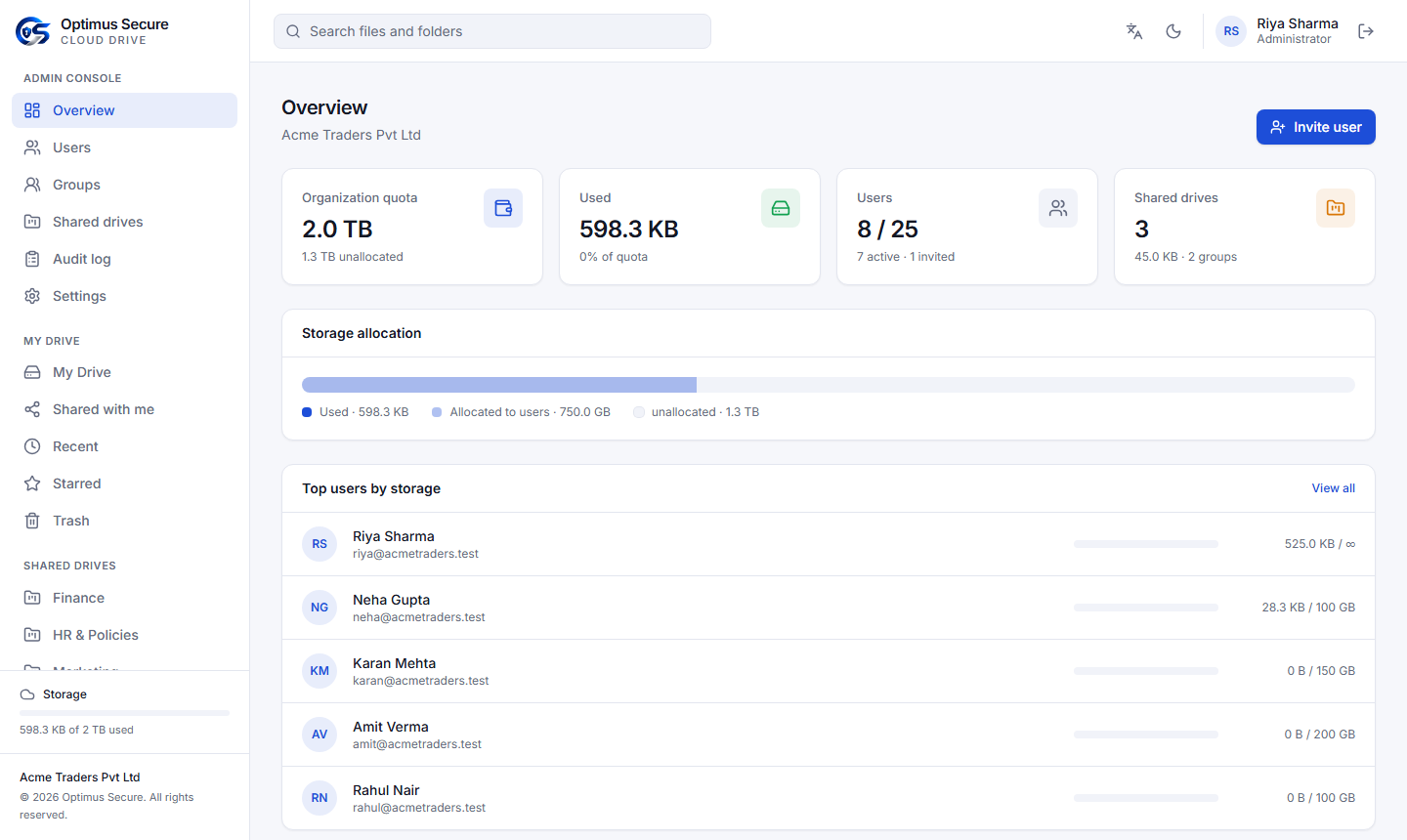
Admin console → Overview.
Shows the company's storage quota, how much is used and how much is allocated to users, seats used, shared drives, and the users using the most storage.
Users
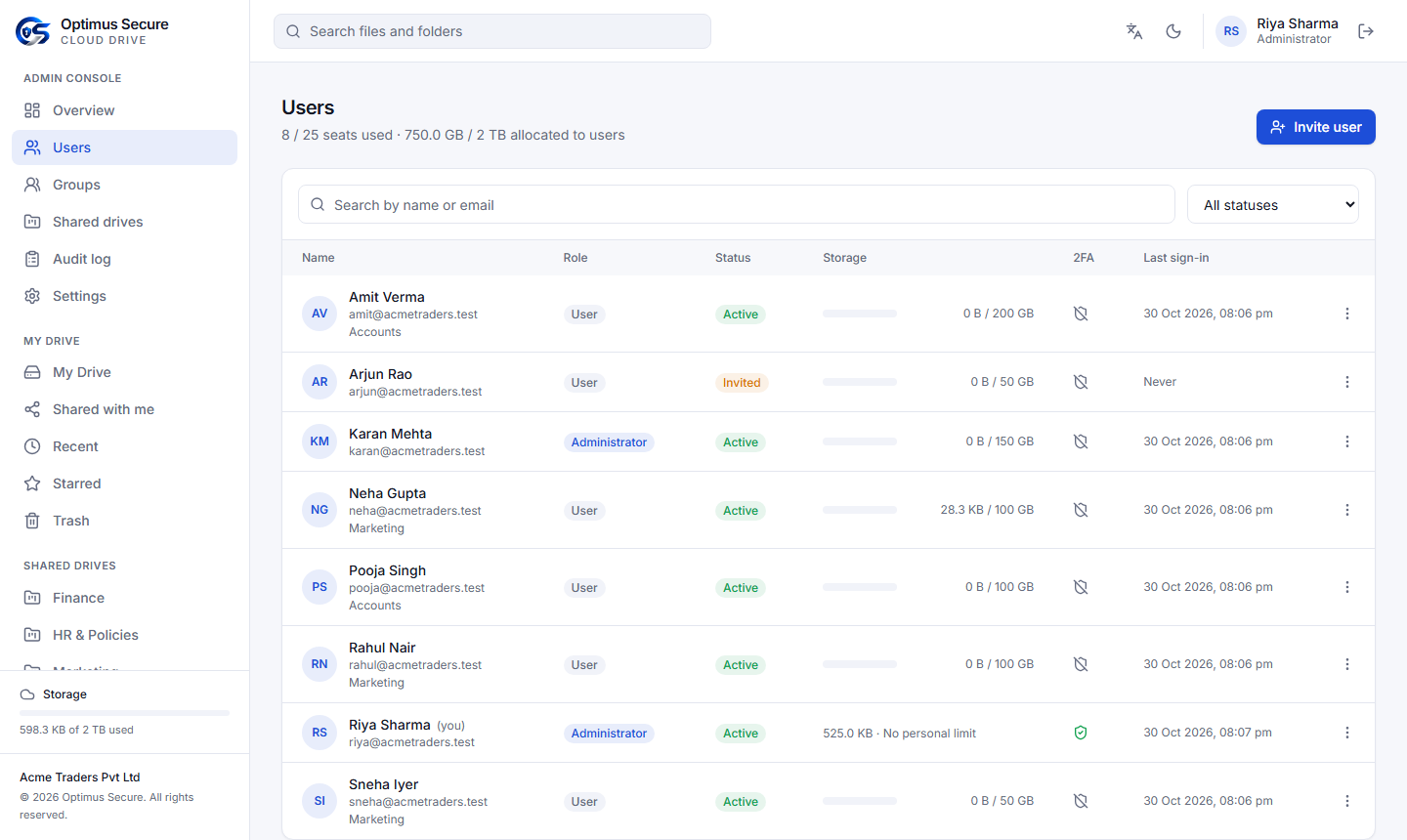
Admin console → Users.
- Invite user: name, email, role (User or Administrator), storage quota and groups. The invite is emailed; you can also copy the link.
- The three-dot menu on a user: Edit (name, role, quota), New invite link, Reset 2FA, Disable user / Enable user.
- A disabled user is signed out at once and cannot sign in; their files are kept.
Groups & shared drives
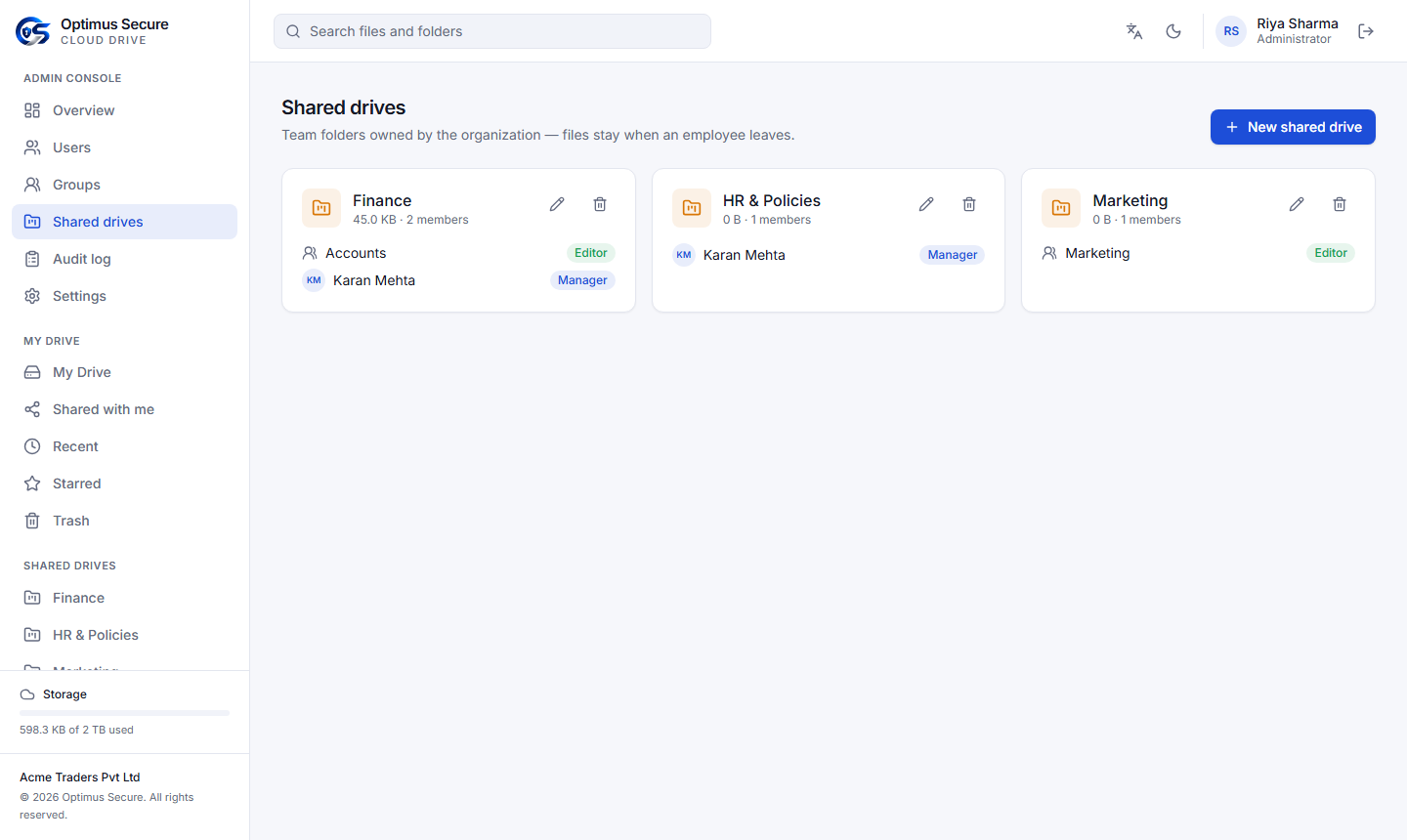
Admin console → Groups and Shared drives.
Groups (for example Accounts or Marketing) let people share with a whole team at once. Shared drives are created here: give the drive a name and add users or groups as Manager, Editor or Viewer. Change members at any time.
Sharing policies
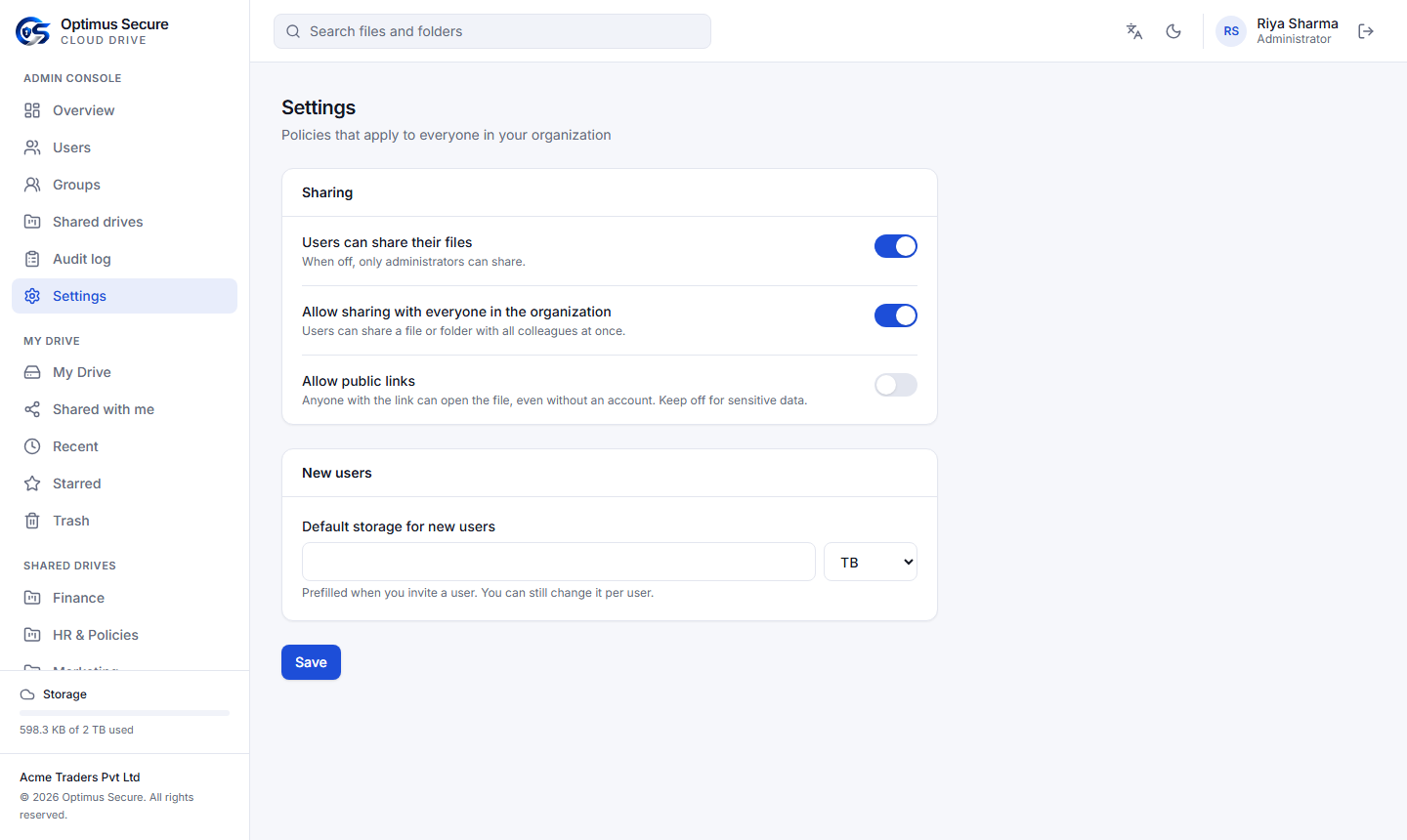
Admin console → Settings.
| Users can share their files | When off, only administrators can share |
| Allow sharing with everyone in the organization | Whether a file can be shared with the whole company at once |
| Allow public links | Links for people without an account. Turning this off stops every existing link immediately |
| Default storage for new users | The quota suggested when you invite someone |
Audit log
Admin console → Audit log.
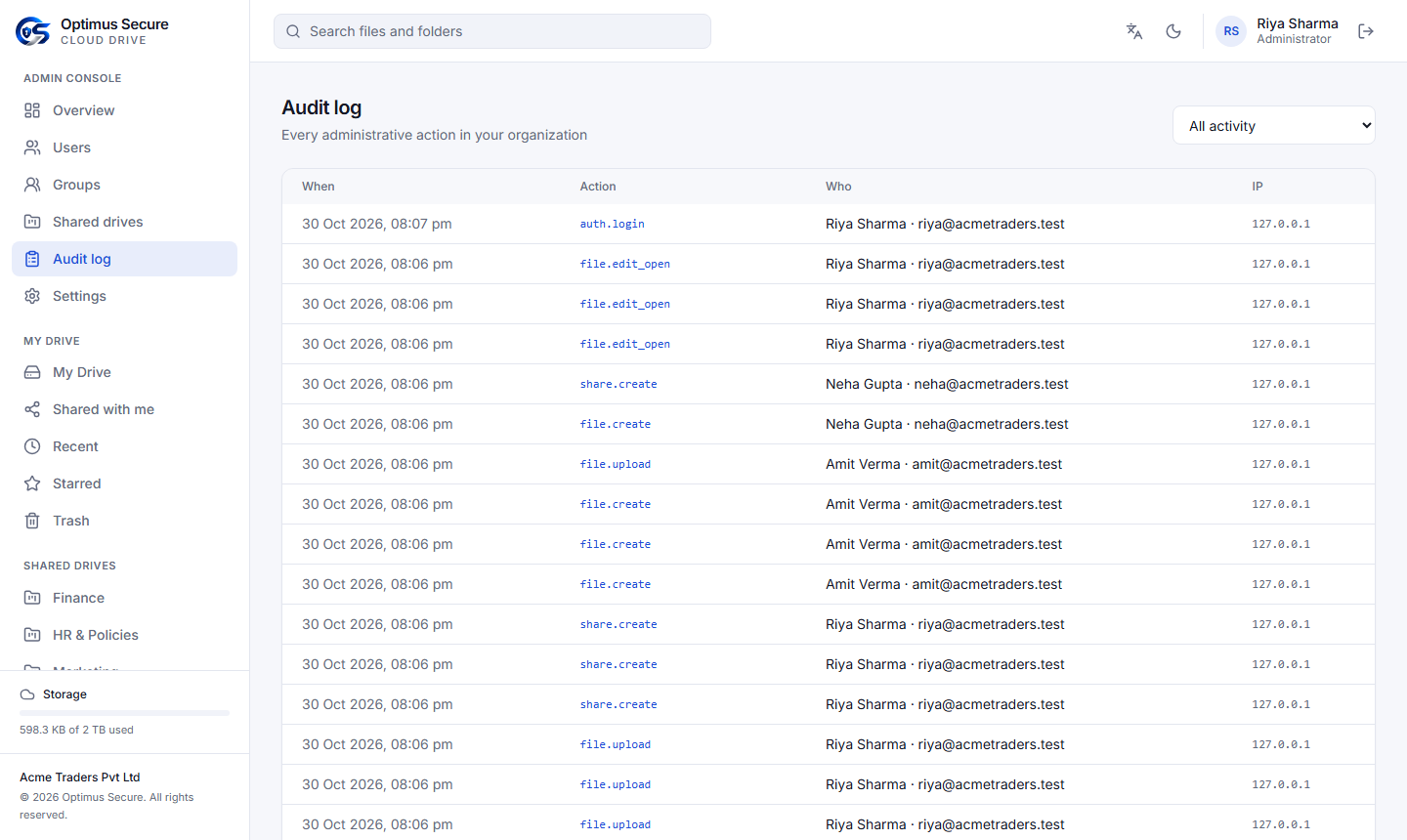
Every sign-in, upload, delete, share, public link and administrative change in your company, with who did it and when. Filter by type — sign-ins, files, sharing, links, users, admin or settings.
Storage & renewal alerts
Emails before anything stops.
Administrators get an email when the company has used 80% and 95% of its storage; users are told when they reach 90% of theirs. Reminders arrive 30, 7 and 1 day before the subscription ends. After it ends the account becomes read-only — files can still be opened and downloaded — until it is renewed.
Your account & security
Account & security, from the sidebar.
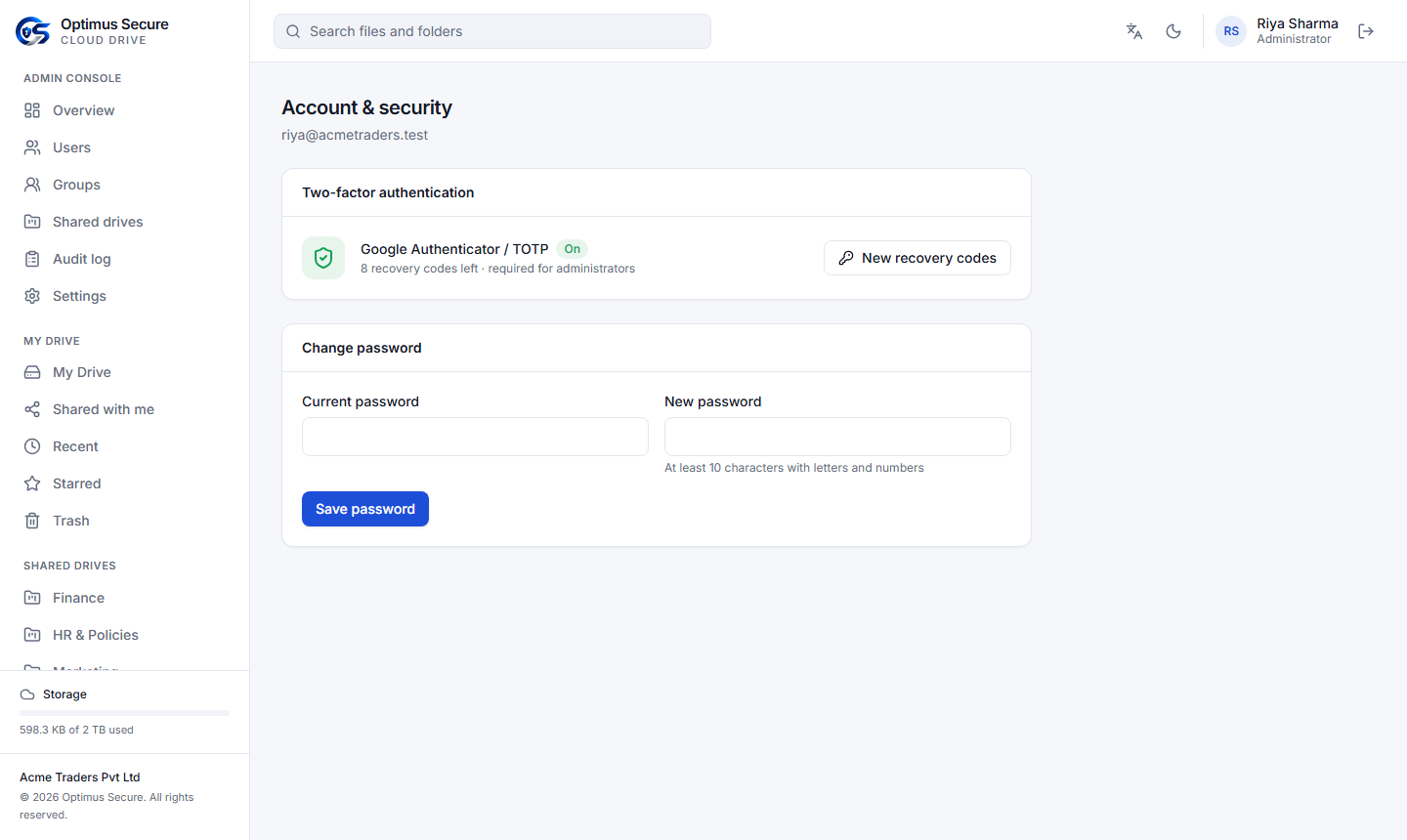
- Change password — current password, then the new one twice.
- Two-factor authentication — turn it on or off (administrators must keep it on) and make New recovery codes when few are left.
- After 5 wrong passwords the account is locked for 15 minutes.
Limits & formats
Quick reference.
| Largest file | 50 GB |
| Edit in the browser | DOCX, XLSX, PPTX, ODT, ODS, ODP, CSV, TXT |
| View in the browser | DOC, XLS, PPT, RTF, PDF, images, video, audio, text |
| Virus scan | Every upload up to 100 MB |
| Trash | 30 days |
| Storage counts | Files, their older versions and items in Trash |
| Browsers | Current Chrome, Edge, Firefox and Safari |
| Languages | English and Hindi |
Troubleshooting
The usual suspects, in order.
| Symptom | Check |
|---|---|
| "Storage full" when uploading | Empty Trash and delete old versions you do not need, or ask your administrator for more storage |
| The 6-digit code is not accepted | Your phone's time must be set automatically; wait for the next code. Use a recovery code if needed |
| Cannot share or create a public link | Your administrator has switched it off in Settings |
| A document opens read-only | You have Can view access, or it is an older format (DOC, XLS, PPT) — ask for edit access or download it |
| Upload refused as infected | The virus scanner found a threat; scan the file on your computer |
| No emails arrive | Check spam; ask your administrator to confirm your email address |
| Everything is read-only with a banner | The subscription has ended; your administrator should contact us to renew |
Getting help
We are a phone call away.
Users: ask your company administrator first. Administrators: email info@opsec.co.in or call +91 95901 37009. Tell us your company name, what you were doing, and send a screenshot of any message you saw.