 User Guide
LDAP-Manager — administrator’s guide
LDAP-Manager puts a captive portal in front of your network and ties every session to a named account in your directory. This guide covers the console you work in day to day — creating and importing accounts, managing groups, issuing guest logins, setting device limits, delegating administration, and seeing who is online.
What it is
One console for your directory and your network access — instead of a directory tool in one place and access control in another.
Users open a browser, are shown a sign-in page, and authenticate with the account they already have in your directory. From that moment the session is tied to a named person: you can see it, report on it, limit how many devices it covers, and end it. For your team, the same console is where accounts are created, imported in bulk, grouped, expired and delegated.
Signing in to the console
The admin console is deliberately harder to reach than the user portal.
Open the admin address
Your admin console lives at /admin on your portal address — for example https://portal.your-domain/admin. Your deployment team will have given you the exact address.
Sign in with your admin account
Admin accounts are separate from directory user accounts. They are created by a superadmin on the Admin Accounts page, not by self-registration.
You land on the dashboard
What you can see and do from here depends entirely on the role your account was given. Two administrators can see two different consoles.
The dashboard
A live picture of the network before you change anything.
The dashboard shows how many users are online right now, recent authentication activity, and the health of the system itself. The online counter in the header updates as you work, so you can see the effect of a change without reloading.
| On the dashboard | What it tells you |
|---|---|
| Online now | Live count of users currently holding an active session |
| Recent activity | Sign-ins as they happen, with the account and address |
| System health | Processor, memory and storage utilisation, kept as a rolling trend so an overnight spike is still visible the next morning |
The left-hand navigation is grouped into five sections. Menu items you do not have permission for are not shown at all, so your menu may be shorter than a colleague’s — that is the role working, not a fault.
| Menu section | Pages |
|---|---|
| Main | Dashboard |
| LDAP Management | Users, Groups, Bulk Upload, Bulk Update |
| Network | Sessions, Network Monitor |
| Report | Reports Dashboard, Inactive Report |
| System | Admins, Roles & Permissions, Settings, Monitoring, High Availability, Backup & Restore |
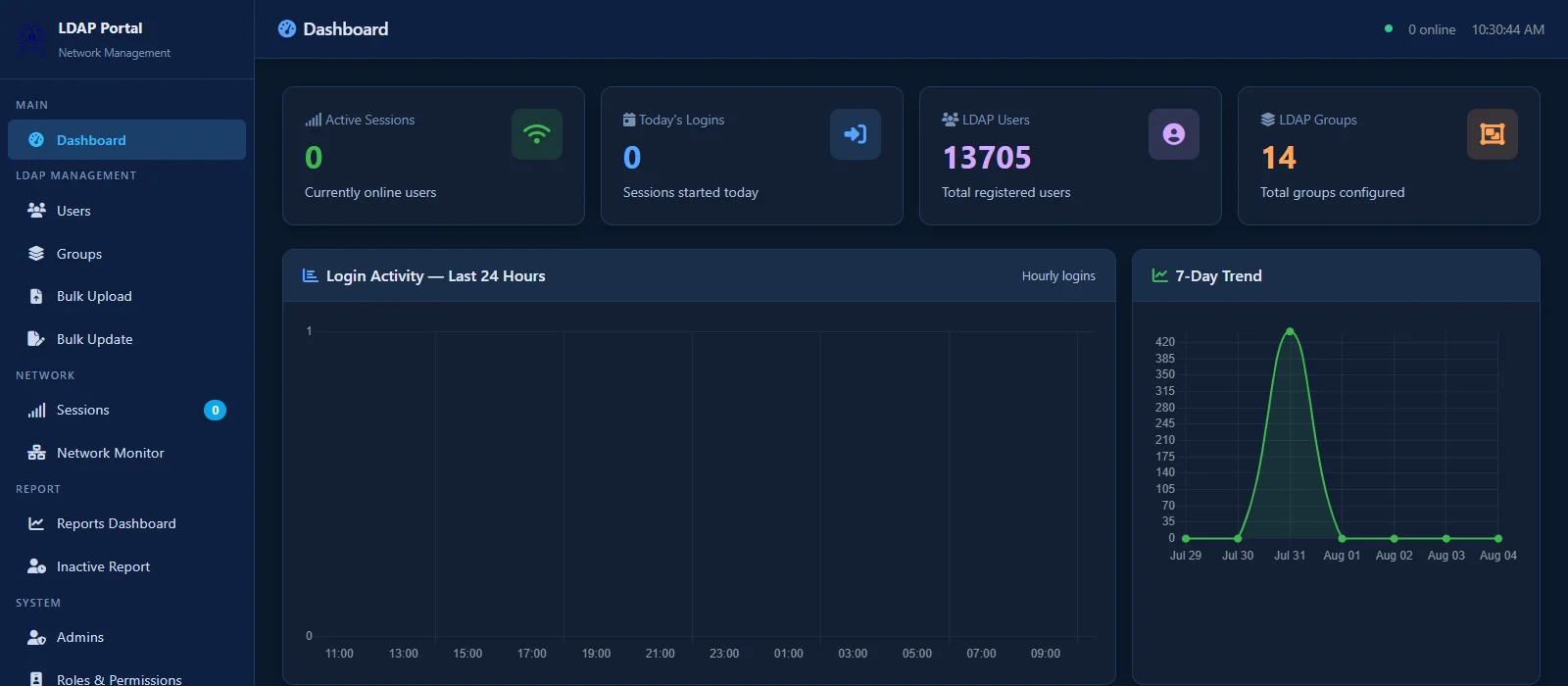
The dashboard — active sessions, today’s logins, directory totals, and login activity over 24 hours and 7 days.
Users
Create, edit, expire, disable and reset — all from the Users page.
LDAP Management → Users lists the accounts you are allowed to see. Search by username or name, then use the action buttons on a row, or open the account to edit it in full.
| Field | What it is for |
|---|---|
| Username (uid) | The login name. Set when the account is created and not editable afterwards — it is the account’s identity. |
| Full Name (cn) | The display name shown in reports and session lists. Required. |
| Used for the welcome message and for self-service password-reset codes. Without it the user cannot reset their own password. | |
| Valid Until | The date the account stops working. Required for guest accounts; optional for permanent staff and students. |
| Group Membership | Which directory groups the account belongs to. Group membership drives the policy the user receives — see Groups. |
Other actions on a user: reset the password, disable the account immediately, set or clear an expiry date, change group membership, and — if your role allows it — delete the account. Each of these is a separate permission, so your role may allow some and not others.
Groups
Groups are how policy is applied to more than one person at a time.
Rather than configuring each account, you put accounts into groups and let the group carry the policy. Changing a user’s group changes what they get — there is no second place to update.
| What groups control | How |
|---|---|
| Device allowance | Each group carries a default number of devices a member may use at once. A per-user override beats the group default. |
| Administrative visibility | An admin role can be scoped to a single group, so that administrator only ever sees those accounts. |
| Reporting | Usage reports break activity down per group. |
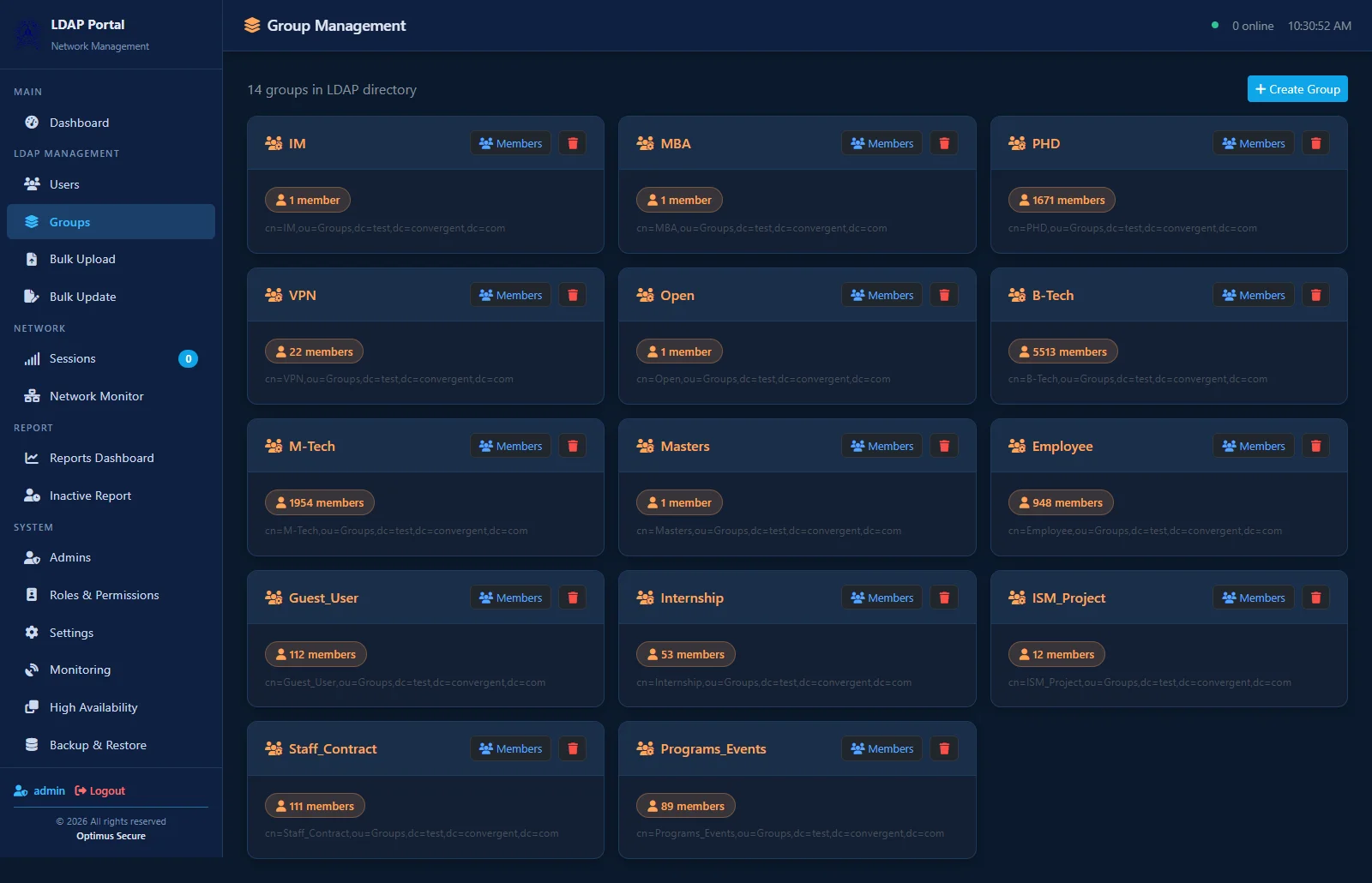
Group management — every directory group with its live member count, and its full directory path.
Guest accounts
Time-bound logins that switch themselves off, issued by staff who can do nothing else.
A guest account is an ordinary account with a mandatory Valid Until date. When that date passes the account stops working — nobody has to remember to turn it off.
Create the account
Fill in the name and e-mail, set Valid Until to the last day the visitor needs access, and put the account in your guest group.
Hand over the credentials
The welcome e-mail carries the sign-in details, so reception does not have to write a password on paper.
Extend or end it
Need another two days? Edit the account and move the date. Leaving early? Set the date to today, or disable the account outright.
Device limits
How many devices one account may use at the same time — and how to make exceptions.
Every account has a device allowance. It comes from the account’s group by default, and a per-user value overrides it where someone genuinely needs more.
| Where the limit comes from | Behaviour |
|---|---|
| Group default | Applies to every member of the group unless overridden. Typical deployments use a small number for general users and a larger one for staff. |
| Per-user override | Set on the individual account. Use it for a shared teaching credential that must cover a full laboratory, or for a user with a genuine need for more devices. |
| Re-signing in on the same device | Does not consume a second slot. Signing in again from a device you are already using simply continues. |
| Available values | The per-user allowance is chosen from a list: 1, 2, 3, 4, 5, 10, 15, 20, 50, 100, 200, 300, 400 and 500. |
When a user reaches the limit and tries to sign in on a new device, they are not simply refused. They are shown their own active sessions and may end one of them, then sign in — without having to call you and without re-entering their password.
Bulk upload, update and edit
For the start of a term or an intake, when accounts arrive by the thousand.
There are three separate bulk tools, and it is worth knowing which one you want before you start.
| Tool | What it is for |
|---|---|
| Bulk Upload | Creates new accounts from a CSV file. |
| Bulk Update | Corrects existing accounts from a CSV file. |
| Bulk actions on a selection | Tick users in the list and change them together — no file involved. |
Bulk Upload — preparing the file
The importer is deliberately forgiving, so in most cases the sheet you already have will work as it is.
| Requirement | Behaviour |
|---|---|
| File type | CSV only. If you upload an Excel file it is detected and refused with instructions — open it in Excel and use File → Save As → CSV (Comma delimited) first. |
| Separator | Comma or semicolon — detected automatically from the header row, so European-locale exports work without editing. |
| Encoding | Detected automatically. Accented and non-English characters survive. |
| Column names | Not case-sensitive, and each field accepts many spellings. |
Only the username column is required. These are the column headings the importer recognises — any one of them will do:
| Field | Column headings accepted |
|---|---|
| Username (required) | uid, username, user_name, userid, roll_no, rollno, roll number, enrollment_no, enrollment, enrolment, student_id, employee_id, emp_id, id, login, login_id, reg_no, registration_no, scholar_no |
| Full name | cn, full_name, fullname, name, student_name, employee_name |
| Surname | sn, last_name, lastname, surname |
| First name | given_name, givenname, first_name, firstname |
mail, email, e-mail, email_id, email address | |
| Phone | telephone, phone, mobile, mobile_no, contact, contact_no |
| Notes | description, desc, remarks, note, notes |
uid.Bulk Upload — settings that apply to every row
Three things are set on the upload page rather than in the file, and they are applied to every account in it: the group or groups the new accounts join, a Valid Until date, and a device allowance. This is the quickest way to bring in a batch of guests or contract staff who should all expire on the same day.
Bulk Update — correcting what already exists
Bulk Update works on accounts that are already there, and it follows the opposite rule to the single-user edit form: a blank or missing value means “leave this field alone”, never “clear it”. A correction file only needs the username column plus the columns you are actually fixing.
new_uid column (also accepted as new username or rename_to). A rename changes the account’s identity, so check that column carefully before uploading.Bulk actions on a selection
For changes that do not need a file, tick users in the Users list and apply one action to all of them:
| Action | Effect |
|---|---|
| Add to group(s) | Put every selected user into one or more groups |
| Remove from group(s) | Take them out of one or more groups |
| Set Valid Until | Give them all the same expiry date |
| Set device limit | Give them all the same device allowance |
| Clear Valid Until | Remove the expiry date, making the accounts permanent |
| Clear device limit | Drop the per-user override so the group default applies again |
Enable, disable and delete on a selection are also available, each behind its own permission.
Admin accounts and roles
Hand out tasks without handing out the whole directory.
Administrators are not directory users — they are separate console accounts. Each one is assigned a role, and the role is assembled from individual permissions. Grant only what the job needs.
Create the role
Give it a name and tick the permissions it should carry. Everything you leave unticked is denied.
Scope what it can see
Optionally restrict the role to a single user group. An administrator with that role will see and act on only those accounts — the rest of the directory is invisible to them.
Assign it to an account
Create the admin account and give it the role. You can change the role later without recreating the account.
A worked example: a guest-house role that can view the dashboard and users, create and edit users, reset passwords, set expiry dates, change a user’s group and bulk-upload — scoped to the guest group only, with delete, group management, the session monitor, reports and system settings all withheld.
Permissions reference
The twenty permissions a role is built from.
| Permission | What it allows |
|---|---|
| View Dashboard | See the dashboard and its live counters |
| View Users | See the user list — limited to the role’s scope if one is set |
| Create Users | Add new accounts |
| Edit Users | Change name, e-mail and expiry on an existing account |
| Delete Users | Permanently remove an account |
| Reset User Password | Set a new password for a user |
| Disable / Set Expiry | Switch an account off, or give it an end date |
| Change User Group | Move a user between existing groups |
| Manage LDAP Groups | Create, rename and remove groups themselves |
| Bulk Upload Users | Import accounts from a prepared file |
| Bulk Update Users | Apply a change to many existing accounts from a file |
| Bulk Edit Selected Users | Edit a set ticked in the user list |
| Bulk Disable Selected Users | Disable a ticked set |
| Bulk Enable Selected Users | Re-enable a ticked set |
| Bulk Delete Selected Users | Permanently remove a ticked set |
| View Session Monitor | See who is online and end sessions |
| View Reports | Open and export usage reports |
| Manage Admin Accounts | Create admin accounts and roles |
| System Settings | Change system-wide configuration |
| Manage User Guide PDF | Replace the documentation published to end users |
Security controls
What protects the console itself.
| Control | What it does |
|---|---|
| Management address allow-list | The admin console answers only approved addresses. Requests from anywhere else are refused before any password is accepted. Keep this list short and current. |
| Audit trail | Administrative actions are recorded with the account that performed them, the affected user and a timestamp. |
| Encrypted transport | All console and portal traffic is carried over TLS; the connection to the directory is encrypted as well. |
| Separation of duties | Destructive permissions are granted individually, so an operator role can be genuinely useful without being dangerous. |
How the address allow-list actually behaves. While the list is empty the console is open to every address. Adding the first entry turns restriction on: from then on only the addresses on the list, plus the server itself, can reach it. An entry may optionally also pin a hardware address, in which case both must match — that check only works for clients on the same subnet as the server.
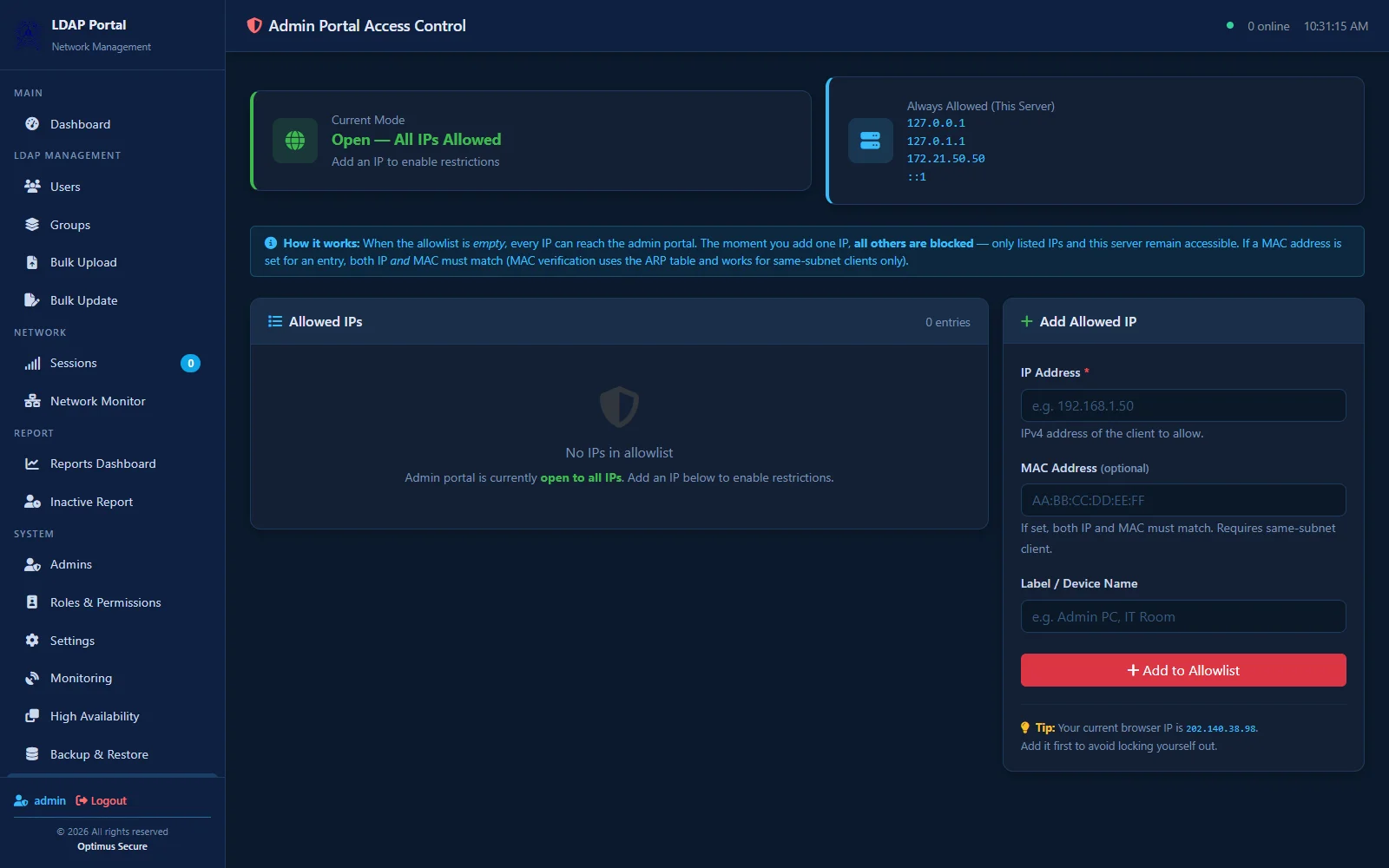
Admin portal access control — the allow-list, what is always permitted, and the address you are currently on.
Sessions and reports
Who is on the network now, and what the pattern has been.
| Tool | What it gives you |
|---|---|
| Session monitor | Every active session: the account, the address it is on, and when it started. End a session from here when you need to. |
| Usage reports | Sign-in volume, busiest hours, day-of-week pattern and a breakdown per group. |
| Scheduled summaries | Reports generated and circulated on a schedule, so nobody has to remember to pull the numbers. |
| Inactive report | A separate report for accounts that are provisioned but not being used. |
The Reports Dashboard opens on a row of counters — total directory users, active sessions right now, disabled accounts, expired accounts, users in no group, accounts expiring in the next 7 and 30 days, and new accounts this week and month. Below those sit login volume over 30 days, peak hours, the day-of-week pattern, the operating-system mix, and a per-group breakdown with headcount, logins, disabled and expired counts. That table has an Export CSV button.
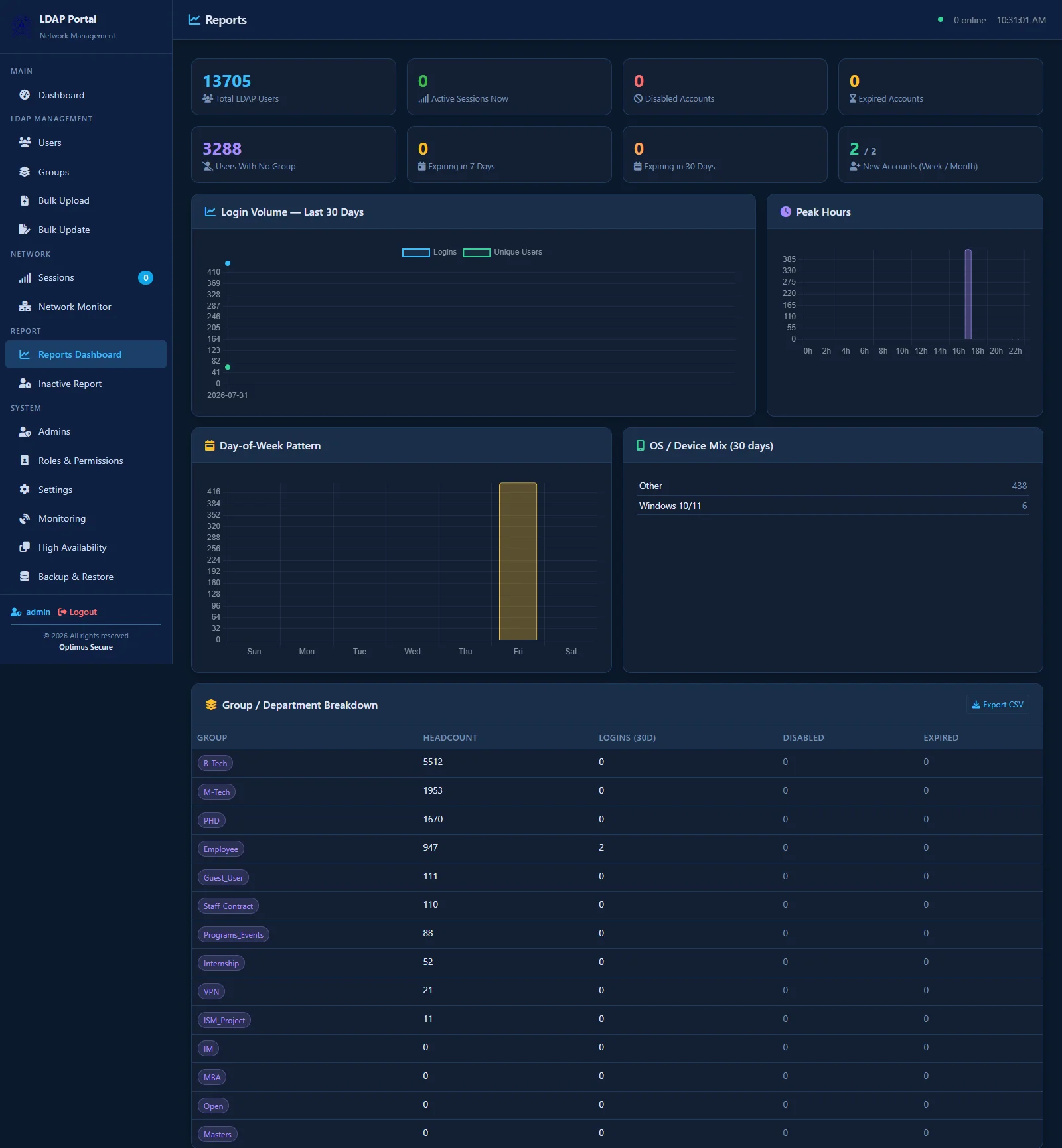
The reports dashboard — account counters, login volume, peak hours, day-of-week pattern and a per-group breakdown.
Settings, availability and backup
The rest of the System menu.
Settings
System-wide configuration, gated behind its own permission so it can be kept away from delegated administrators. It covers the directory connection, portal behaviour, outgoing mail (with a test button so you can prove SMTP works before relying on it), the welcome and password-reset e-mail template, log forwarding targets, your own password, and the administrative address allow-list.
High Availability
The system runs as a redundant pair. This page shows the current state and gives you deliberate control over it rather than leaving failover as something that only ever happens to you.
| Control | What it does |
|---|---|
| Status | Which unit is serving and the health of the pair, with a live view. |
| Enable / disable | Turn redundancy on or off. |
| Priority | Change which unit is preferred as the serving one. |
| Force failover | Hand service to the other unit on purpose — this is how you take a unit out for maintenance without an outage window. |
Backup & Restore
A backup is a single ZIP file, named with the date and time it was taken. It contains the directory users and groups, the session database, and the system’s own configuration.
| Task | How it works |
|---|---|
| Taking a backup | One button. The archive downloads to your machine — store it somewhere off this server. |
| Restoring | Upload the ZIP, then choose which parts to restore. The directory, the database and the configuration are selected independently, so you can recover one without disturbing the others. |
| Safety check | The archive is validated before anything is written. A file that is not a backup from this system is refused. |
Sessions
Under the Network menu: every active session with the account, the address and when it started, and the ability to end one. The session list can be exported.
Inactive Report
Accounts that exist but have not been used. It looks back a configurable number of months — two by default — and lists everyone with no activity in that window, with CSV export for working through the list.
What your users see
Useful to know, because it is what they will describe when they call you.
| What they experience | What is happening |
|---|---|
| The sign-in page | A device that has not signed in is sent to the portal automatically. The user enters their directory credentials — the same ones they use elsewhere. |
| Moving around the campus | A device that moves to another part of the network is recognised and its session resumed. The user is not asked to sign in again and their connection is not dropped. |
| “You are already connected” | A user who returns to the portal while still signed in is told so, and can either carry on or end the session. |
| Managing their own devices | A user at their device limit is shown their own active sessions and can end one to free a slot — without needing you and without re-entering a password. |
| Forgotten password | The user requests a reset and receives a one-time code by e-mail. This only works if the account has a valid e-mail address on it. |
Users also have a status page showing their current session, a page to change their own password, and a short help page. If their session has ended at the network but their browser still shows them as connected, there is a re-login link that clears the stale session and returns them to sign-in — worth knowing, because it resolves a call in one step.
Troubleshooting
The things that actually come up.
| Symptom | What to check |
|---|---|
| A user cannot sign in at all | Check the account is not disabled and that Valid Until has not passed. An expired account looks exactly like a wrong password to the user. |
| “Maximum devices allowed” | The account is at its limit. Either the user ends one of their own sessions from the page they are shown, or you raise the per-user allowance on the account. |
| Self-service password reset never arrives | The account has no e-mail address, or the wrong one. Check the Email field on the user. |
| An administrator cannot open the console | Their current network address is not on the management allow-list. Add it, or have them work from an approved network. |
| An administrator cannot see a user | Their role is scoped to a single group and that user is not in it. This is working as intended — widen the scope only if the job really needs it. |
| A menu item is missing | The role does not carry that permission. Menu items are hidden rather than shown and refused. |
| Bulk upload rejected rows | Read the per-row result report — it names the reason. Fix those rows in your file and upload just them again. |
Getting help
We build and support this ourselves — reach out any time.