 User Guide
Backup Manager — install & user guide
Backup Manager takes the configuration off every switch, router, firewall and server you own, on a schedule, and tells you when one of them changes. This guide takes you from a bare Ubuntu or CentOS machine to a working installation with one command, then through everything you will use day to day.
What it is
One place that holds the configuration of everything on your network, and shows you what changed.
Every device on your network holds a configuration that took someone a long time to get right. Backup Manager logs in to each of them on a schedule, takes that configuration away, and keeps every version it has ever seen. When a device fails you restore from last night. When something stops working you look at what changed and when.
It talks to equipment over SSH, including older kit that only accepts legacy ciphers, over Telnet for devices that offer nothing else, and over HTTP/HTTPS for firewalls with a config-export API. It runs on your own server — no cloud, no agent on the devices.
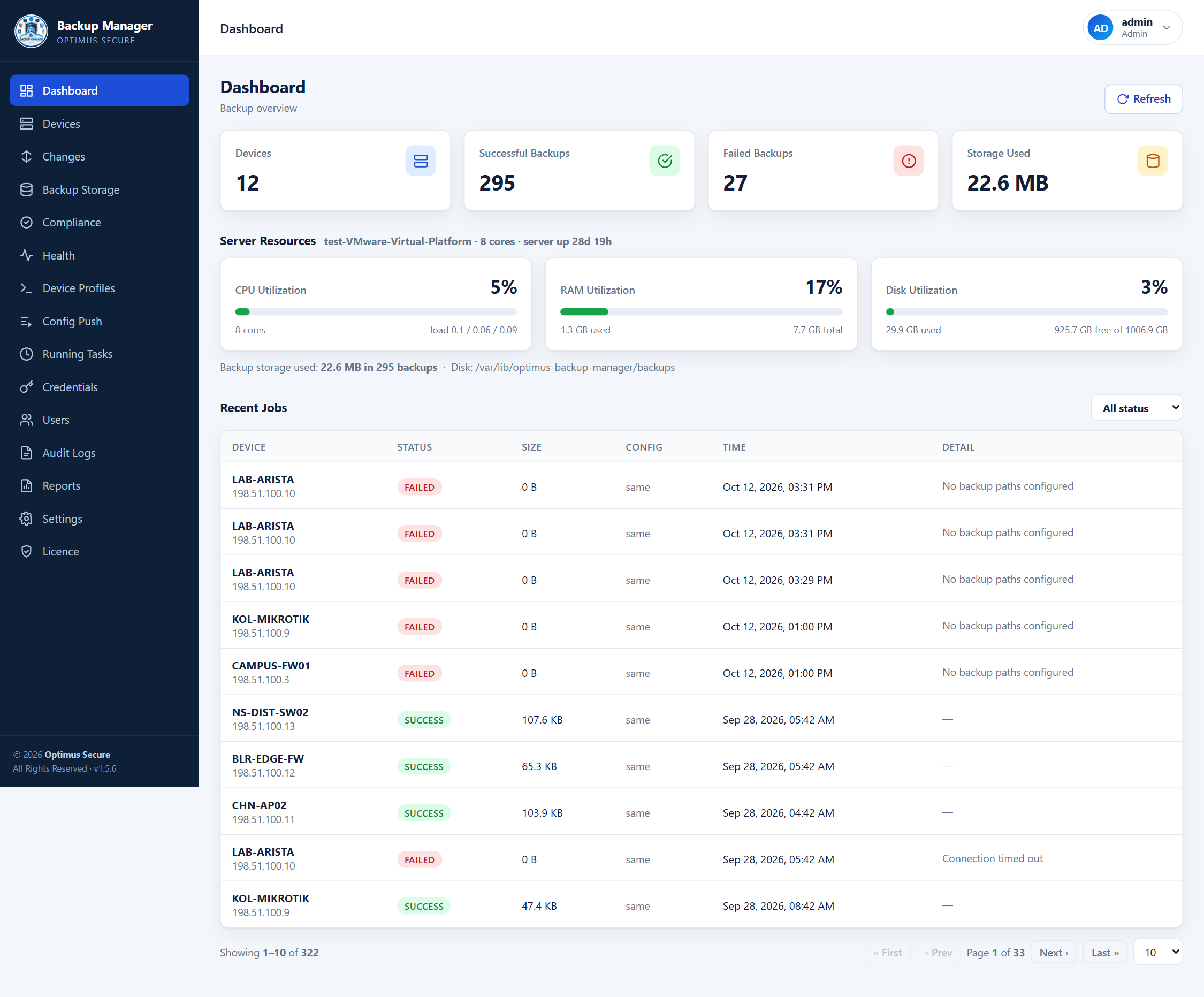
The dashboard — device and backup counts, storage used, server CPU, RAM and disk, and recent jobs.
What is new in 1.5.6
If you are upgrading from an earlier version, start here.
| Users & access control | Per-account module permissions, enforced on every request, and accounts that can be limited to a single customer — read more |
| Health | Diagnose a device from the page, retry one or many, and see the health of every place backups are kept — read more |
| Settings | Grouped cards with explanations, edits held as a draft, and export/import of every setting — read more |
| Reports | Reports can be limited to one customer, in PDF or CSV, kept exactly as handed over — read more |
| Credentials | Open a device in a browser or a console from its row, and bulk upload customers, sites, credentials and devices from one spreadsheet — read more |
| Config Push | Pre-flight risk checks, approval by another administrator, and scheduled windows — read more |
| Downloaded archives | Keep the folder structure the files had on the device, so extracting one puts everything back where it came from |
Updating is one button on the Licence page, or one command on the server — see Updating. Your devices, credentials, archives and settings are kept.
Before you start
One server and about five minutes. Everything else is installed for you.
| Operating system | Ubuntu 20.04 / 22.04 / 24.04 LTS, Debian 11 / 12, or CentOS / RHEL / Rocky / Alma 8, 9 or 10 |
| CPU and memory | 2 cores and 2 GB RAM is comfortable for a few dozen devices |
| Disk | Depends on what you back up. Network device configs are tiny; a server file tree is not |
| Network | The server needs to reach your devices on SSH (22), Telnet (23) or HTTPS — whichever each device uses |
| Internet | Needed once, to install Node.js and fetch the licence. Air-gapped installs are supported — see Your Licence |
| Node.js, build tools | Not required beforehand — the installer adds whatever is missing |
| Root access | The installer needs sudo |
Install in one command
Copy this into your terminal. It installs everything and starts the service.
Run the command
It works out whether this is an Ubuntu- or CentOS-family system, installs Node.js and any build tools that turn out to be needed, creates a locked-down service account, generates secrets, and registers a systemd service that starts at boot.
Wait for it to report healthy
Two to five minutes on a fresh server, most of it downloading dependencies. The installer checks the service actually answers before it tells you it succeeded — if it does not, it shows you the log rather than claiming success.
Open the dashboard
Browse to the address it prints — http://your-server-ip:3000.
Port 3000 is already in use. Please enter a free port: [3001]Press Enter to take the port it suggests, or type one of your own — it is checked before the install continues, so you cannot pick one that will not work. Add
--yes and it chooses without asking. Either way, the address to open is in the summary at the end.sudo ufw allow 3000/tcp on Ubuntu, or sudo firewall-cmd --permanent --add-port=3000/tcp && sudo firewall-cmd --reload on CentOS.Want a different port or a different place for the data? Pass them in:
What gets installed, and where
Code and data are kept apart on purpose, so updates can be swapped in and rolled back cleanly.
| Configuration | /etc/optimus-backup-manager/backup-manager.env |
| Database and backups | /var/lib/optimus-backup-manager |
| Program files | /opt/optimus/backup-manager/current |
| Service | systemctl status backup-manager |
| Logs | journalctl -u backup-manager -f |
| Update command | sudo backup-manager-update |
First login
One account exists to begin with. Change its password before you do anything else.
| Address | http://your-server-ip:3000 |
| Username | admin |
| Password | admin123 |
Once you are in, go to Settings and set the password policy, session timeout and login lockout to whatever your organisation requires.
Your licence
What this copy is entitled to, and how to activate it.
A new installation enrols itself for a 15-day trial the first time it can reach the licence server. The Licence & Subscription page shows the state, how long is left and how many devices the licence allows, and lists every feature with whether it is active.
To activate a purchased licence, paste the key Optimus Secure issued into Activate licence. The installation confirms it with the licence server before keeping it.
No route to the internet? Copy the machine fingerprint shown on the page, send it to Optimus Secure, and import the signed .lic file you receive — choose the file with Browse, or paste its contents. An offline term is spent in running time as well as by date, so moving the server clock does not extend it.
If the licence lapses, nothing already collected is locked away: stored backups stay readable and downloadable. New backups pause until it is renewed.
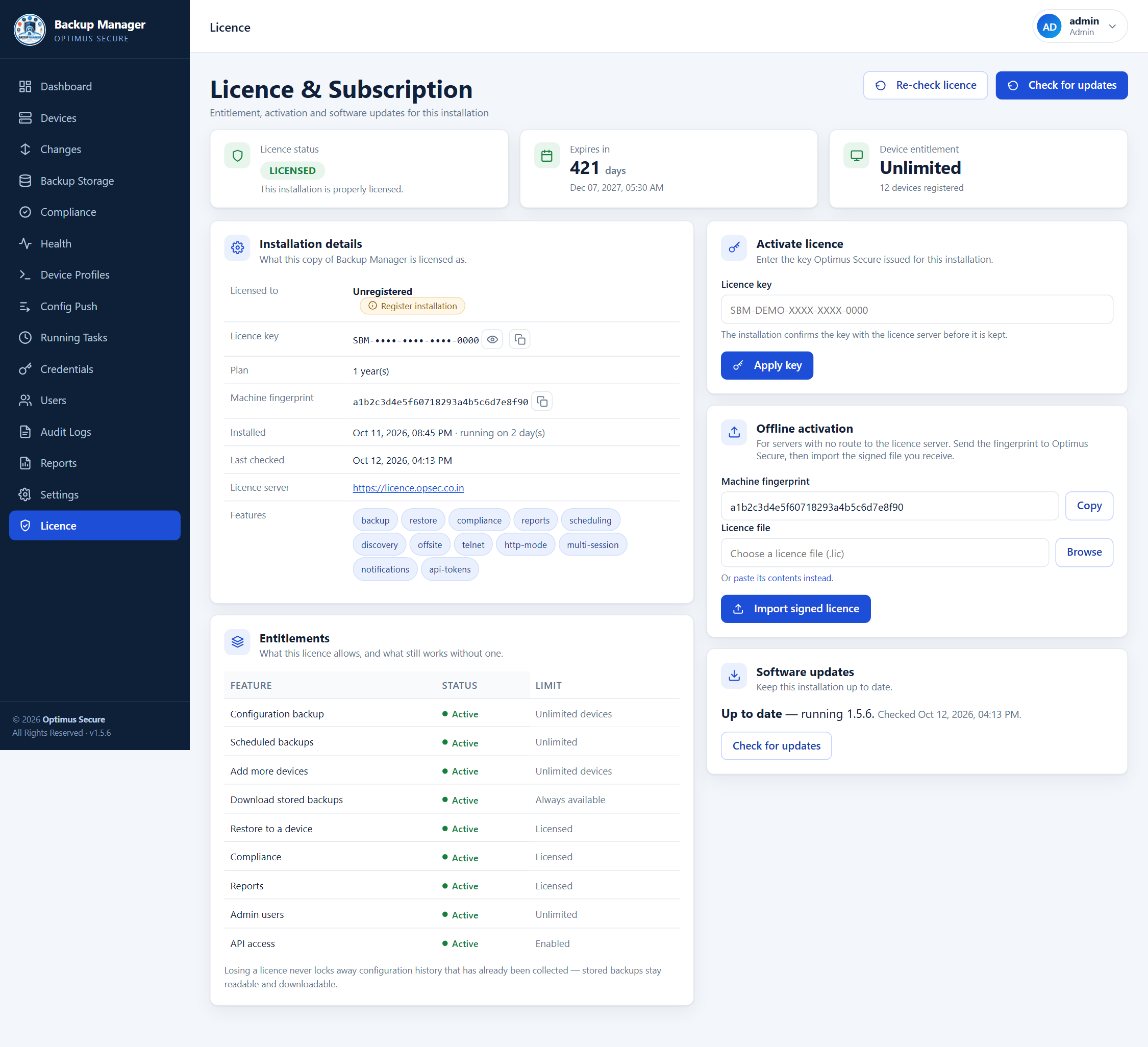
The Licence page — entitlement, activation and software updates. The data shown is an example, not a live network.
Credentials and device access
One record per device: who owns it, how to reach it, and the login that works.
Store a login once as a credential set and attach it to as many devices as share it. Passwords and keys are encrypted at rest and never shown back to you — a credential can be used and replaced, not read.
The Credentials page is also the device address book. Each row carries the customer and site it belongs to, the vendor and model, and the protocol used to reach it. Two buttons open the device directly: the globe opens its web interface in a browser tab, and the console opens an SSH or Telnet session in the browser. Filter by customer to see only one client’s estate.
Adding a lot at once. Download the sample spreadsheet from the page, fill it in, and upload it: customers, sites, credential sets and devices all come in from one file. The preview shows what will be created and what will be skipped before anything is written.
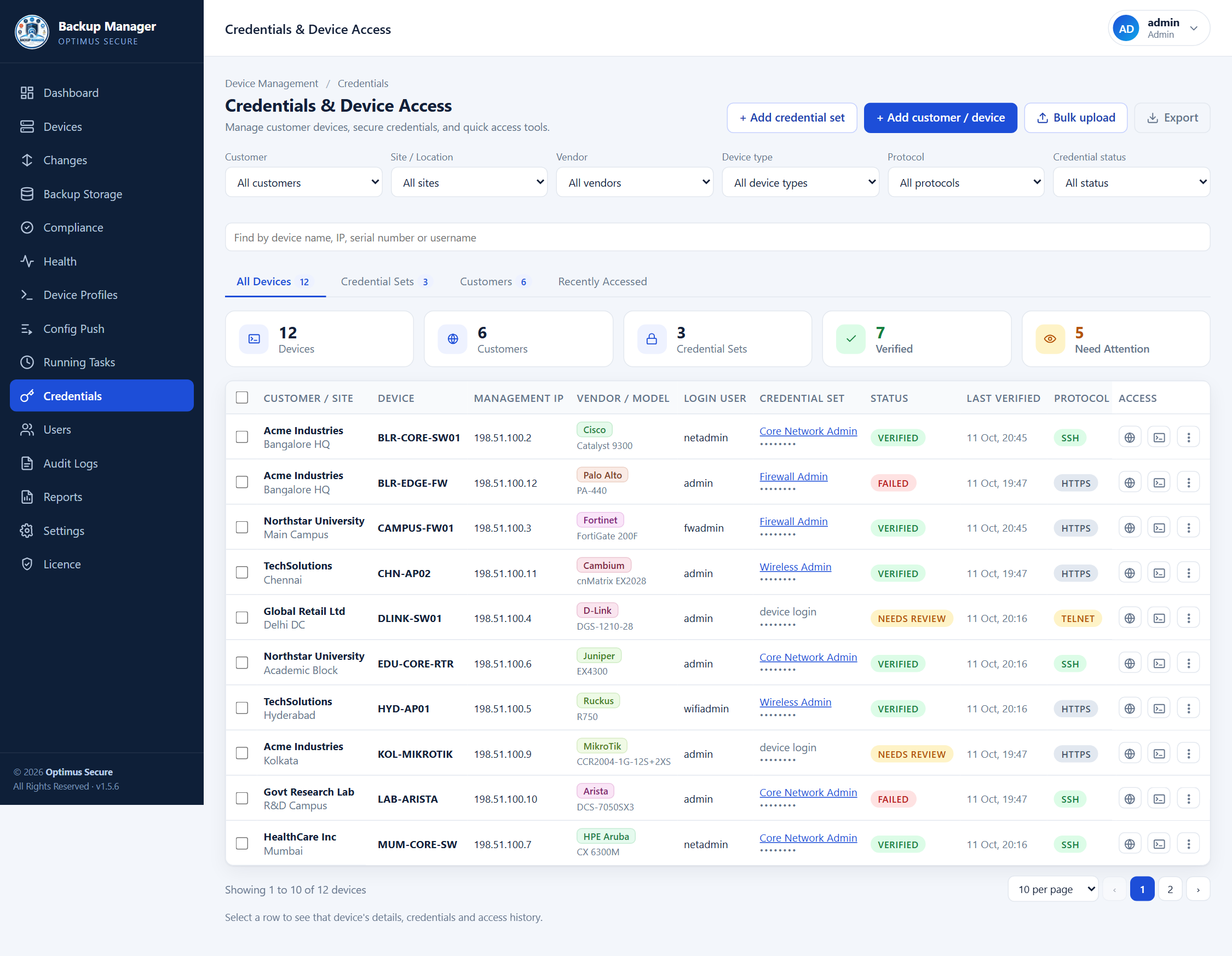
Credentials and device access — one row per device, with browser and console access. The data shown is an example, not a live network.
Adding your first device
Test the connection before you trust the schedule.
Open Devices and choose Add Device
Give it a name you will recognise later, its address, and the port if it is not the default.
Pick how it should be reached
Choose a saved credential, or enter a username and password here. For older equipment, turn on legacy algorithms so the connection negotiates the way PuTTY would.
Choose a backup mode
See Backup Modes below. For a switch or router, a device profile is almost always the right answer.
Use Test Connection
This logs in and reports what it found without saving anything. Fix any problem now rather than discovering it at 2am.
Save, then Backup Now
Run one manual backup and check the result under Backup Storage before you rely on the schedule.
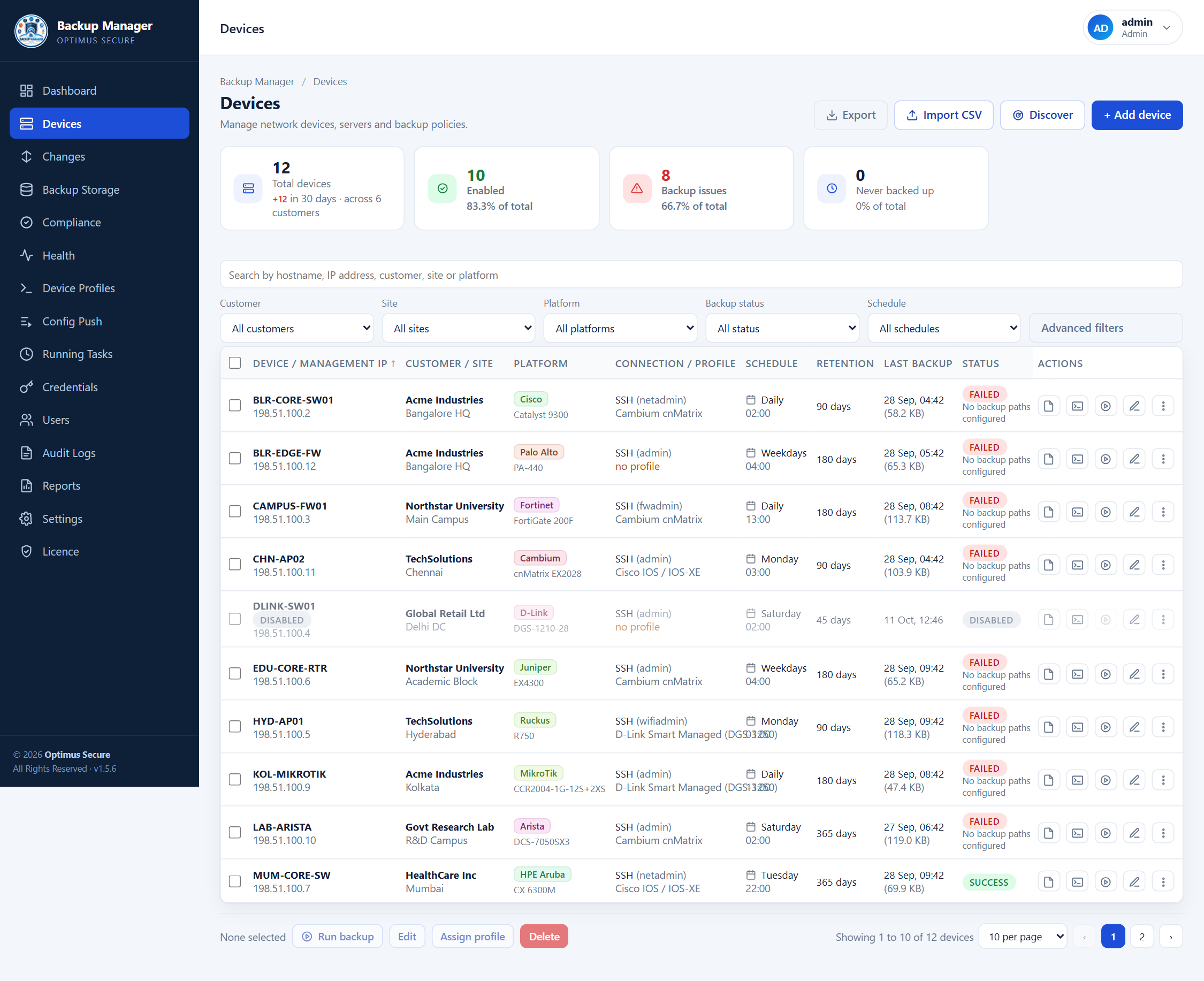
The Devices page — every device with its host, platform, mode, schedule and retention.
Adding many devices
Scan the subnet, tick what you want, add it.
On Devices, press
Discover and give it a subnet in CIDR form, for example
172.26.10.0/24. It checks TCP 22, 23, 443 and 80 on every
address and lists what answered, with the SSH banner where there is one. A /24 takes about a
minute. Anything already in Backup Manager is marked already added so it
cannot go in twice.
Choosing what to add
Tick the ones you want, or press Select all new and untick the few you do not. Every row also has Add this one: that opens the ordinary Add Device form with the address already filled in, so a single device gets every option that form has.
Adding a batch offers the same settings — platform, what to back up (including HTTP), exclude patterns, the enable password, schedule, retention, parallel sessions, tags, and whether they start enabled or paused.
One login for the lot
A rack of switches usually shares one account, so the form asks how to log in before anything else:
| Use a saved credential set | Pick one that already exists. Every device added points at it. |
| Create a new credential set | Name it, give the username and password, and it is created as you add. Changing that password later updates every device using it, which is the reason to prefer this over typing the login onto each device. |
| Just for these | A username and password stored on the devices themselves, with no shared set. |
Choosing a saved set takes the username and password fields away and tells you which account it will use — the set supplies the login, so there is nothing to type. Everything else can be changed per device afterwards.
Naming the kind of device
The Platform list is a label used for grouping and for reading the device list, and it is not fixed. Choose + Add a platform… in any platform list, give it a name, and it is there from then on — for the switch vendor, appliance or box that is not in the list as shipped.
Manage the ones I added… in the same list removes them again. The names that came with Backup Manager stay, and one still in use by a device is kept until those devices are changed.
There is also Import CSV next to Discover, for when the list comes from somewhere else.
Backup modes — which one to use
Four ways to get a configuration off a device. Pick by what the device is.
| Device profile | For switches, routers, firewalls and wireless controllers. Runs a known command sequence — log in, enable, disable the pager, show the running config. This is the right choice for nearly all network equipment. |
| Paths | For Linux and Windows servers. Copies the directories you name over SFTP into a ZIP archive. Use the tree picker to choose exactly what to include and skip the parts you do not need. |
| Command | For anything with a one-off command that prints what you want, such as a custom export script. |
| HTTP/HTTPS | For firewalls and appliances with a config-export endpoint — FortiGate, Palo Alto, Sophos, pfSense and similar. Supports basic auth, bearer tokens, API keys and form logins. |
node_modules can turn a twenty-minute job into a two-minute one. Large trees are pulled over several SSH sessions at once, which you can tune per device.Device profiles
The recipe for talking to one kind of box.
A profile says how to reach a vendor’s equipment: the transport, how to get past the login and any paging prompt, and which commands produce the configuration worth keeping. Profiles ship for the common vendors, and you can duplicate one and adjust it.
Test a profile against a real device from the profile itself — it connects, runs the commands and shows what came back, so you can tell whether the recipe works before attaching it to fifty devices. Profiles can be exported and imported between installations.
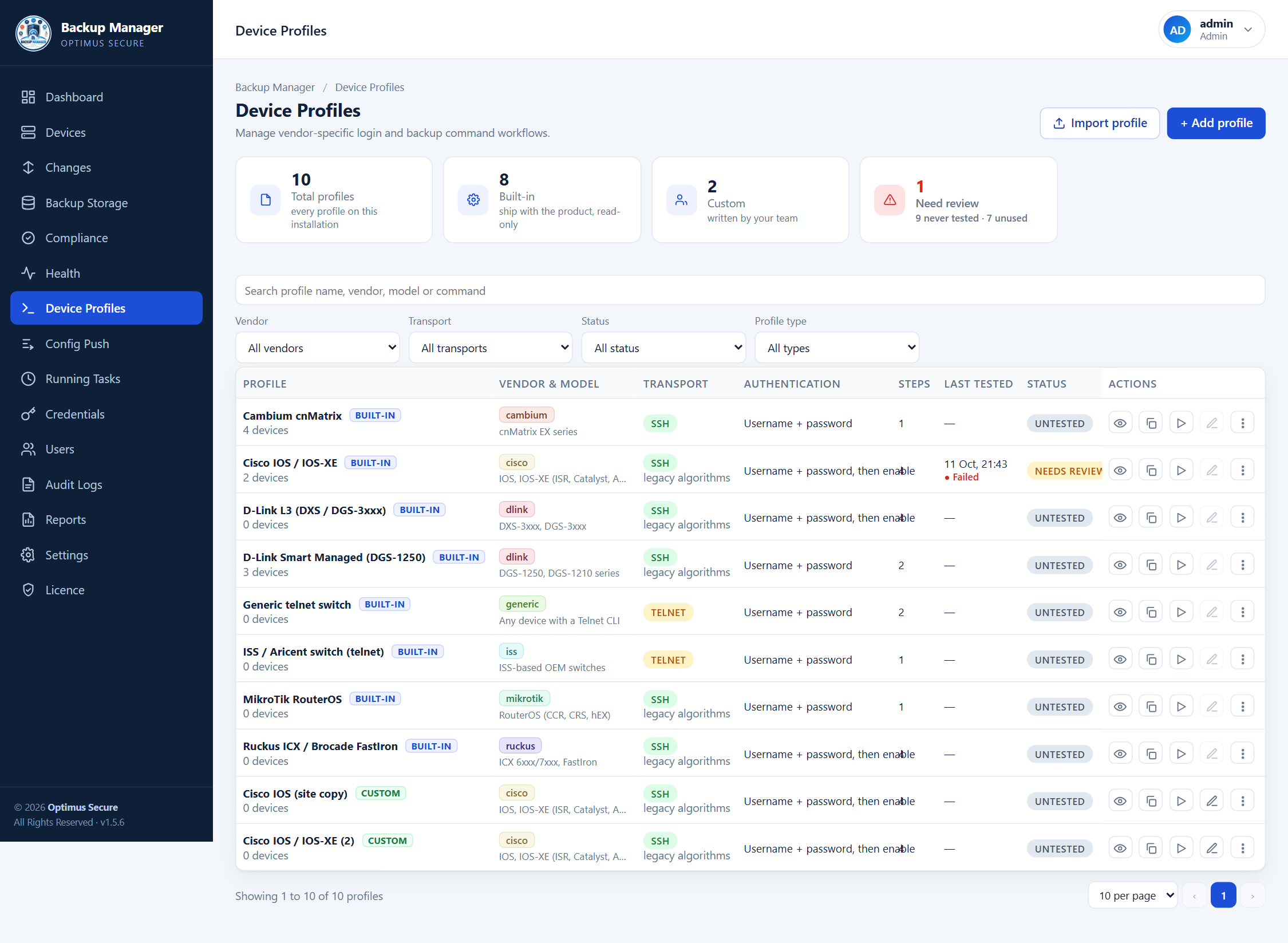
Device profiles — per-vendor recipes, testable against a real device. The data shown is an example, not a live network.
Schedules
Pick a time per device. They stagger themselves so the network is not hit all at once.
Each device has its own schedule, chosen from a time picker rather than written as a cron expression. Give different devices different times — or give them the same time and let the built-in stagger spread them out, so forty switches do not all get hit on the same second.
A job that fails retries on its own, with a growing gap between attempts. Jobs that are queued or running appear under Running Tasks with a live percentage, so you can watch a large copy progress instead of wondering whether it has hung.
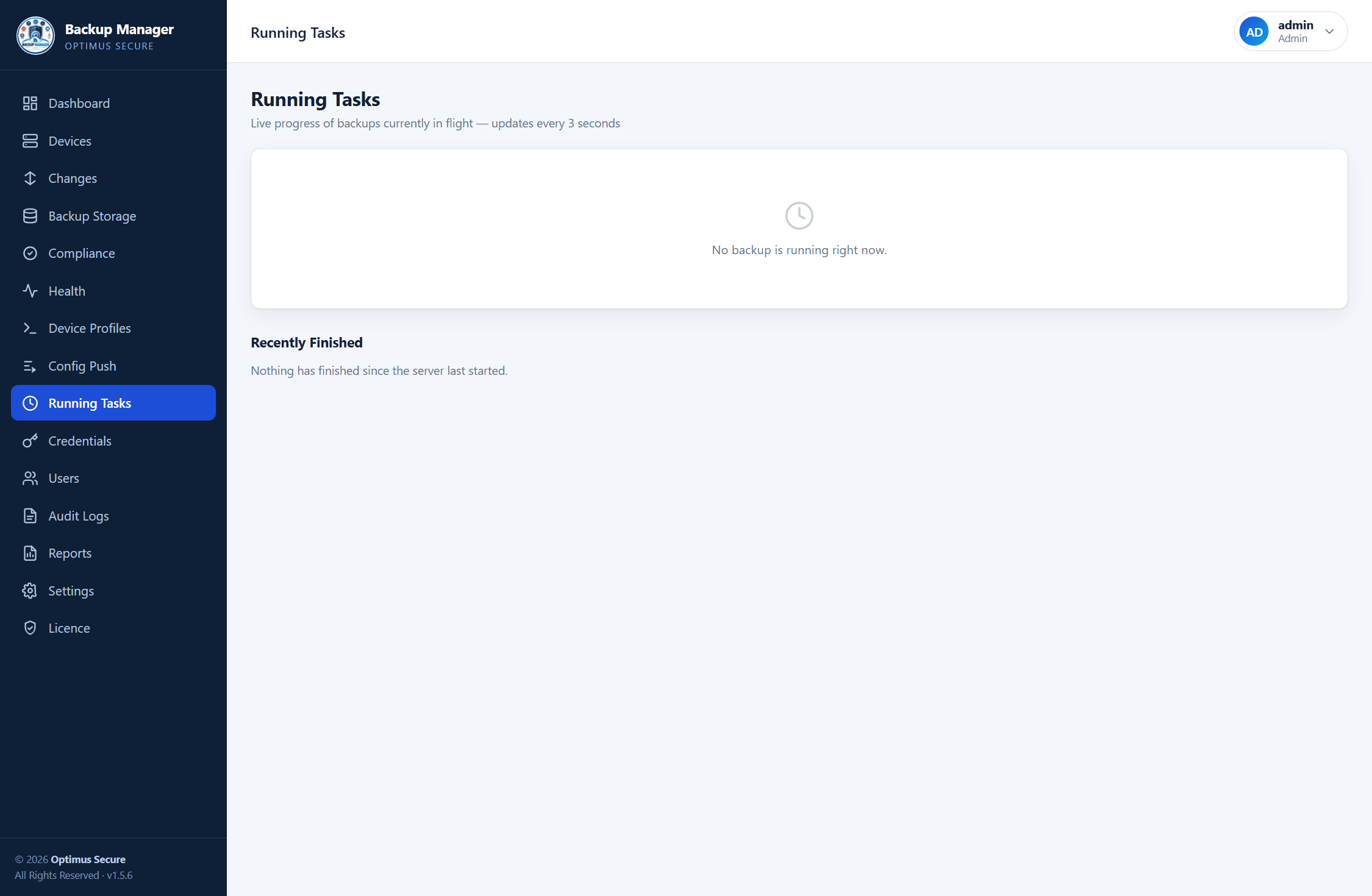
Running Tasks — what is queued, what is running, and how far along it is.
Changes and version history
What changed on which device, and who is likely to have done it.
Every backup is compared with the one before it. When the configuration differs, the Changes page records a version with a side-by-side diff, and classifies what sort of change it was — an access-list edit, a routing change, a new user, a credential — and how risky it looks.
Filter by device, customer, risk or kind of change, export the list, and mark a change as reviewed so the next person knows it has been looked at. A configuration that differs from the one before it can be kept forever regardless of retention; that is the default.
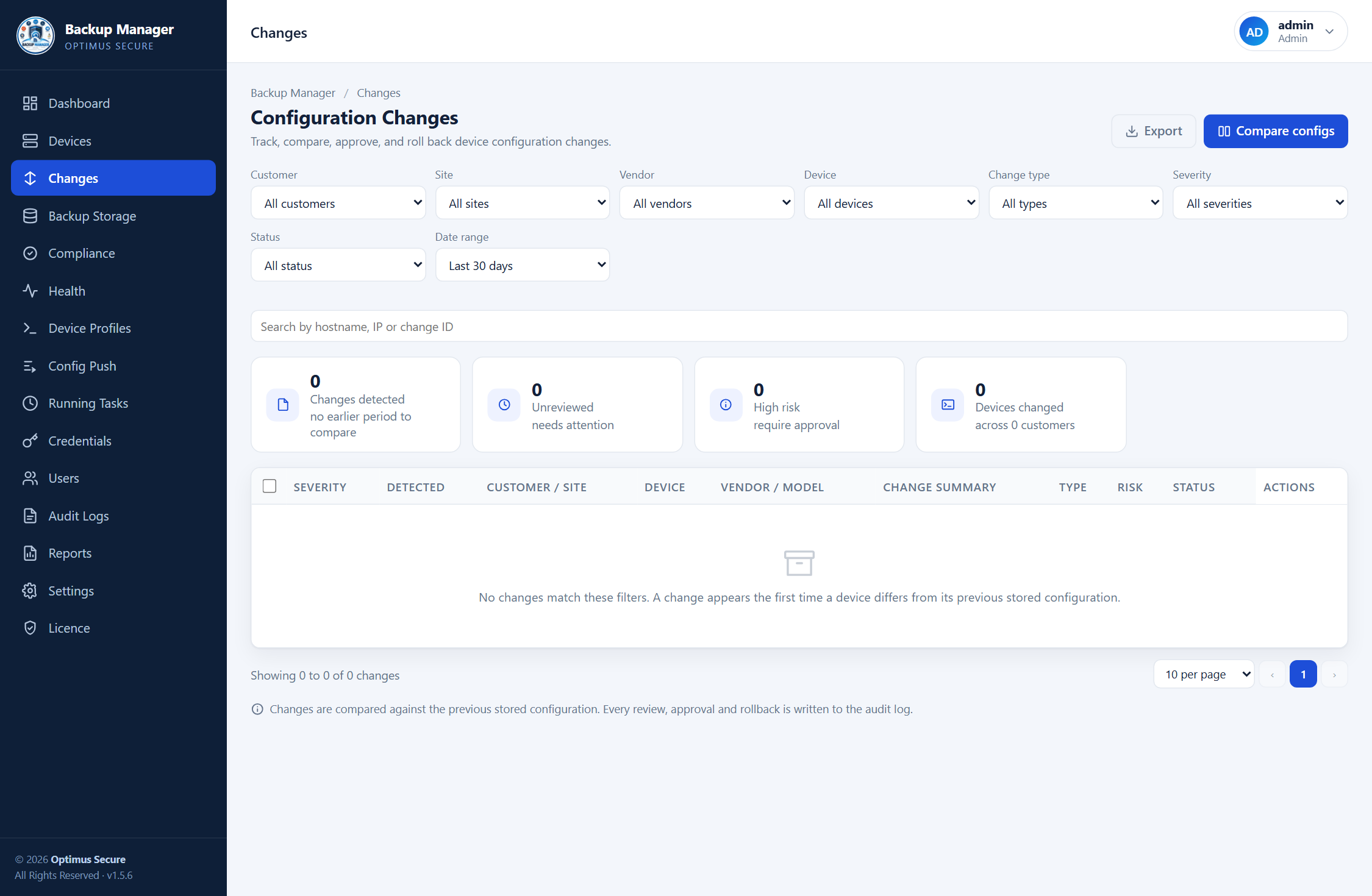
Changes — every configuration difference, classified and reviewable. The data shown is an example, not a live network.
Compliance rules
Rules checked against the configurations you already collect.
A rule is a pattern that must appear, or must not appear, in a device configuration — no Telnet, an NTP server set, logging enabled, no default community strings. Rules ship with the product and you can add your own.
Checks run after every successful backup, so the page is current without a separate scan. Findings are weighted by severity into a single score, and each one can be re-checked, remediated, or given a recorded exception with a reason — an exception is a decision, so it is counted and shown rather than hidden.
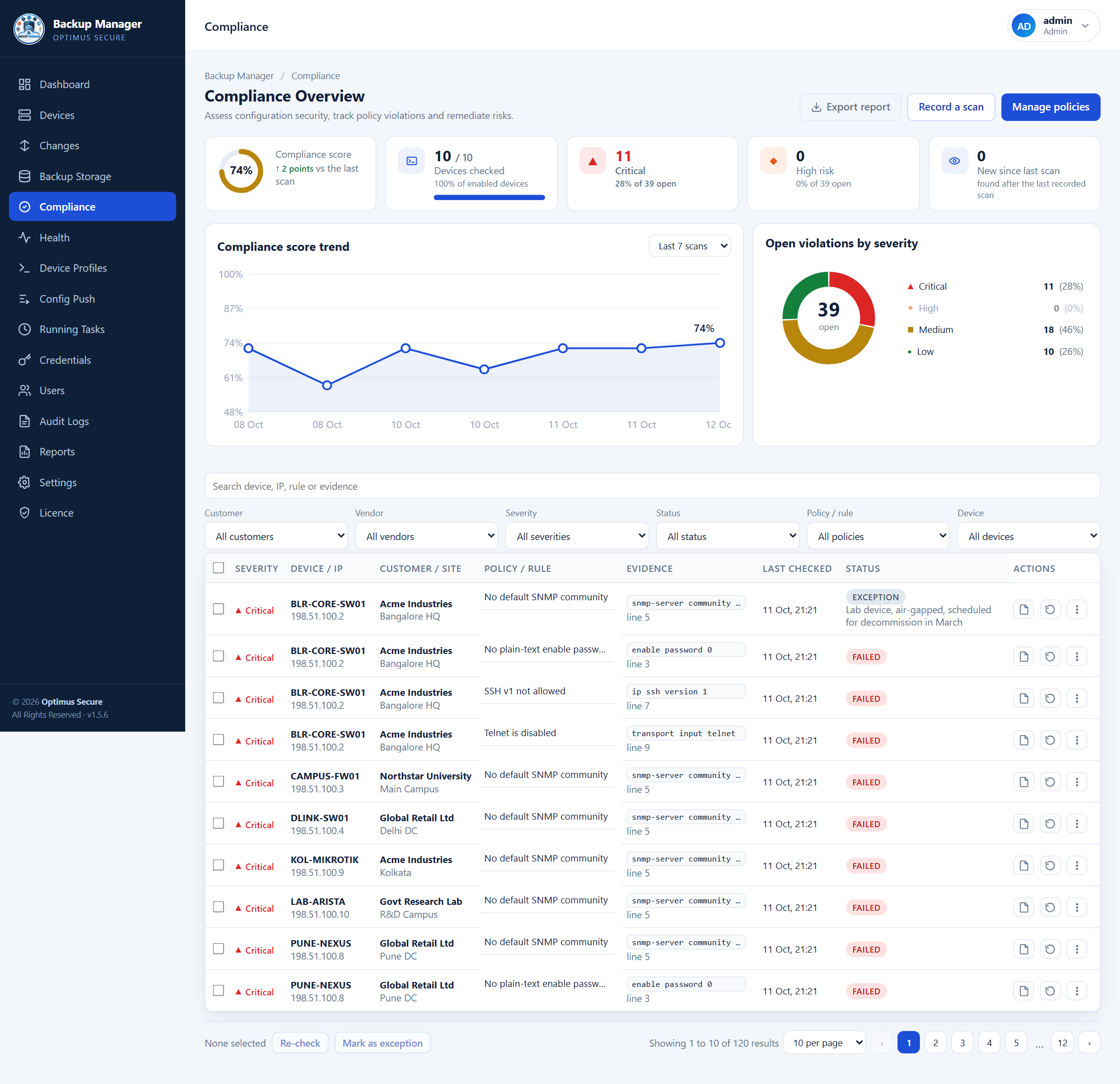
Compliance — findings by severity, with remediation and recorded exceptions. The data shown is an example, not a live network.
Stored backups
Every archive, what is in it, and whether it is still intact.
The Backup Storage page lists every archive with its device, customer, size, age and integrity. Open one to see the files inside without downloading it, or download it as a zip.
A downloaded archive keeps the folder structure the files had on the device, so extracting it at the root puts everything back where it came from. Nothing is renamed or flattened.
Verify re-reads an archive and compares it with the checksum recorded when it was written. A mismatch is recorded as a mismatch — the stored checksum is never overwritten by what was found, or a tampered archive would read as verified ever after. Mark an archive keep and retention will leave it alone.
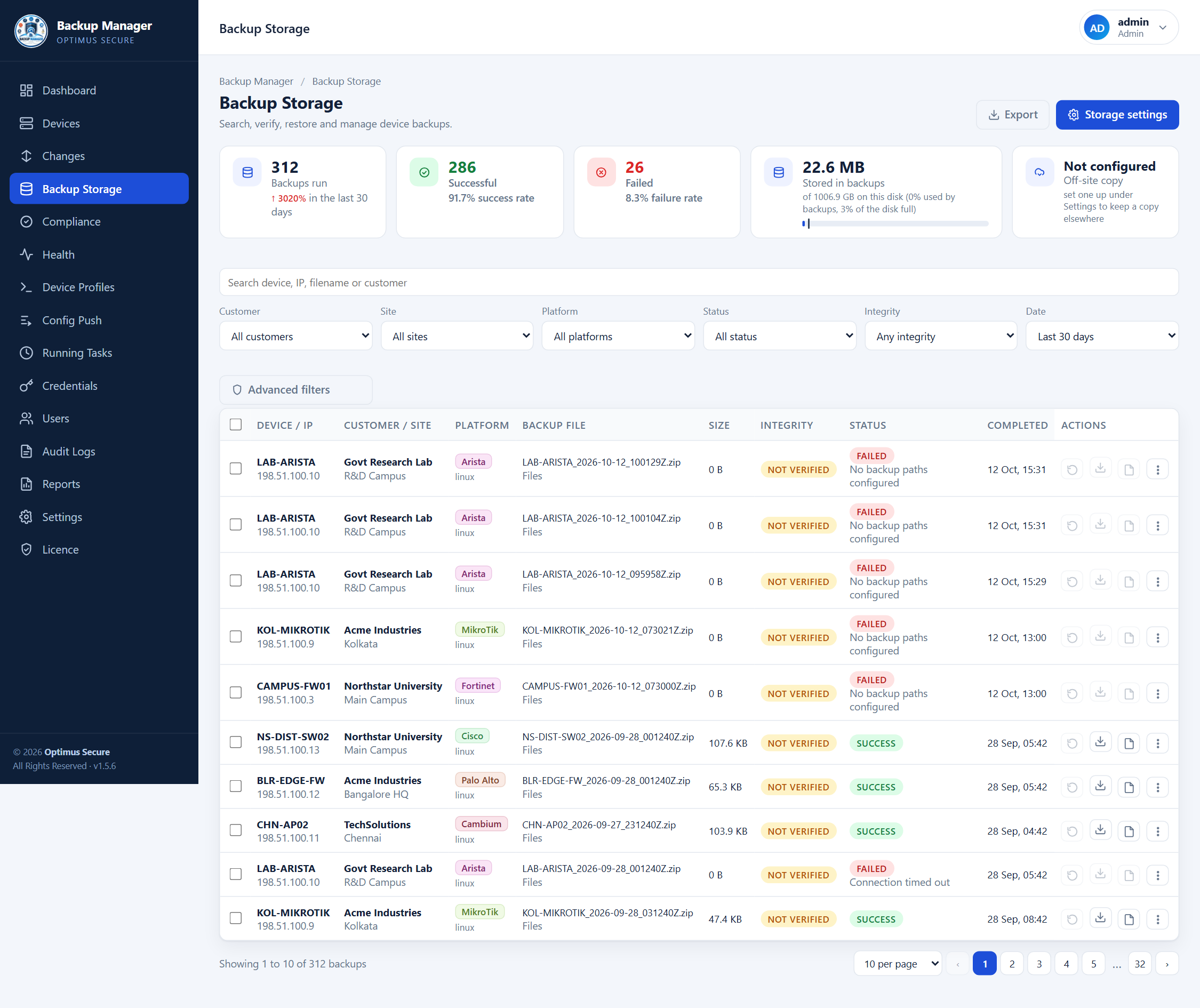
Backup Storage — every archive with its size, age and integrity. The data shown is an example, not a live network.
Restoring a configuration
Push a stored version back to a device — with a dry run first.
Find the version you want
Open the device history and pick the version from before things went wrong.
Run it as a dry run first
This shows you exactly which commands would be sent, without sending them. Read that list before you go further.
Apply it
The commands are sent and the whole session transcript is recorded, so there is a record of precisely what was done and how the device replied.
Config Push
The same change, on many devices, without typing it many times.
Open Config Push. The page is three steps on one screen: what to send, where to send it, and what happens around it.
1 · What to send
Type the commands one per line, exactly as you would
type them into PuTTY. Nothing is added or rewritten — if the change needs
enable, configure terminal and
write memory, those are lines you type. A line starting with
# is a note to yourself and is not sent.
A command can carry values that differ per device:
{{name}}, {{host}},
{{username}}, {{platform}} and
{{tags}}. Sets you use often can be saved by name and loaded again.
enable, the enable
password already stored for that device is sent for you — so it never has to be typed into
the box. Passwords written into a command do reach the device as typed, but are masked
(********) in the record kept afterwards.2 · Where to send it
Tick the devices. Search by name or address, narrow by platform, or use Select shown to take everything the filter is showing. Nothing is ever sent to "all devices" by default — the Push button stays disabled until you have chosen, and it tells you how many it will reach.
3 · Try it on one device first
Try on one device opens a live session to a single device from your selection. Press Run my commands here and you watch the device answer line by line. There is a box at the bottom to type anything else you want to check, and the session stays open while you do. When it looks right, Looks good — push to N takes you straight to the rest.
This is the same code that runs the real push, so what you see here is what the other devices will do.
Just opening a device
Every device in the list has a Console button, and there is an Open a device console button with the others. Either one opens a real terminal on that device — no commands to write first, nothing to select.
It behaves the way PuTTY does, because every key you press goes straight to the device rather than being collected into a line first:
| Tab | Completes the command or path, from the device itself. |
| ? | The context help a switch prints while you are part way through a command. |
| Up and down arrows | The device's own command history. |
| Ctrl-C | Stops whatever is running, straight away. |
| Colours and paging | Drawn properly, including --More--
and anything that redraws the screen. |
| Window size | Sent to the device and updated when you resize, so it wraps and pages to what you are actually looking at. |
Paste sends a block of text — a config stanza, for instance — as if it had been typed, and Maximise gives the session the whole window. The device is told the new size, so it wraps and pages to what you are actually looking at. The same button is on the configuration viewer.
What happens around the change
| Back up before | On by default. A device that cannot be backed up is left alone rather than changed blind. |
| Back up after | On by default. The Changes page then shows the exact diff the push produced. |
| Stop at the first failure | Off by default. Turn it on when one bad command should not reach the rest. |
| Devices at a time | How many run in parallel. Three is a sensible start. |
| Preview what will be sent | Shows the exact lines each device would receive, with the
{{…}} values filled in, without connecting to anything. |
While it runs, and afterwards
Each device gets a row: waiting, running, done, failed or skipped, how far through the set it got, and how many configuration lines changed. What happened opens the full transcript for that device — every command and everything the device said back. You can stop a push part way; devices already changed stay changed, and the rest are skipped.
When a device says no
A device that answers Invalid input, % Incomplete command or command not found is marked failed rather than counted as a success, and the rest of the set is not sent to that device — running the remaining commands after one was refused is how half a change gets made.
The row tells you both things you need: how many commands went in before it stopped, and what the device actually said. The same reason appears against the run in Recent pushes, so you do not have to open anything to see it.
wr or
write memory is refused inside
configure terminal — the device answers
% Incomplete command. End the block with end first,
or use do write memory. The commands before it have already
been applied; the row says so.Config Push needs the operator or administrator role. A viewer cannot open it.
Before it runs. A push is checked first: the page shows which devices would be affected, how risky the change looks, roughly how long it will take, and any syntax it cannot make sense of. A push can require approval from another administrator and can be scheduled for a window — both are real gates, not labels, and nothing runs until they are satisfied. Every push keeps a rollback.
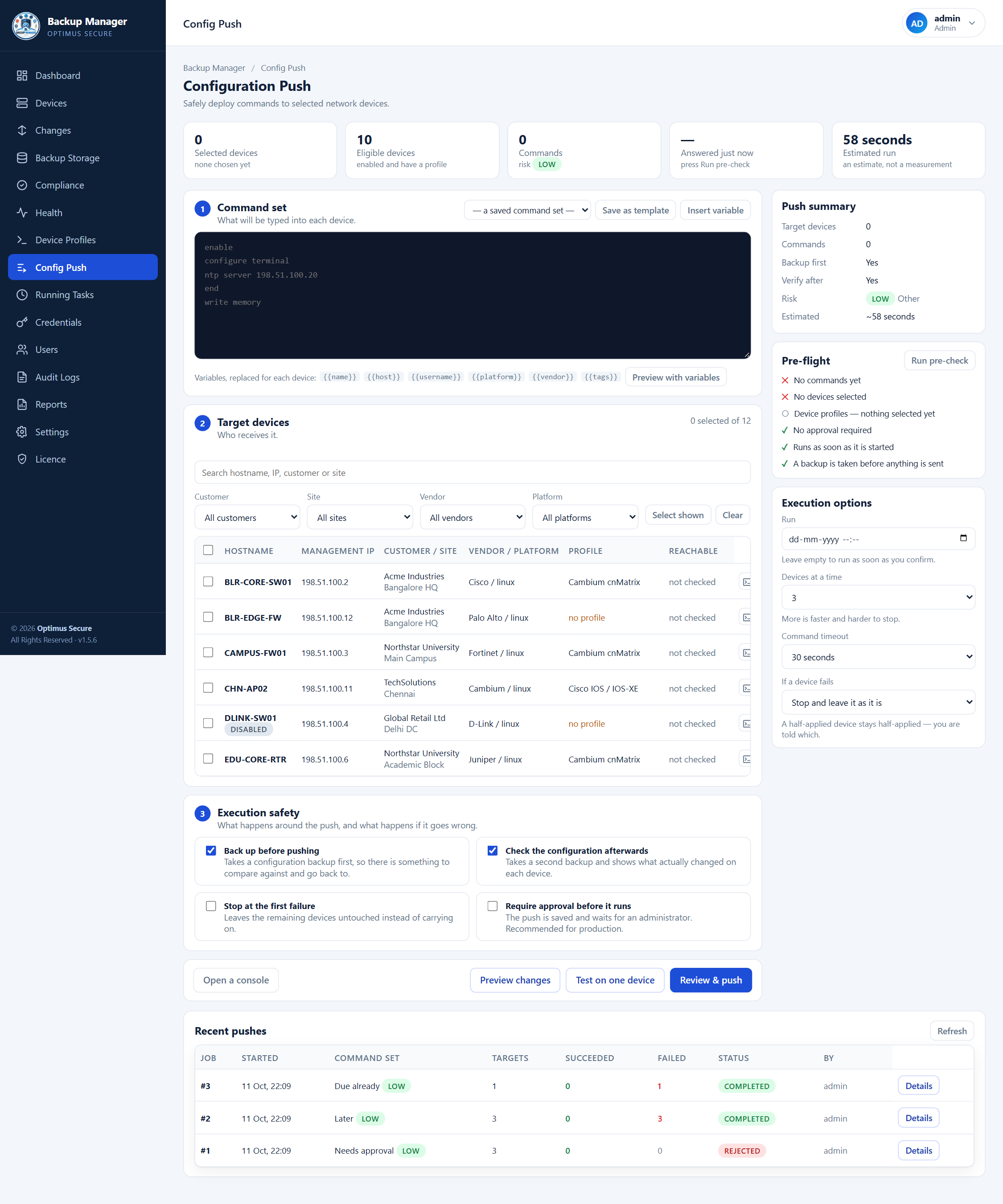
Config Push — pre-flight checks, risk, approval and scheduling. The data shown is an example, not a live network.
Reports
A document to send, on demand or on a schedule.
The Reports page opens with the figures worth knowing: backup success rate against the period before it, how many devices are genuinely protected, the compliance score, and how much is stored. Underneath, a daily chart separates successful, failed and partial runs, and a donut breaks compliance results down by severity.
Choose a report type, a period and a format — PDF to send, CSV to work with — and generate it. Pick a customer and the whole document is limited to that customer’s devices, which is what you want when the report is going to them rather than to you.
Generated reports are kept exactly as they were handed over, so the copy you send and the copy you keep are the same file. A schedule can email one weekly or monthly; the page says plainly when no email channel exists yet, because a schedule without one saves but delivers nothing.
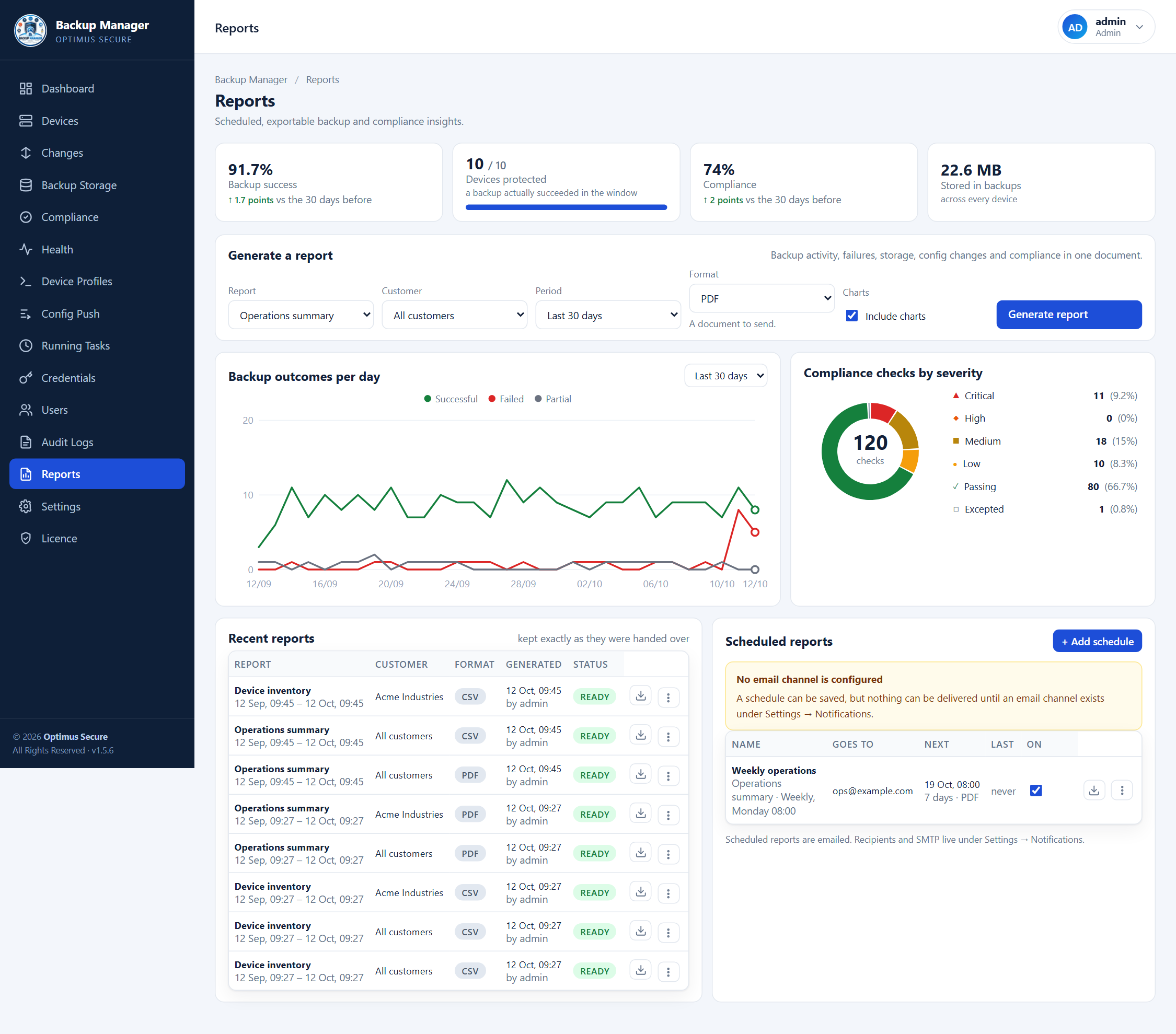
Reports — the figures, the daily trend, and reports kept as they were handed over. The data shown is an example, not a live network.
Health and alerts
What needs a person, and nothing else.
Health is the page to open first thing. Four figures across the top — critical issues, warnings, what is in the queue, and the success rate over the last 24 hours — and the first three filter the table when you click them.
The Needs attention table is a work queue rather than a report. Each row names the device, its vendor and site, what went wrong, when it was last seen and how many times in a row it has failed. Two buttons sit on every row:
| Diagnose | Contacts the device and reports six checks — enabled, credentials stored, backup paths or command set, schedule set, whether it answers and accepts the login, and whether a recent backup succeeded — each with what it found |
| Retry | Queues a backup for that device straight away |
Tick several devices and back them up together; they are spaced out the same way a schedule spaces its devices, so selecting forty does not open forty sessions at once.
A device set to copy paths with none listed is flagged before it fails, rather than after three failures — it would collect nothing if it ran.
Below the table: what is running and waiting, the health of each place backups are kept with when it was last verified, and the recent run history. Set up notifications under Settings → Notifications so you do not have to look — email, a webhook or Slack, on failure, on a configuration change, or as a daily summary.
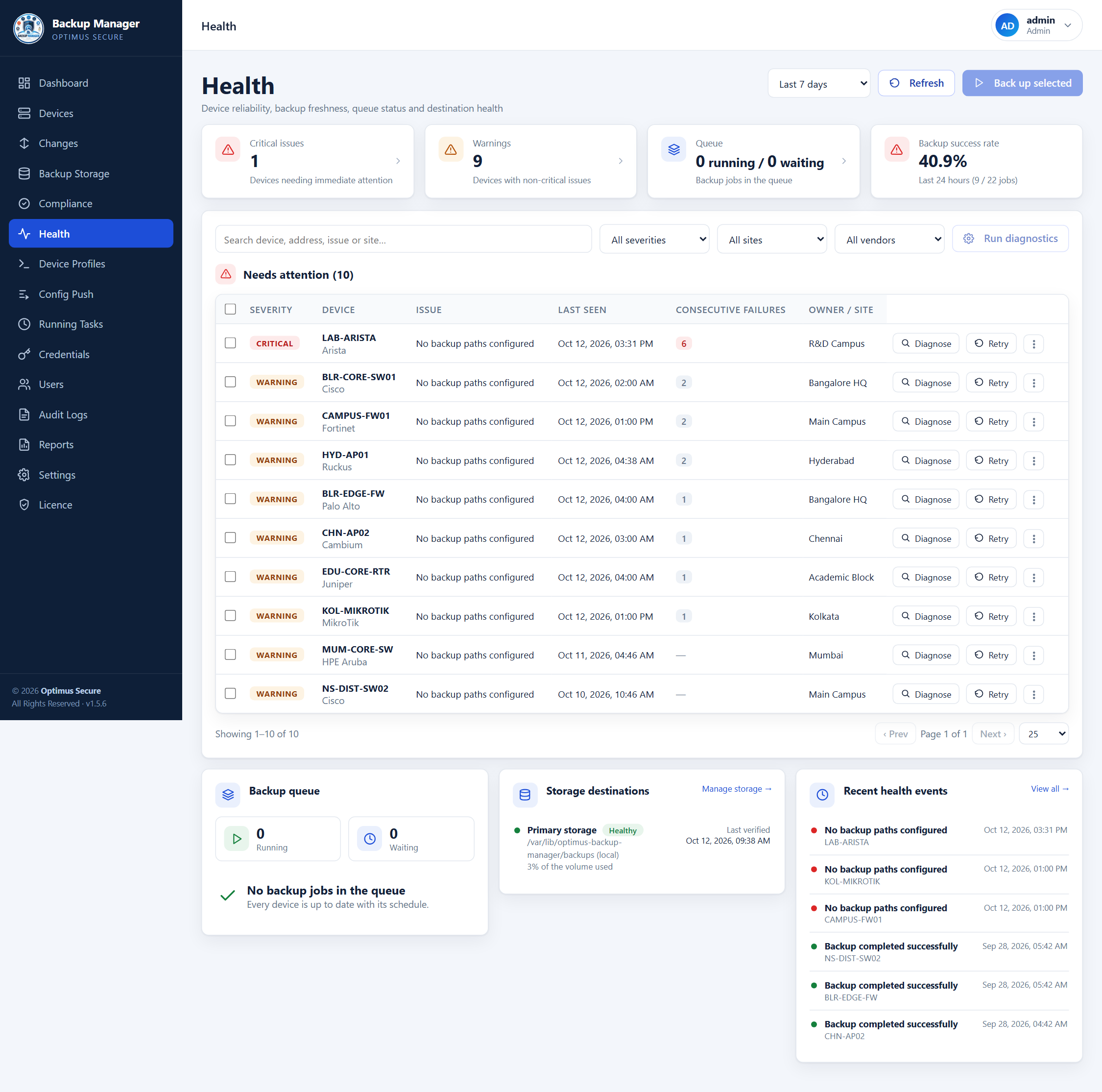
Health — critical issues, warnings, the queue, and per-row Diagnose and Retry. The data shown is an example, not a live network.
Off-site copies and retention
A backup that only exists on the backup server is one failure away from not existing.
Under Settings you can point Backup Manager at S3-compatible storage and have every archive mirrored there automatically. If the backup server itself is lost, the backups are not.
Retention keeps the disk from filling up. As well as a simple age limit per device, there is a grandfather-father-son scheme that keeps a number of daily, weekly and monthly copies — so you keep a year of history without keeping a year of daily archives.
Settings
How the system runs, grouped so a change is easy to find.
Settings are grouped into cards — Execution, Retention & Lifecycle, Storage & Integrity, Security Defaults and Device & Compliance — and each field says what it does underneath it. A setting that only matters because of another is dimmed with the reason shown: the GFS copy counts, for instance, only apply when the retention policy is set to GFS.
Edits are held as a draft. Nothing changes until you press Save changes, Discard puts everything back, and leaving the page with unsaved work asks first. Turning off archive encryption, checksums or SSH host-key checking asks for confirmation, because each one removes a protection.
The System health panel beside the form shows the settings that matter most — encryption, checksums, host-key policy, whether email can actually be delivered, and when the settings were last exported. Anything not in a good state explains why, and clicking the row jumps to the setting.
Under Maintenance you can export every setting to one file and import it again — useful before a change, or to set up a second server the same way. The file holds settings only, not devices, credentials or archives.
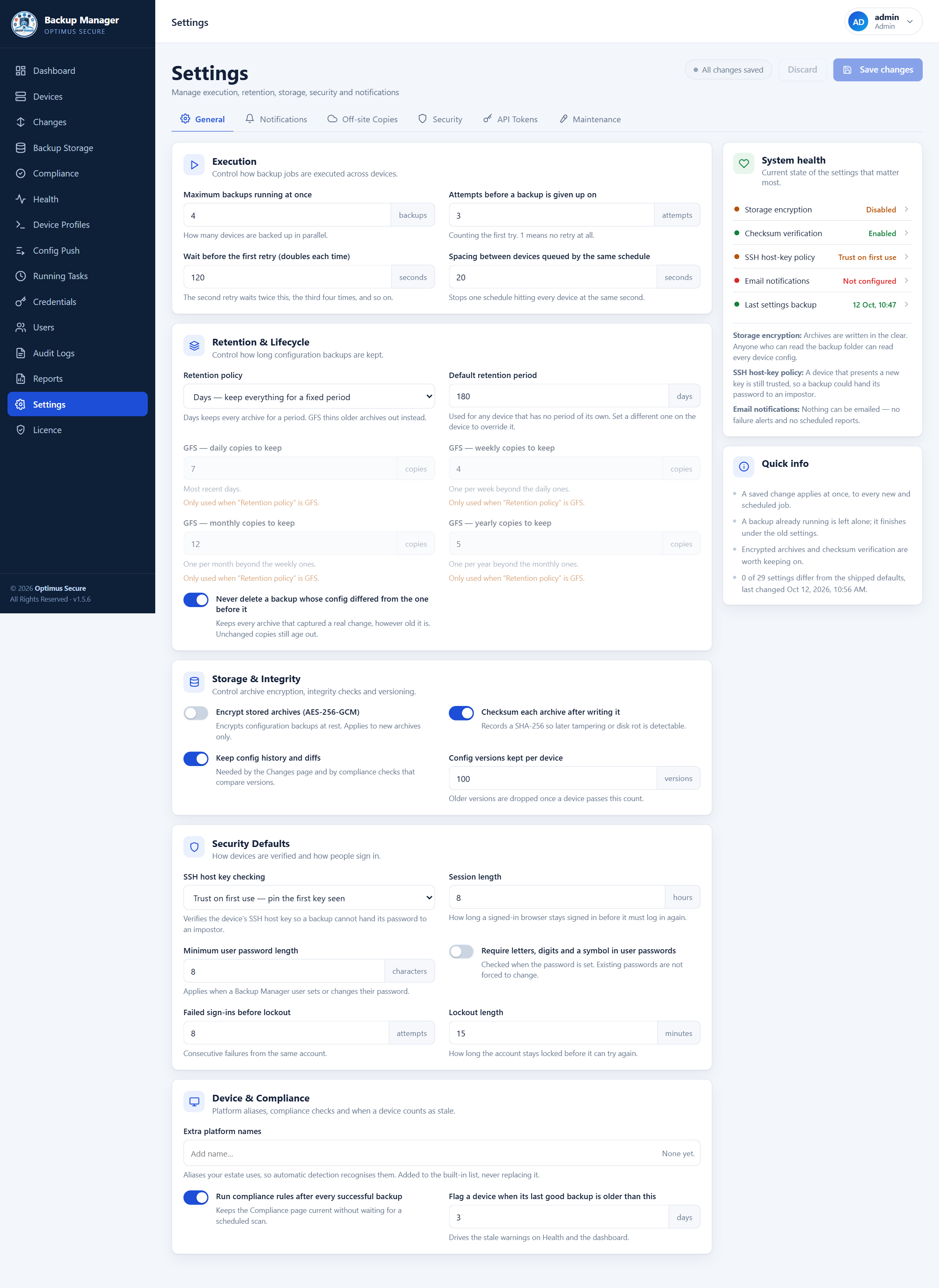
Settings — grouped cards, a draft that must be saved, and a system health panel. The data shown is an example, not a live network.
Users, roles and permissions
Three dials per account, because they answer different questions.
Every account has a role, which decides what it may do; a set of modules, which decides what it can reach at all; and optionally a customer, which decides whose devices it can see.
| Administrator | Everything, including users, settings and licence. Never narrowed. |
| Operator | Can run backups, push config and manage devices |
| Viewer | Read only — can open a page but change nothing |
Narrowing an account. Pick the key icon beside a user and tick the modules it should reach, grouped as Core, Operations, Governance and Administration. This is enforced on every request, not merely hidden from the menu — a narrowed account that asks for a page it does not have is refused. The navigation is built from the same list, so it only ever offers what will work.
Limiting an account to one customer. Set a customer on the account and it sees only that customer’s devices and backups — on the dashboard, in the device list, in backup storage and in credentials and access. Asking for another customer by name or by id returns nothing. A view that cannot yet be limited that way is refused rather than widened, and the Customer access tab lists exactly which views a limited account can open.
Disabling an account ends its current session immediately, not at its next sign-in. Every action is recorded in the audit log, and sign-ins — successful or not — in the login history. For scripts and monitoring, create an API token under Settings rather than sharing an account password.
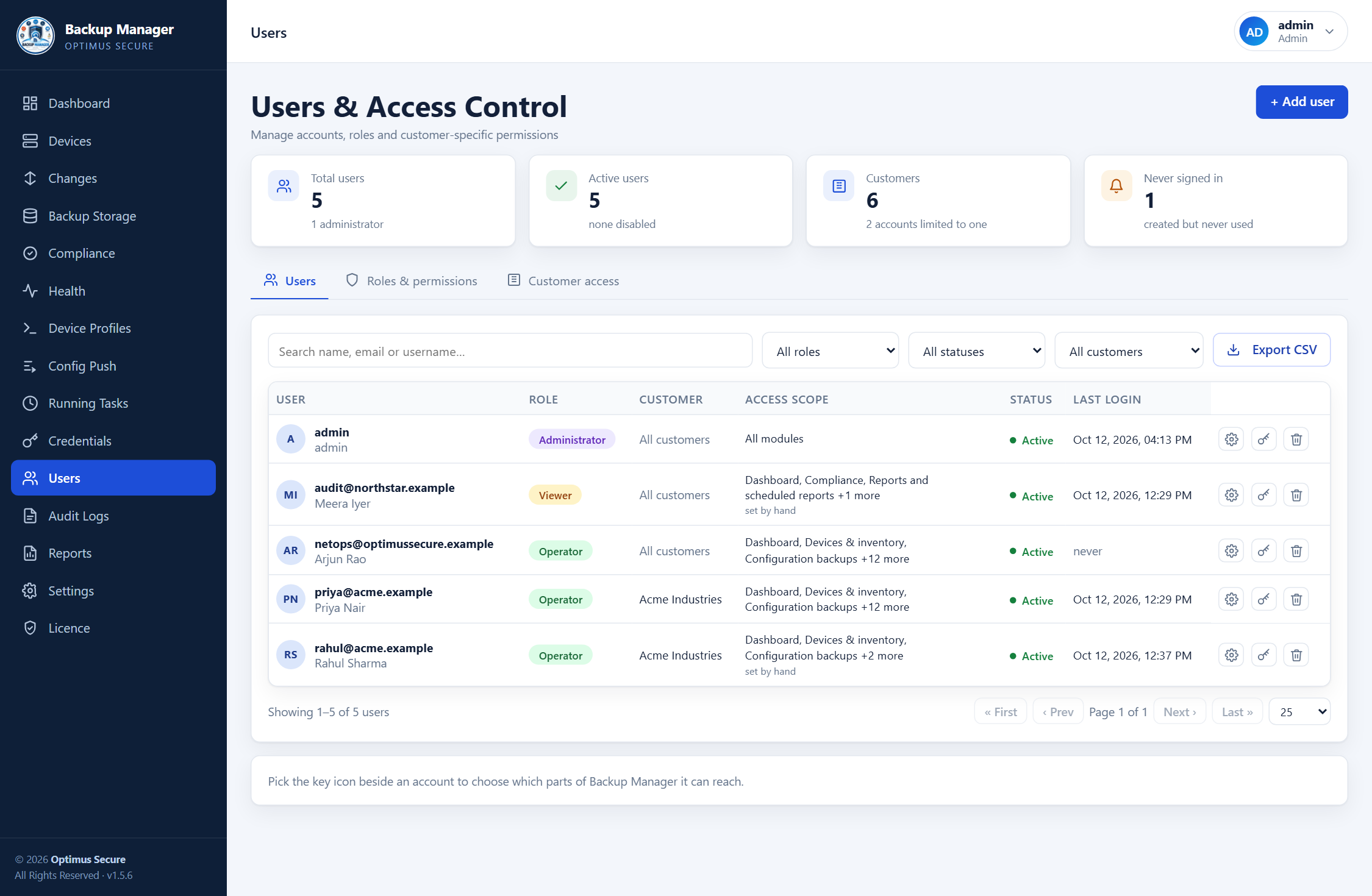
Users and access control — role, modules and customer, with the feature list that is actually enforced. The data shown is an example, not a live network.
Managing the service
The handful of commands worth knowing.
| Check it is running | sudo systemctl status backup-manager |
| Restart it | sudo systemctl restart backup-manager |
| Watch the log live | sudo journalctl -u backup-manager -f |
| Last 100 log lines | sudo journalctl -u backup-manager -n 100 |
| Stop it | sudo systemctl stop backup-manager |
Updating
From the dashboard, or from the terminal. Your data is never touched.
From the dashboard
Open Licence and press Check for updates. If a newer release exists you get the version, its size, when it was published and what changed — and an Install update button next to it.
The page follows the update as it runs. Part way through, the service restarts — that signs you out, which is expected. Sign back in and the Licence page picks the update back up and tells you how it ended.
From the terminal
The same update, run by hand. It asks the licence server what is available, shows you the release notes, and installs it if you say yes. The download is checked against a published SHA-256 and refused if it does not match, so a tampered mirror cannot push code onto your server.
| See what is available without installing | sudo backup-manager-update --check |
| Install without prompts | sudo backup-manager-update --yes |
| Go back to the previous version | sudo backup-manager-update --rollback |
What happens to your data
Your database is copied aside first, the new version is put in beside the old one, and the service is switched over. If the new version does not come up healthy, the old one and the database go back automatically — by either route. Backups, configuration and history are never replaced.
Troubleshooting
The things that usually go wrong, and what they mean.
| The dashboard is not on port 3000 | The installer asks for another port when 3000 cannot be used, and prints the address it settled on. grep PORT /etc/optimus-backup-manager/backup-manager.env shows it at any time. To move it deliberately, run the installer again with --port. |
| Cannot open the dashboard | Check the service is running (systemctl status backup-manager) and that the port is open in the firewall. |
| A device fails with a handshake or algorithm error | Older equipment needs legacy algorithms. Edit the device and turn that option on — it makes the connection negotiate the way PuTTY does. |
| Login works in PuTTY but not here | Usually an enable password that has not been filled in, or a profile whose prompt does not match this device. Use Test Connection — it shows what the device actually sent back. |
| The host key changed | The device was replaced or reinstalled — or something is in the way. Backup Manager refuses to connect until you look at it, which is the point. Confirm the new key under the host keys list once you are satisfied. |
| A backup is very slow | Almost always a server backup pulling directories you do not need. Use the tree picker to exclude them, and raise the parallel sessions for that device. |
| New backups stopped and there is a licence banner | The trial ended or the server could not be reached for several days. Everything already stored is still available. Open the Licence page and use Check now, or contact us. |
| "The system clock was moved back" | A licence term cannot be checked against a clock that goes backwards. Correct the time on the server, then acknowledge it on the Licence page. |
Getting help
Tell us what you were doing and what you saw, and send the log if you have it.
The quickest thing you can send us is the output of
sudo journalctl -u backup-manager -n 200 along with the device name
and what you were trying to do. For a device that will not connect, the Test Connection transcript
tells us most of what we need.